
Payout Rule Overview
Payout Rules are templated criteria and rules that automatically create payouts/commissions within a Project Contract.
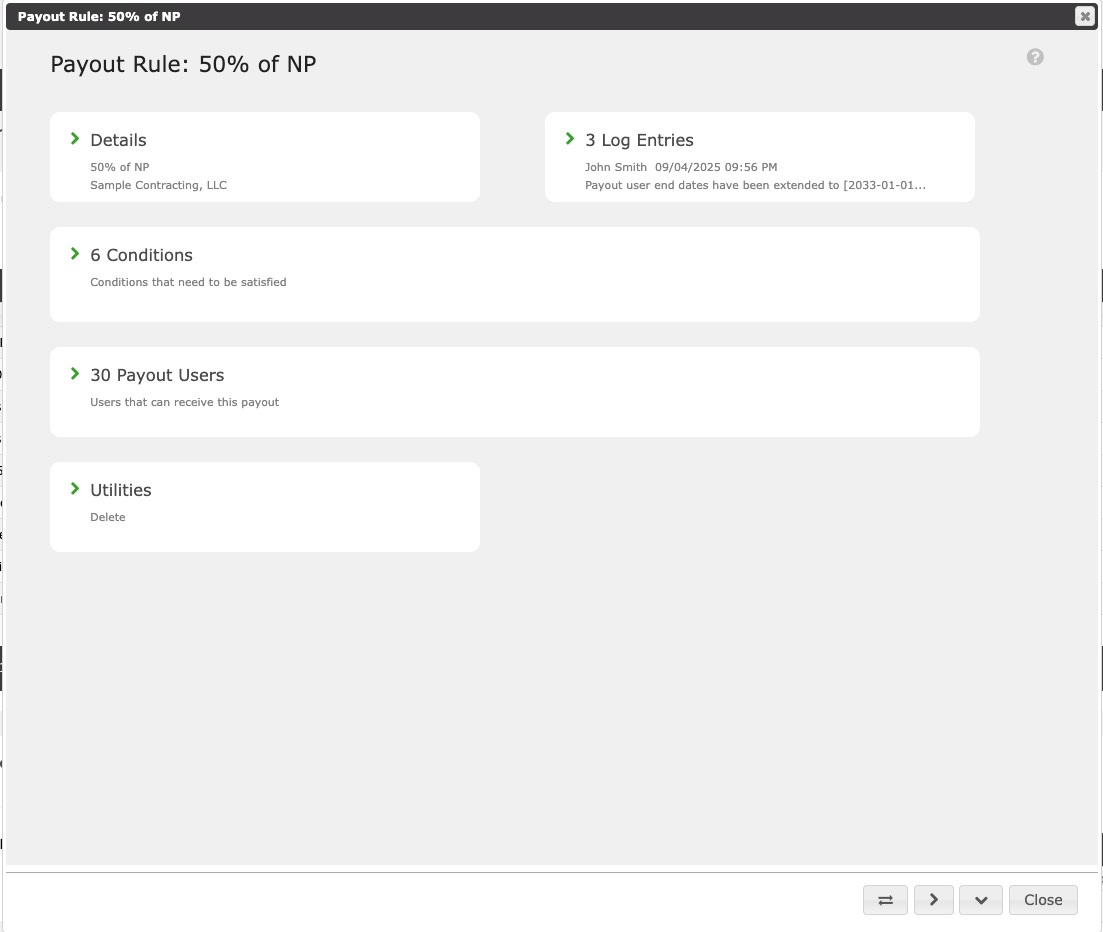
The creation, tracking, and management of payouts is made easy using advanced automation. Since there are a vast amount of ways that companies handle their payout structures, this system may not be able to handle every possible desire or scenario.
Before any payouts can be made, the payout rules have to be defined (i.e. create a commission schedule). A rule defines what the payout is, the amount, conditions for the payout to occur, and who will eligible for the payout.
Details
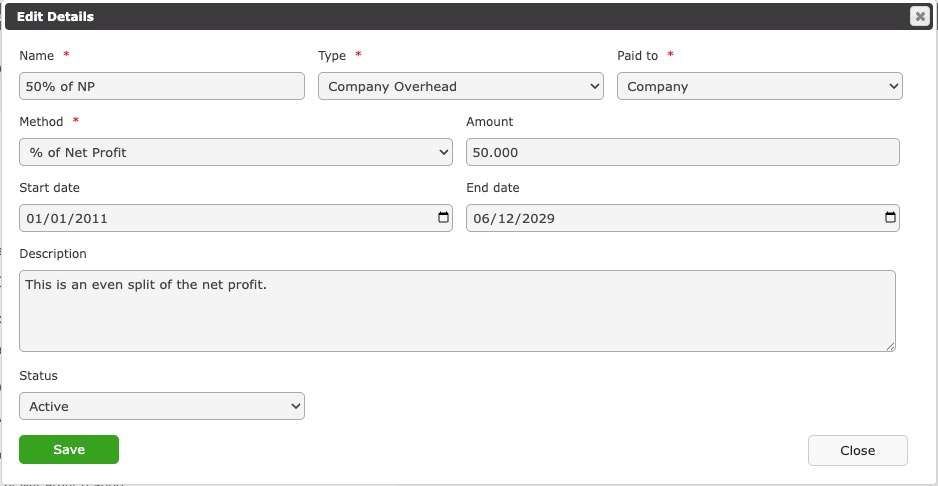
Name - This is the unique name that describes the payout rule. (i.e. Commission (Per Ticket), Bonus - Sales Manager, Draw - Signed Contract, etc.). It is good practice to include the payout type (i.e. Draw -, Commission -, Bonus -, etc.) for the first part of the name. This helps with sorting the payout rules within a list as well as clearly indicating what the rule is.
Type - The payout type defines what the payout is.
- Company Overhead - Company overhead is any money taken from the company's gross profit to cover overhead expenses. Essentially, it is a payout to the company.
- Draw - A draw is a portion of a commission that is paid up front prior to the project being completed.
- Commission - A commission is the money paid, less any prior draws, for services rendered in for selling and managing the project.
- Bonus - A bonus is commission that is paid over and above the terms of a commission.
- Fee - A fee is a set dollar amount paid per project for services rendered.
Paid To - This is the Company Role the payout is paid to. Therefore, whatever User assumes this Company Role within a Project Team, that User will be assigned the Payout.
Method - Following the details is the rule amount. This is where you define the amount of the payout and the method for which it is calculated.
- % of All Down Payments - This indicates that percentage amount entered in the Amount field will be multiplied by the sum of all down payments to come up with the final payout amount.
- % of All Payments - This indicates that percentage amount entered in the Amount field will be multiplied by the sum of all payments to come up with the final payout amount.
- % of All Progress Payments - This indicates that percentage amount entered in the Amount field will be multiplied by the sum of all progress payments to come up with the final payout amount.
- % of Gross Profit - This indicates that percentage amount entered in the Amount field will be multiplied by the contract's actual gross profit to come up with the final payout amount.
- % of Net Profit - This indicates that percentage amount entered in the Amount field will be multiplied by the contract's actual net profit to come up with the final payout amount.
- % of Total Revenue (Approved + Billable - Credits) - This indicates that percentage amount entered in the Amount field will be multiplied by the total of all approved and billable invoice items less credit memos price to come up with the final payout amount.
- % of Total Ticket (Any & All Contract Items) - This indicates that percentage amount entered in the Amount field will be multiplied by the total of all invoice items to come up with the final payout amount.
- % of Total Ticket (Approved & Billable Only) - This indicates that percentage amount entered in the Amount field will be multiplied by the total of all approved and billable invoice items to come up with the final payout amount.
- Straight Fee - This indicates that the dollar amount entered in the amount field will be what is paid when the conditions are met.
Amount - This will be the amount associated with the payout method. This amount will be either a dollar or percentage amount. Based the payment method, Contractors Cloud will know if it should be a dollar or percentage amount. There is no need to enter a dollar or percentage sign.
Start End - Every payout requires a start and end date. This is beneficial in those cases where you may want to introduce a new payout rule or you are replacing an existing rule, but you do not want it to start (or end) until some date in the future. You can adjust the dates of the rules to ensure a seamless transition. The start date is the date the payout rule has started or will start.
End Date - The end date is the date the payout is expected to end. If you expect the payout rule to be indefinite, the set the payout end date to 20 or 30 years out.
Description - An optional description for the payout.
Status - The status options are either Active or Archived. If the status is Active, the rule will be applied to all projects where the conditions are met. If Archived, the rule will not be available for use.
Log Entries
This section contains log entries documenting changes to the Payout Rule.
Conditions
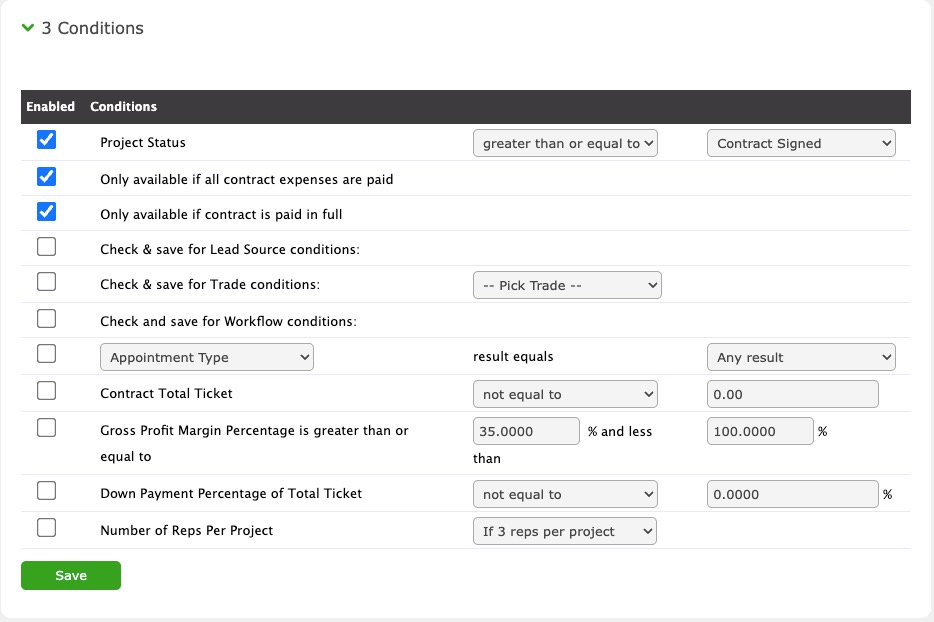
This section allows you to set certain conditions that have to be met in order for the payout to be available. In order for a condition to be valid, a check needs to be placed in the checkbox next to the condition.
Project Status - This allows you to set a time for when the payout is available. NOTE: Be mindful of the operator you set (i.e. greater than, less than, equal to, etc.) If you set the operator to equal to, that payout will only be available when the project status is equal to what you set. If you wish to have the payout available any time after the project status you set, you may want to use greater than or greater than or equal to. Please view the Payouts/Commissions lesson within the Knowledge Base for examples.
Only available if all contract expenses are paid - The payout will only be available if all contract expenses are either paid or denied.
Only available if contract is paid in full - The payout will only be available if all invoices for the contract are paid in full and the balance due is 0.
Only available for these Lead Sources - The payout will only be available if the project lead sources equal to what you set here. For instance, if you allow a certain payout if the project was self generated, then you would pick the self generated campaign you have previously created in the company's marketing campaigns.
Only available for these Trades - The payout will only be available if the project contains a work order with the trade given here.
Appointment Category - The payout will only be available if a certain appointment type has the appointment category listed here.
Gross Profit Margin Percentage - The payout will only be available if the gross profit margin percentage is a particular amount.
Down Payment Percentage of Total Ticket - The payout will only be available if the down payment percentage of the total ticket is a particular amount.
Number of Reps Per Project - The payout will only be available if the number of sales reps is shown here. This is used if you set up splits on projects where sales reps share the credit. You will need to create a separate payout for each role.
Payout Users
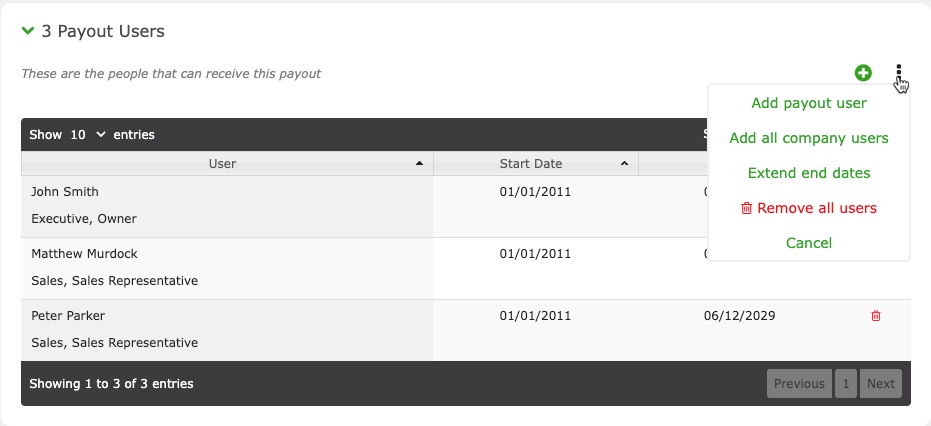
Now that you have created a payout rule, it is time to assign users to that rule. The reason you need to assign users is for the fact that some users may not qualify for that rule. For instance, let's say you have some reps that receive 30% of the net profit and some that receive 40% of the net profit. In this case you would create a rule for the 30% reps and another rule for the 40% reps.
Utilities
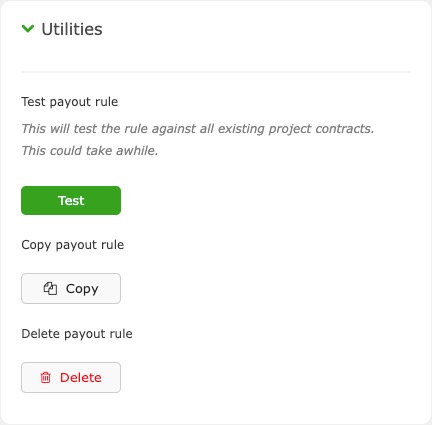
This is where you Test, Copy, or Delete a Payout Rule.
Testing updates any existing Contract Payout with any new criteria after an update. If this is a common Payout Rule, this could take awhile, so be patient.