
Trade Overview
These are the Trades your entire organization performs, regardless of Company. Trades are used primarily in Estimating and Ordering.
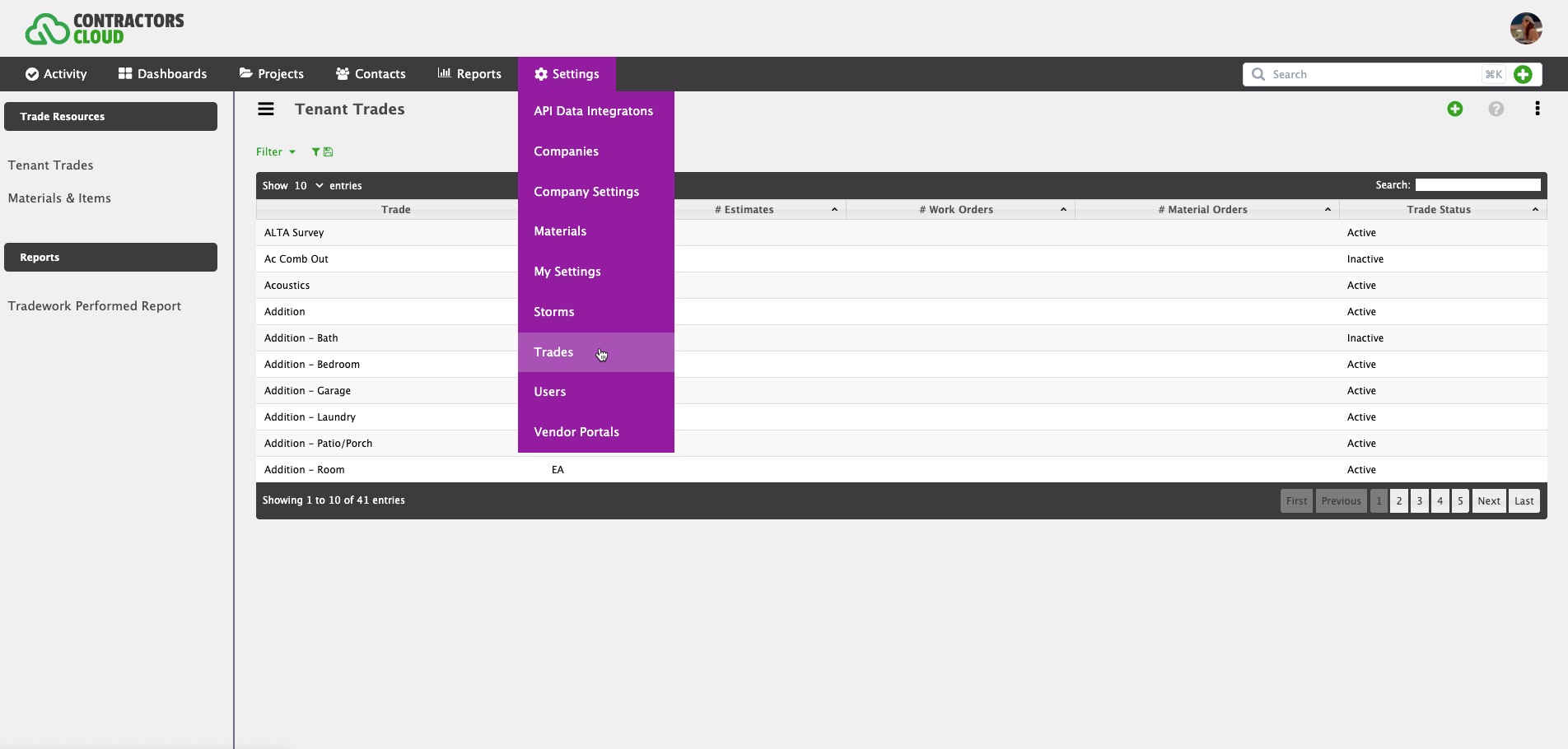
Trade Interface
This is where a Trade is created and customized. A construction trade is a broad term for a variety of jobs that involve hands-on work to build or maintain structures. A Trade is a set of settings governing the operation of the trade throughout the program.

Once a Trade is created from one of our global trades, a User can customize the following:
- Trade Name Format - A User can design how Work Orders related to this Trade appear in tables and lists.
- Settings - Various settings that determine how this Trade operates in Work Orders, Material Orders and other areas.
- Custom Fields - A User can design custom fields, by Trade, which are used in Estimates and Work Orders. Trade Custom Fields are an important component when automating quantity data from 3rd-party programs.
Trade Details
These are the high level details for the Tenant Trade. These include the Trade unit, description, and status.

Unit (required)
This is the unit that is used to define this trade. Some examples are EA, SQ, LS LF, etc.
Description
An optional description for the Trade. It is always helpful to add a description letting Users know how this Trade is used and what it is intended for.
Status
Status for the Trade. Only Active Trades can be used.
Adding a Trade
When adding a Trade, a User needs to choose a Trade from our global trade list.

If you do not see the Trade you need, contact our service department. Having said that, it is our goal to keep our global trade list as simple as possible, so if there is a Trade that is close, you will be required to use that one.
Trade Name Format
This is where a User customizes how work order names appear within production interfaces.

Certain data such as Customer Account Data, Project Data, Work Order Data, First Material Order Data, and/or Work Order Custom Field data can be included into the name.
Click ⋮ to update the name of all work orders using this trade. Otherwise, the new name will take effect on any new Work Order. Note: This process could take awhile, so be patient.
General Settings
These settings deal with how addresses and customer contact information are handled.
Note: These settings pertain to both Work and Material Orders that are related to this Trade.

Addresses on Work/Material Orders - Toggles the customer account mailing address from work orders and material orders. This eliminates confusion on accessing the wrong address if mailing and site addresses are different.
Customer Contact Info on Work/Material Orders - Hides customer phone numbers on work orders and material orders.
Work Order Settings
These are settings that determine what a User can see and do within a Work Order.

Utilize Work Order Revenues - Turns on detailed financial info within the Cost Information of a work order. Keep this off if you do not want sales and production staff seeing detailed work order financials. This does not affect work order print outs.
Work Order Project Notes - Turns on project notes pertaining to the work order within the work order interface.
Show Install/Complete Times on Work Order - Hides the actual times (i.e. 2:00pm) from the work order print outs. However, the install and completion dates will remain.
Work Order Print Outs
Print Custom Trade Fields - Shows/hides the custom trade fields within the work order print out. However, they will remain within the work order interface.
Print Related Work Orders - Lists other work orders related to the project within the work order print out. This assists the crew and field staff in knowing the full scope of the project.
Print Related Material Orders - This prints out entire material order items within the work order print out. This assists the crew in knowing what material was ordered versus what was delivered.
Print Labor Items - This shows all work order labor items on the work order print out. This specifically shows what the crew needs to do.
Print Pricing on Work Orders - This shows labor item pricing on the work order print out.
Custom Production Message to Appear on Work Order - Any message entered here will be displayed on every work order print out as work order instructions.
Material Order Settings
These are settings that determine what a User can see and do within a Material Order.

Material Order Project Notes - Turns on project notes pertaining to the material order within the material order interface.
Auto Calculate Labor Items from Materials - This automatically adds related labor items to a Work Order. NOTE: This pertains to our "Classic" version and will soon be replaced by Material Automations.
Show item SKU/Code on Material Orders - Shows a material's SKU number within material orders.
Material Order Print Outs
Print Pricing on Materials Orders - Prints pricing on material orders. Typically this is only down when pricing between you and the Supplier is agreed upon.
Print Installer Info on Material Order - Prints Installer information on the Material Order print out.
Custom Production Message to Appear on Material Order - Any message entered here will be displayed on every material order print out.
Trade Custom Fields
This is where Trade Custom Fields are managed. These custom fields are available in estimates and work orders associated with this trade. You can add custom fields such as text boxes, number, dates, checkboxes, memos, and option pull downs. These Trade Custom Fields are on a Tenant level and will appear for all companies.

These custom fields also serve as bridge between 3rd-party measurements and your estimates. Therefore, data entered into these custom fields can automate estimate creation depending on material and item setup.
Custom Field Mapping
This is where a User maps, or connects, a 3rd-Party source data point to this custom field. Only one data point per source can be mapped to a custom field.

Estimate Usage
Once properly mapped, 3rd-Party data can flow into the Trade Custom Fields within an Estimate.
In the following example, when an EagleView report is viewed and imported within an estimate, the EagleView "AreaValue" data will flow into the Trade Custom Field called "Total Roof Area".
Trade Events
These are the Company Events this Trade is related to.
