
QuickBooks Desktop
Contractors Cloud integrates with QuickBooks Desktop (Windows) so the customers, jobs, invoices, payments, vendors, and bills you already manage in Contractors Cloud flow into your QuickBooks company file — without re-keying them by hand.
Why it helps: one source of truth for your accounting, no double entry, fewer transcription errors, and a clear trail between the two systems. Because QuickBooks Desktop runs on your own computer (not in the cloud), Contractors Cloud connects through Intuit's QuickBooks Web Connector — a small Intuit app that runs on the machine holding your company file and periodically picks up the data Contractors Cloud has queued for it. (Intuit does not offer a Web Connector for QuickBooks for Mac.)
Quick start (minimum steps)
- Ask your Contractors Cloud Account Manager to enable the QuickBooks integration, and make sure your user is a QuickBooks Administrator in Contractors Cloud.
- In Company Settings → QuickBooks, set QuickBooks Type to QuickBooks Desktop and turn Enable QuickBooks for this Company on.
- Create at least one Web Connector Profile (the green + button) — name it after your QuickBooks company file.
- Set Synchronize Contracts after this Date to a recent date. Only jobs on or after this date can sync — start fresh; don't back-sync history already in QuickBooks.
- Choose your Synchronization Settings (Invoice, Credit Memo, Payment, Bill, and so on) and a Synchronize Type (Manual by Button or Automatic).
- Download the Web Connector file, add it in QuickBooks from the File → Update Web Services menu, and enter the Web Connector password. Run it on the computer that hosts your company file, in single-user mode, as a QuickBooks admin.
- Import your Accounts and Invoice Items from QuickBooks (Company Settings → Financial Accounts and Invoice Items), then open a job and click Sync Job, and run the Web Connector to process the queue.
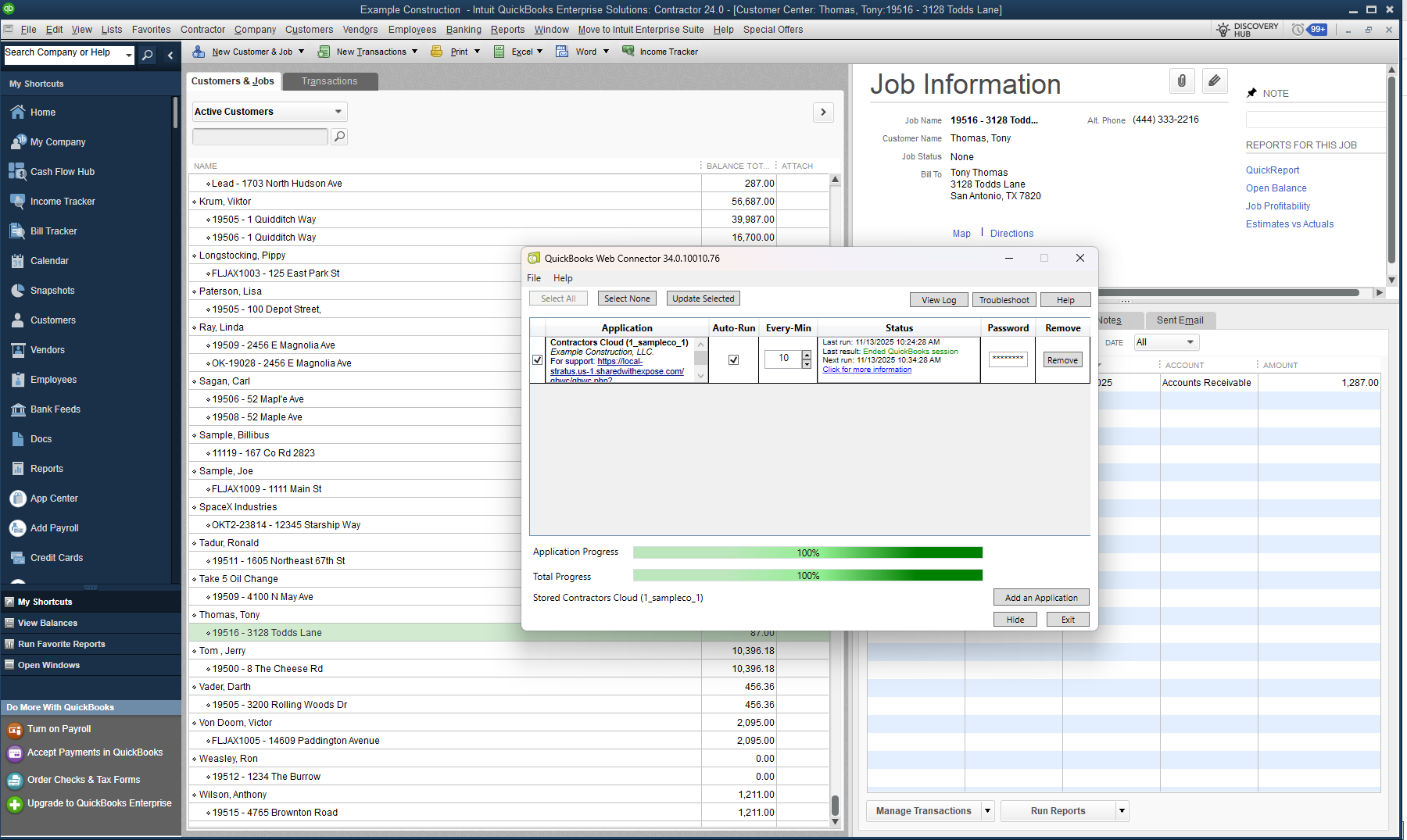
Legacy Classic App
For those still using the Classic QuickBooks Desktop integration, Stratus operations will feed the Classic QuickBooks Desktop queue. Meaning, you can use the Classic QuickBooks Desktop integration as is with Stratus with no reconnection.
However, at some point you will need to disconnect in Classic and reconnect in Stratus.
What Data Gets Synced
Employees
User data with a direct responsibility role within a Project and a User Type of "Employee" is a 1-way push into a QuickBooks Employee. NOTE: On QuickBooks Desktop, users are not pushed into QuickBooks as Vendors.
Sales Rep
User data with a direct responsibility role within a Project will be a 1-way push into a QuickBooks Sales Rep.
Customers
Customer Account data is a 2-way sync depending on where it was updated last.
Customer Jobs
Contractors Cloud project data is a 1-way push into a QuickBooks Customer Job.
Class Tracking
Auto create and update functionality not available. However, classes will transfer if the class name exists, letter-for-letter, in both Contractors Cloud and QuickBooks.
Financial Accounts
QuickBooks Financial Accounts can be imported into Contractors Cloud.
Invoice Items
Invoice Item data is a 2-way sync depending on where it was updated last. However, QuickBooks Service Items can be imported and updated in Contractors Cloud.
Invoices
Contractors Cloud invoice data is a 1-way push into a QuickBooks Invoice. Contractors Cloud attempts to match existing QuickBooks invoices by reference numbers on the initial sync.
Credit Memos
Credit Memos currently do not sync.
Payments
Contractors Cloud payment data is a 1-way push into a QuickBooks payment.
Refunds
Refunds currently do not sync.
Bills
Contractors Cloud bill data is a 1-way push into a QuickBooks bill. However, QuickBooks Bills that have been modified within the last 2 weeks can be imported into a Contractors Cloud Contract.
Vendor Credits
Vendor Credits currently do not sync.
Vendors
Installer, Supplier, and Vendor data are a 2-way sync into a QuickBooks Vendor depending on where it was updated last.
Sales Tax Codes
Sales Tax Codes do not sync. However, make sure the tax code names in a Contractors Cloud Event match exactly what they are in QuickBooks and they will be recognized during data transfers.
Delete Functionality
Contractors Cloud contains no deletion functionality in QuickBooks. Therefore, if an entity is deleted in Contractors Cloud, it should be manually deleted or made inactive in QuickBooks.
Requirements
Before we get started on the QuickBooks setup process there are a couple of things that need to be done.
- Your Contractors Cloud Account Manager will need to first enable your QuickBooks integration.
- Make sure you are a Contractors Cloud QuickBooks Administrator.
- You will need to work on the same computer/server that your QuickBooks file is stored on.
- You will need to work as an administrator in your QuickBooks.
- You will need to work in single-user mode in your QuickBooks.
- Log into your Contractors Cloud and navigate to Dashboard -> Corporate Dashboard -> Click Quickbooks Integration on the left-hand side.
QuickBooks Connection
Click the QuickBooks integration option within Company Settings (permission required).
QuickBooks Type
Set to QuickBooks Desktop, if not already set.
Enable QuickBooks for this Company
Set this to ON. Setting to OFF will pause all submissions to the web connector queue.
Web Connector Profiles
A Web Connector Profile tells the QuickBooks company file what Contractors Cloud company, or companies, to pull data from. A Profile allows multiple Contractors Cloud Companies to connect to a single QuickBooks desktop file.
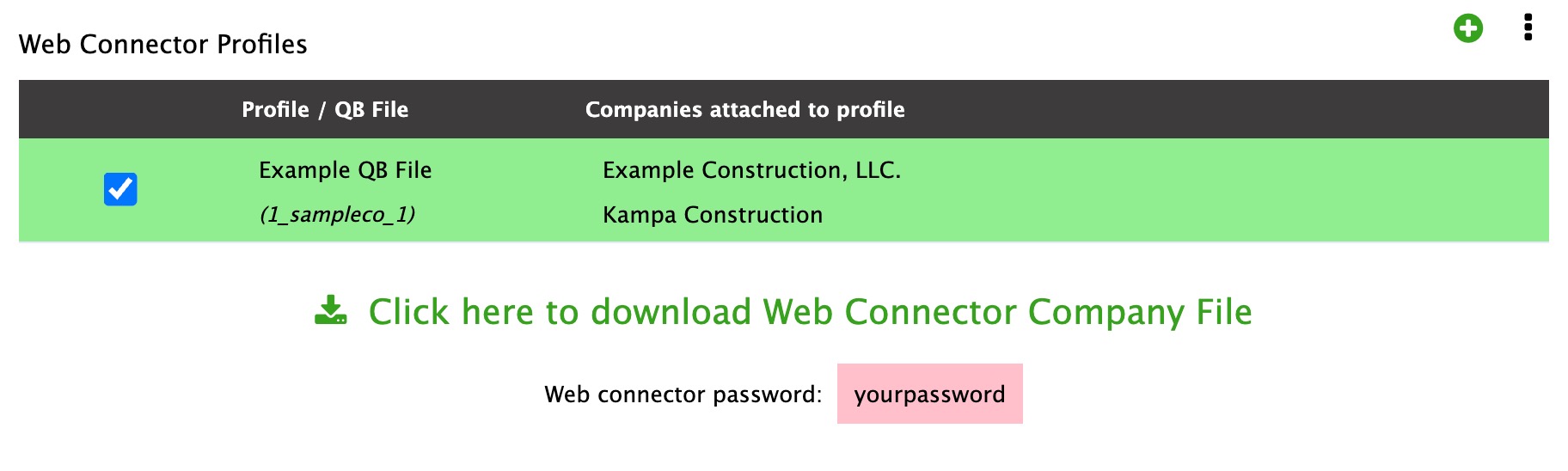
At least 1 QuickBooks profile is required to connect Contractors Cloud and QuickBooks Desktop. Click the green circle plus to create a profile. It's recommended to use the QuickBooks company file name as the profile name.
WARNING: Deleting an active profile will cause any QuickBooks connection for the listed companies to cease. However, this will not alter any data in Contractors Cloud or QuickBooks.
NOTE: Any changes to a profile will require a re-connection with the QuickBooks web connector. See "How the Web Connector Works" below.
Synchronization Settings

EMPLOYEE/SALES REP EXPORT
This syncs employees and sales reps. Click this on if you want the employee/sales rep to be attached to the QuickBooks job and invoices. NOTE: In order for a User to sync, they need a User Type of either Employee or 1099 Vendor.
CUSTOMER JOB EXPORT
Here you can enable customer jobs. WE HIGHLY RECOMMEND ENABLING CUSTOMER JOBS in case you do future work for an existing customer.
INVOICE SYNC
Set this to Export to QuickBooks to send Contractors Cloud invoices to your QuickBooks company file. NOTE: You will need to assign QuickBooks accounts to your invoice items in the Invoice Customization area to the left. On QuickBooks Desktop the sync options are Sync disabled and Export to QuickBooks; 2-way sync is available only on QuickBooks Online.
CREDIT MEMO SYNC
Choose whether credit memos are exported to QuickBooks. NOTE: This does not include refunds or overpayments, which must be entered manually in your QuickBooks.
PAYMENT SYNC
Set this to Export to QuickBooks to send payments to QuickBooks. NOTE: all payments come over as un-deposited payments. If you want them automatically marked as deposited, set this in your QuickBooks Company Preferences.
BILL SYNC
Set this to Export to QuickBooks to send Contractors Cloud expenses to QuickBooks as bills.
AUTO MARK INVOICES FOR PRINTING
This setting allows you to automatically mark invoices for printing within your QuickBooks.
AUTO EXPORT EXPENSES ON WORK ORDER COMPLETION
Setting this auto sync is a safety measure to ensure all of your invoices are in QuickBooks when Contractors Cloud senses all work has been completed.
QuickBooks Settings
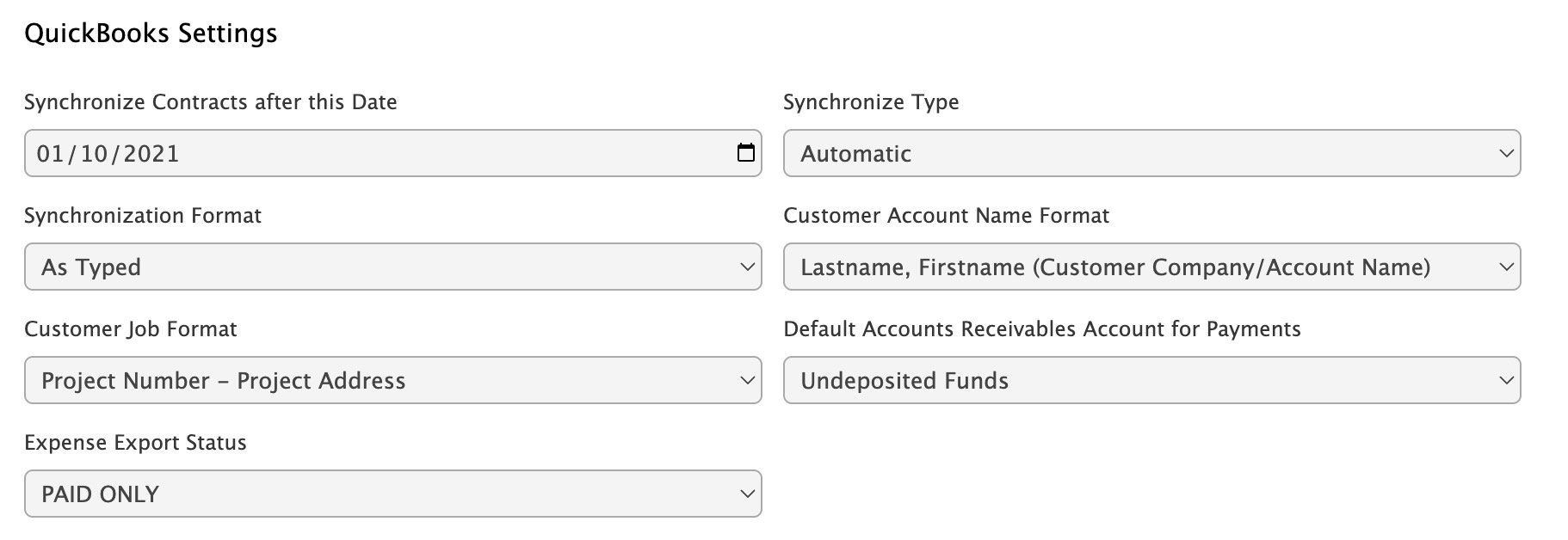
Synchronize Contracts after this Date
Here you enter a date where any contract on or after this date will have the option to be synced with your QuickBooks.
CAUTION: IT IS HIGHLY RECOMMENDED TO START FRESH WITH NEW CONTRACTS THAT ARE NOT CURRENTLY IN YOUR QUICKBOOKS. So set your date to something that is recent and that is not currently in your QuickBooks. The reason for this is if you have manually entered a customer into QuickBooks and you try to sync from Contractors Cloud it could recreate the customer or duplicate transactions that may have been entered manually.
Synchronize Type
Manual by Button - With this option you will have to push a button within the contract to send the data to QuickBooks.
Automatic - With this option it will automatically send data to QuickBooks whenever a financial transaction is updated in Contractors Cloud.
Synchronization Format
Here you can choose to bring all data with capitalized letters. This is merely a personal preference setting.
Customer Account Name Format
Here you can set how you want your customer names to be formatted in your QuickBooks. It defaults to Lastname, Firstname. We recommend keeping this default.
Customer Job Format
Here you can set the format of your customer jobs. It defaults to Project Number – Project Address. We recommend keeping this format.
Default Accounts Receivables Account for Payments
Payments will automatically be categorized in the Undeposited Funds section of your QuickBooks unless you enter a default Accounts Receivables account here. NOTE: The account must be an Accounts Receivables account.
Expense Export Status
This setting allows you to determine if you want only Paid expenses to transfer or Paid & Approved expenses to transfer.
How the Web Connector Works
Contractors Cloud Classic
Any current web connector connection to Contractors Cloud Classic will need to be removed.
Web Connector Download
Once a profile is created and checked, click the link to download the Web Connector File. This is the file that needs to be added to your QuickBooks web connector.

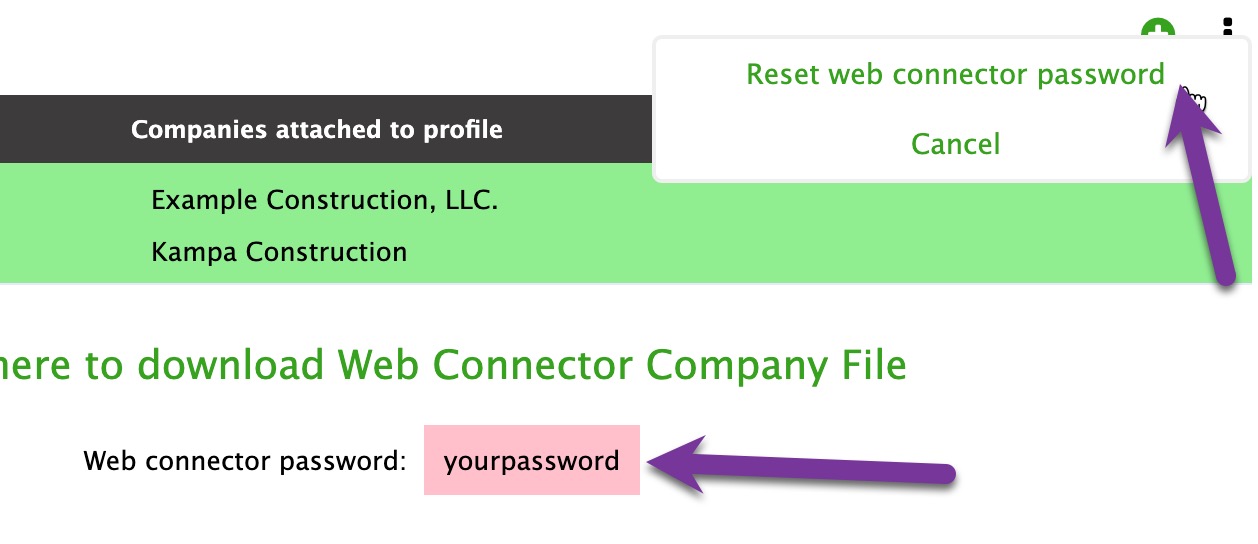
Copy the web connector password for later use. The password can be reset at any time. Once reset, the new password will have to be entered into the web connector.
Open the web connector by going into QuickBooks, click the File menu option, Update Web Services.


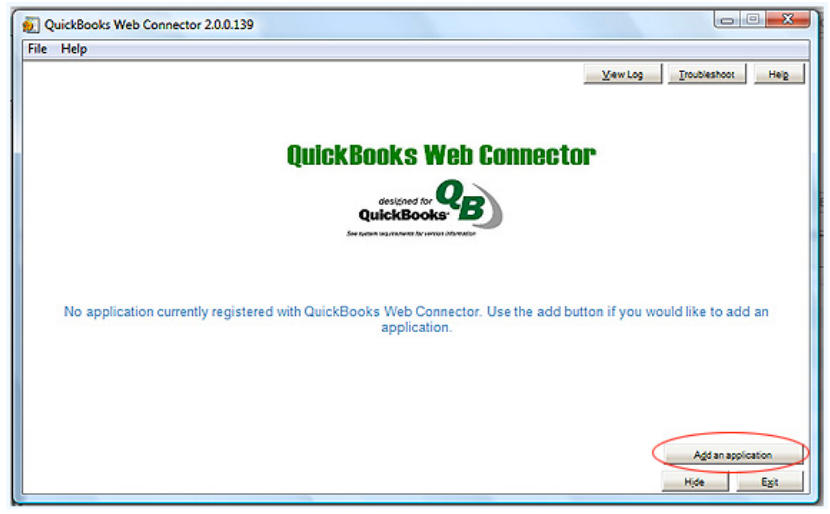
Click Add an application
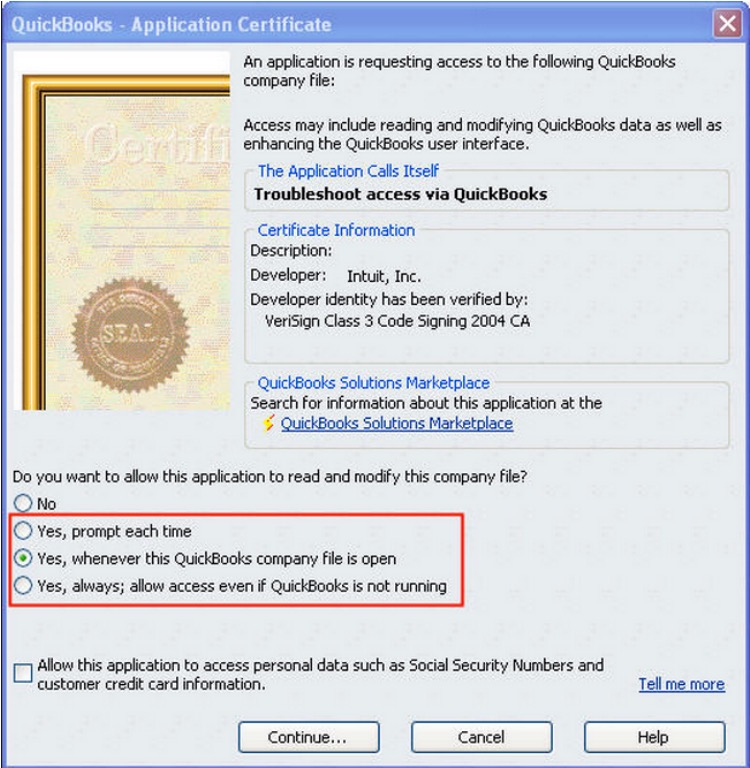
Click Yes, whenever this Quickbooks company file is open
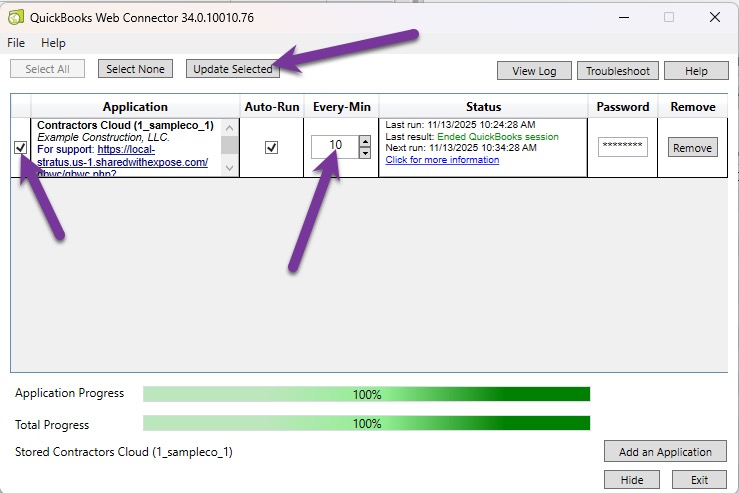
Now, the QuickBooks Web Connector window will appear with the Contractor’s Cloud application
listed. To finish the setup complete the following steps:
- Check the checkbox in the left column
- Enter your Web Connector password into the password field and press enter on yourkeyboard. Click OK to the password verification dialog.
Through various methods discussed later, Contractor’s Cloud will send data to the Web Connector queue.
The Web Connector will process the data within the queue and add it to QuickBooks. The Web Connector will automatically process data every X amount of minutes you have in the Every_Min column of the connector. We recommend going no lower than 3 minutes. Data can be processed at anytime by clicking the checkbox in the left column and clicking the Update Selected button.
Import Accounts
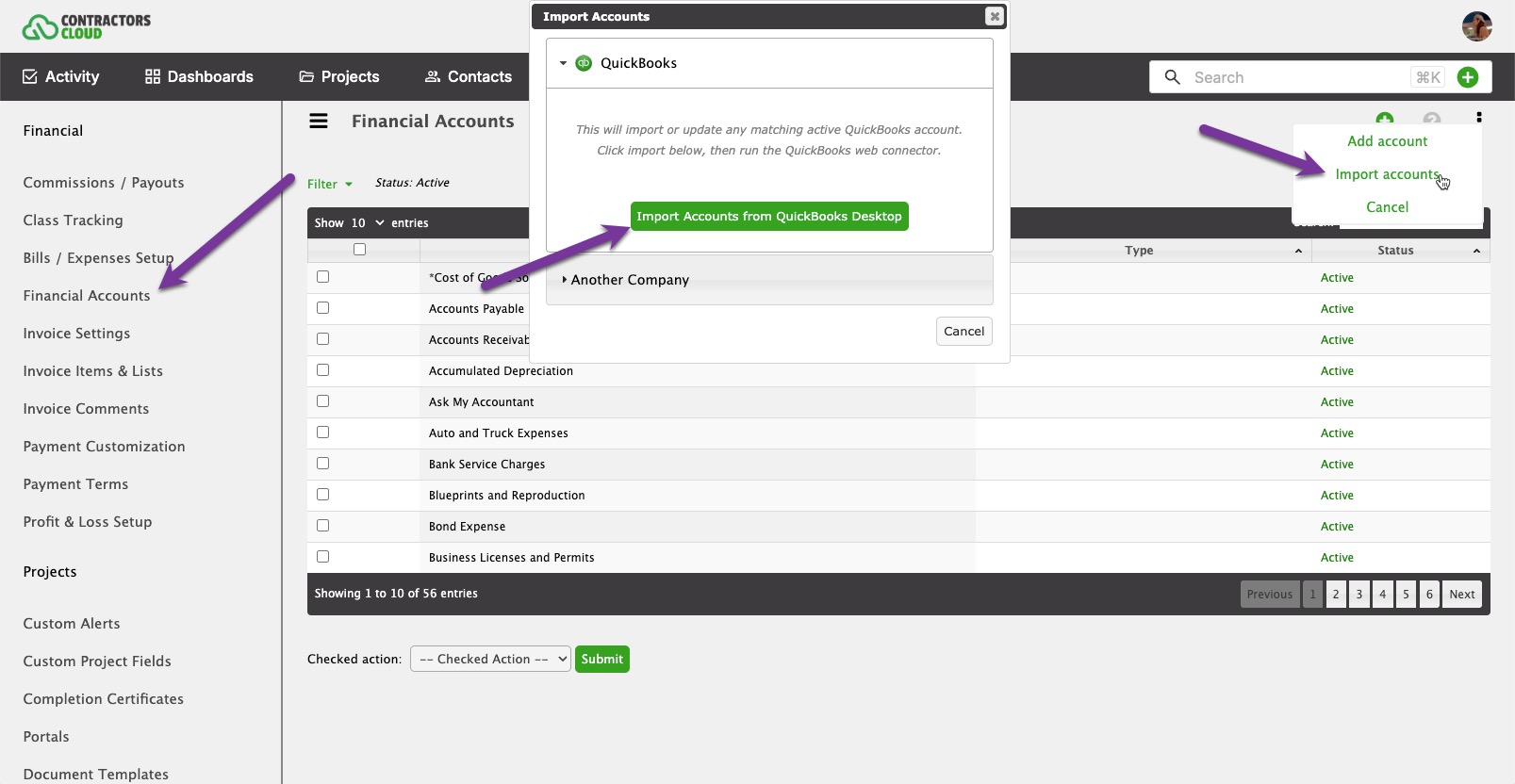
Within Company Settings, Financial Accounts click the Import accounts menu link, then click Import Accounts from QuickBooks Desktop. When clicked, run the web connector. This will update any matching accounts and import any new accounts from QuickBooks.
If Account changes are made within QuickBooks, this import should be redone in order to update the accounts in Contractors Cloud.
If any errors occur due to a financial account conflict, run this operation to re-sync accounts.
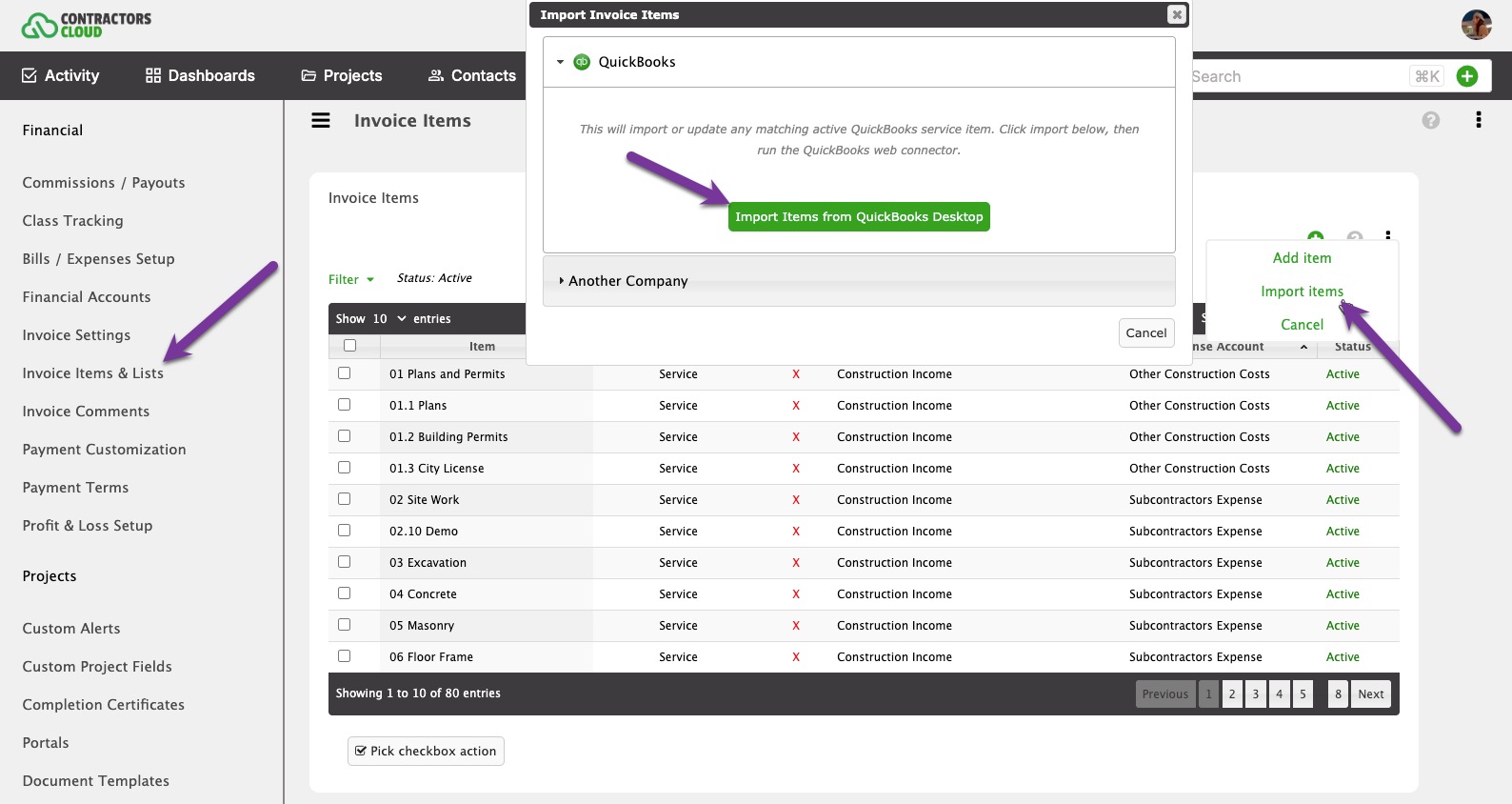
Import Invoice Items
Within Company Settings, Invoice Items & Lists click the Import items menu link, then click Import Items from QuickBooks Desktop. When clicked, run the web connector. This will update any matching invoice items and import any new items from QuickBooks.
If any errors occur due to an invoice item conflict, run this operation to re-sync items.
Sending Data to the Web Connector Queue
Below shows how to manually send data to the web connector queue. However, if the Synchronize Type is set to Automatic, data will automatically be sent to the queue.
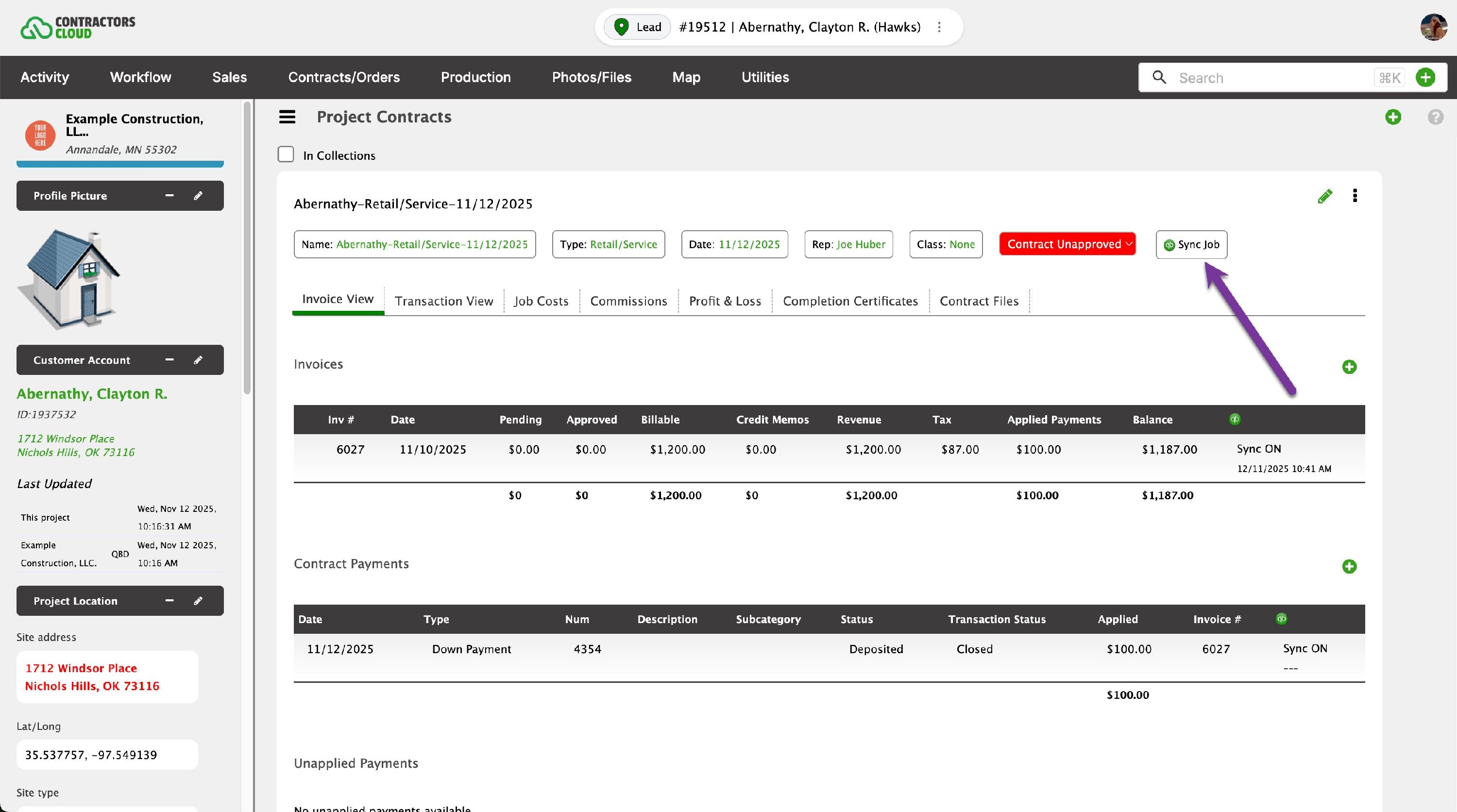
Sync an Entire Job
Click the Sync Job within a Contract to send the entire job to the web connector. This includes the Customer Account, Job Data, and all applicable Invoices, Payments, and Bills.
Customer Accounts
When a Customer Account is created in Contractors Cloud and used in a Job, the customer will be added as a Customer in QuickBooks.
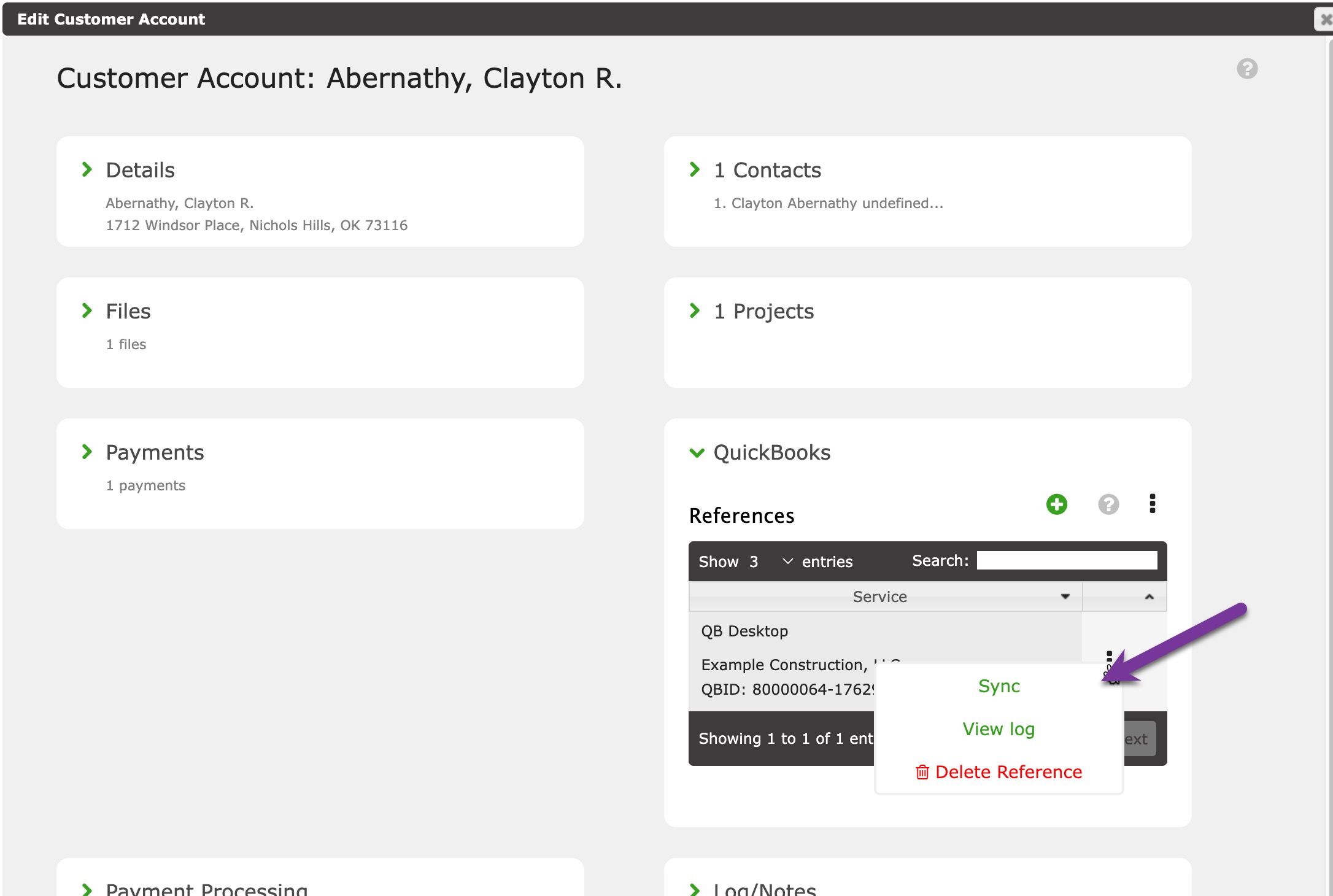
Click Sync to send the customer data directly to the web connector queue. Click View log to see the web connector process logs.
Invoice Items
When an invoice item is created in Contractors Cloud and used in an Invoice, the item will be added as a service item in QuickBooks.
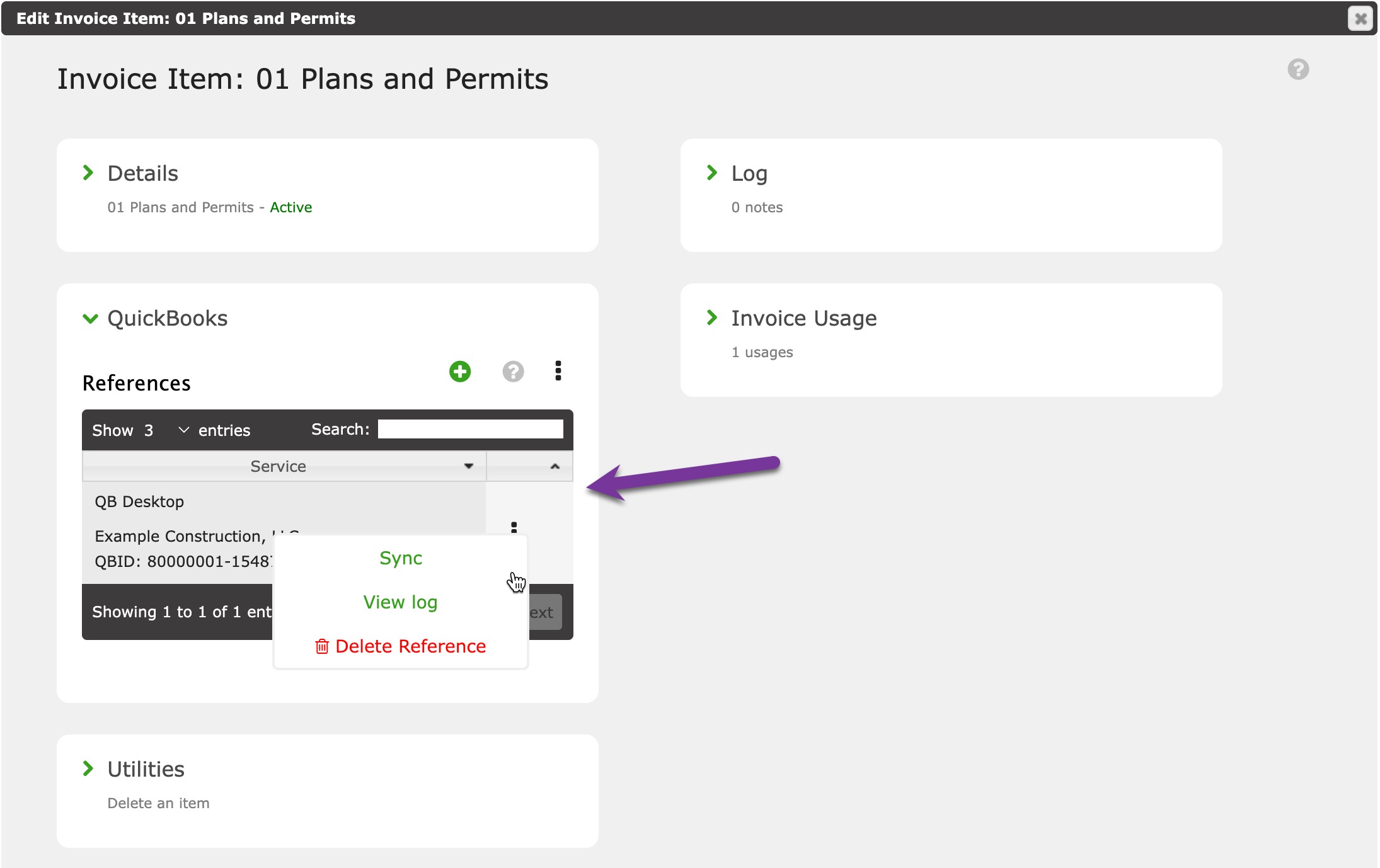
Click Sync to send the invoice item directly to the web connector queue. Click View log to see the web connector process logs.
Invoices
When an invoice is created in Contractors Cloud and Sync Invoice checked, the invoice will be added as an invoice in QuickBooks.
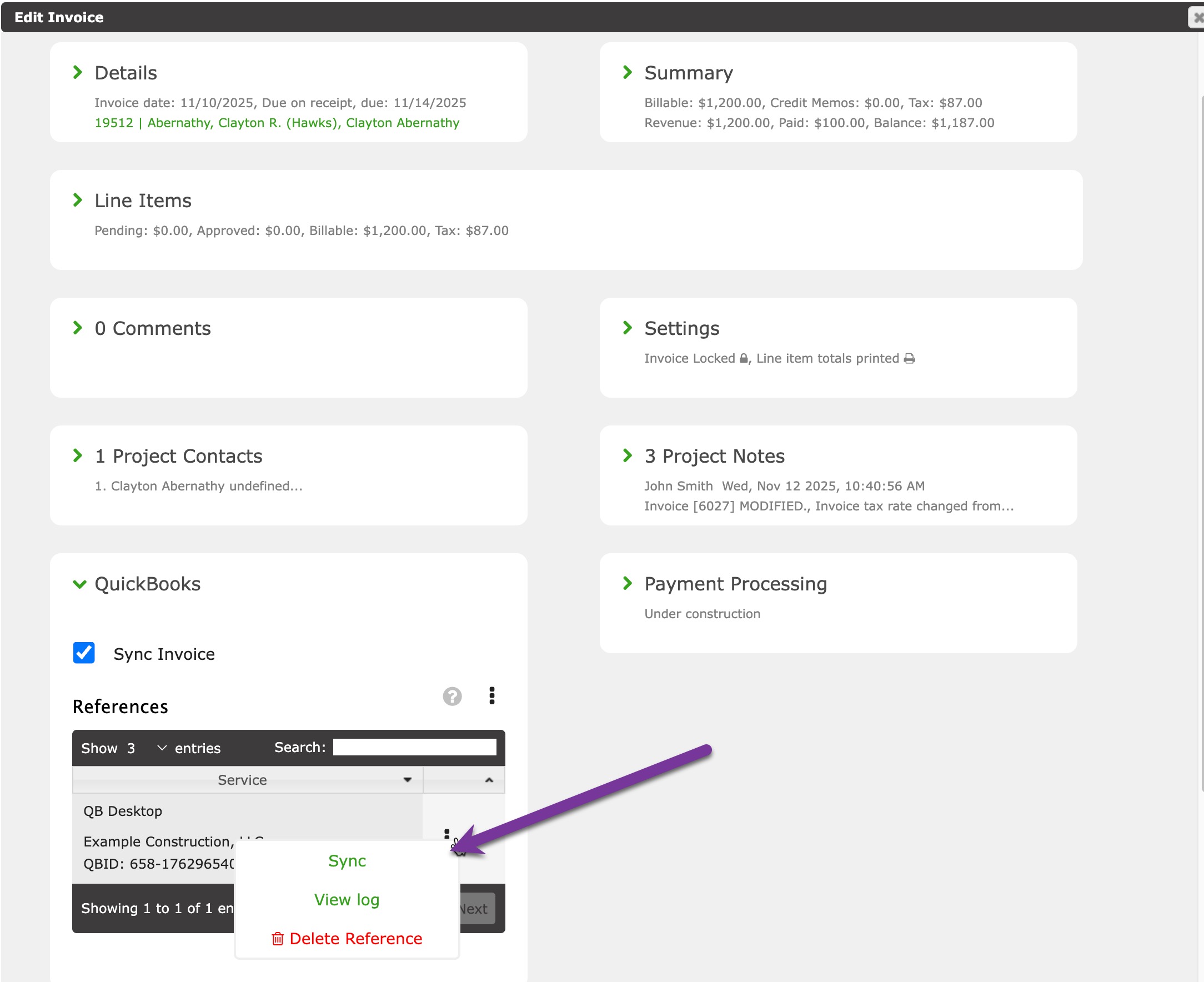
Click Sync to send the invoice directly to the web connector queue. Click View log to see the web connector process logs.
Payments
When a payment is created in Contractors Cloud and Sync Payment checked, the payment will be added as a payment in QuickBooks.
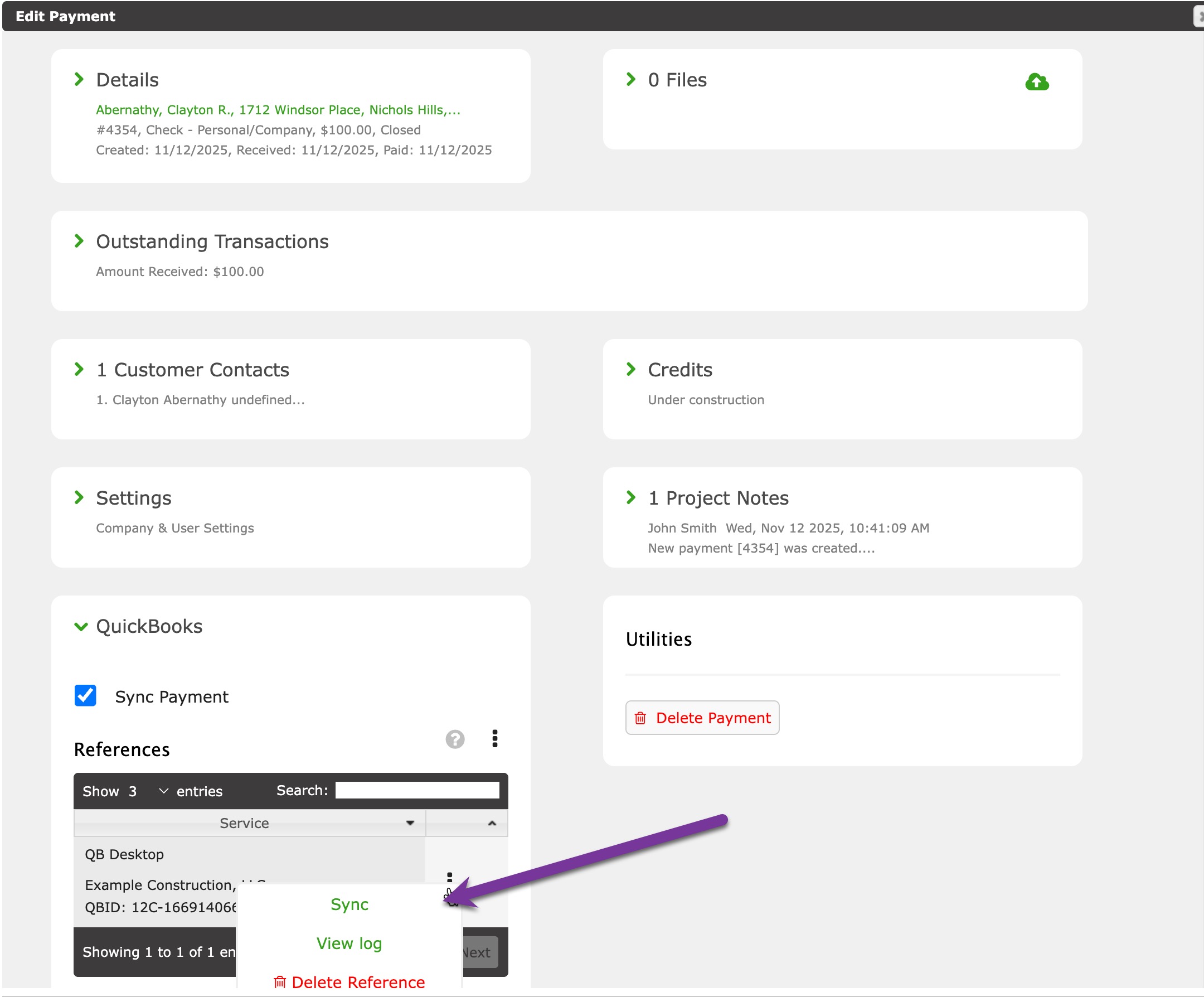
Click Sync to send the payment directly to the web connector queue. Click View log to see the web connector process logs.
Bills
When a bill is created in Contractors Cloud and Sync Bill checked, the bill will be added as a bill in QuickBooks.
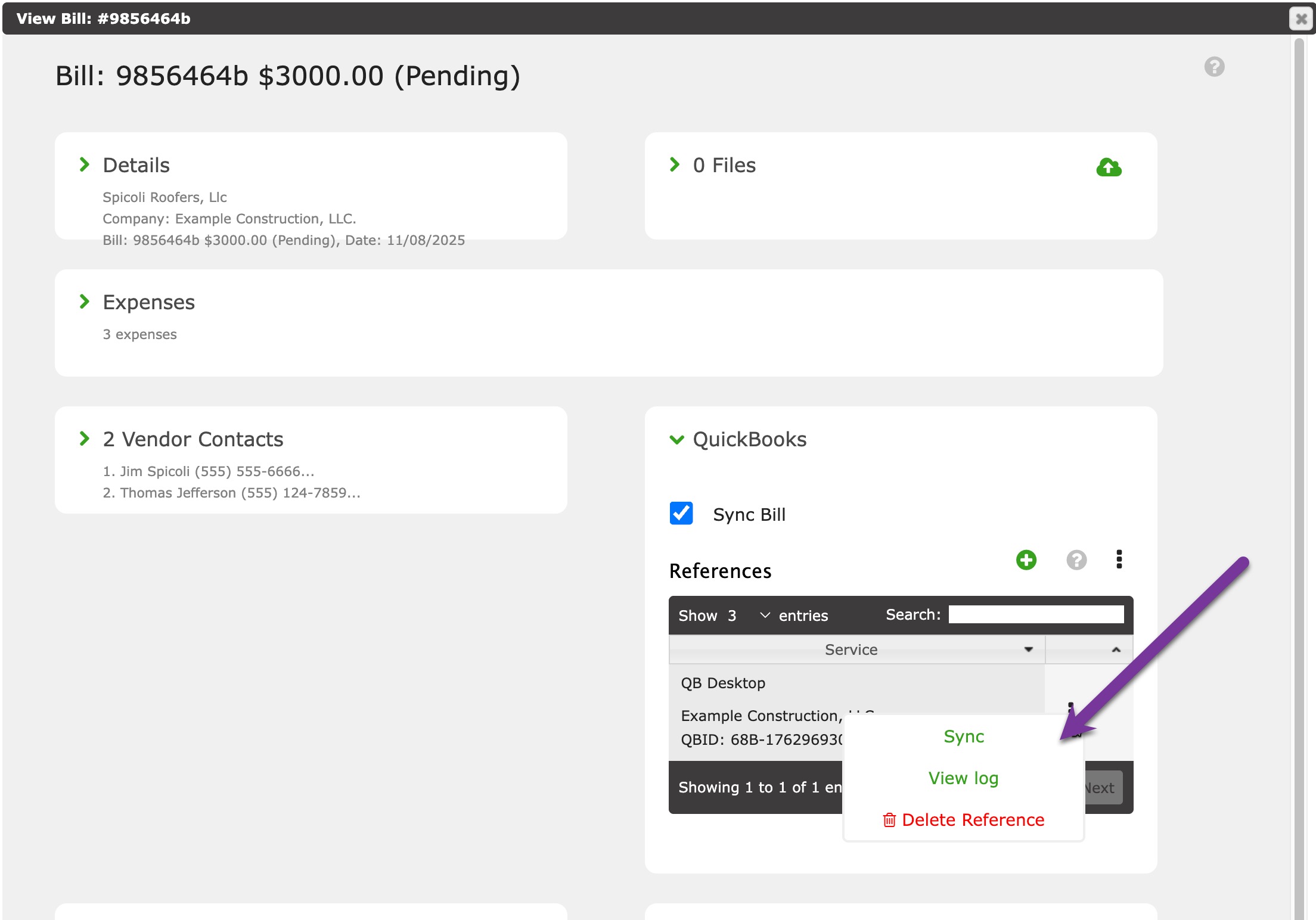
Click Sync to send the bill directly to the web connector queue. Click View log to see the web connector process logs.
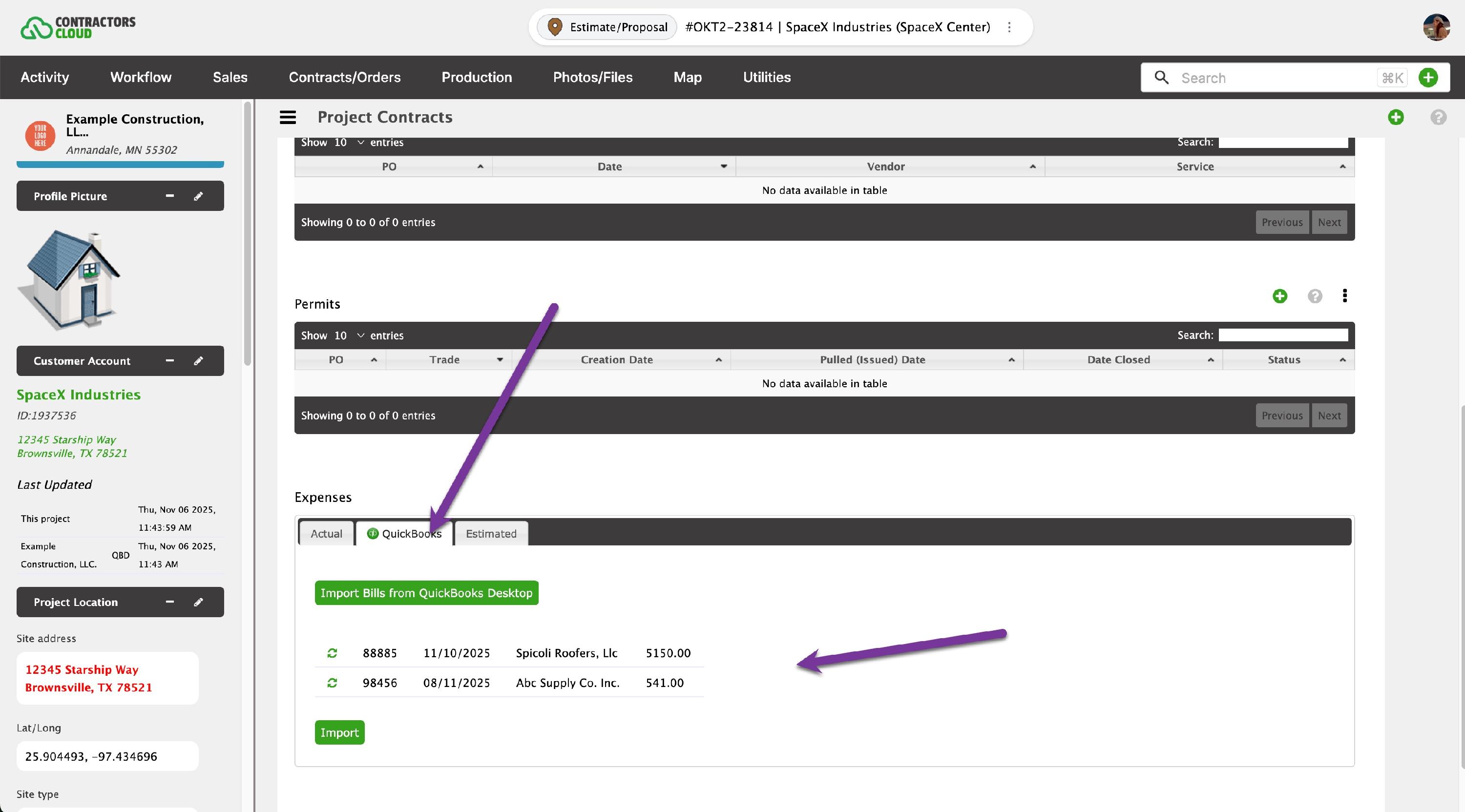
To import bills from QuickBooks into a Job Contract, first send a bill import request to the web connector and run the connector. Then check the bills related to the Customer:Job within the list and click Import. This is done within the Job Costs tab of a Contact.
Common Errors
The QuickBooks web connector will send back a status report on every data transaction that takes place. Sometimes, the web connector will return warnings or errors if it senses something is wrong. This could be due to a violation with QuickBooks itself or a programming issue on our side.
Error 500 or 3100
These are normal. It means Quickbooks is trying to find something that exists and if it does not find it, it will add it.
Error 3120
3120 Object "XXXX-XXXXXXXX" specified in the request cannot be found.
RecievePaymentAdd : In regards to payments, this error can be due to one of the following:
- Check your Quickbooks Accounts and see if you have more than one Accounts Receivable account. If you do, Quickbooks is getting confused as to which account to apply it to. Go into your Quickbooks Integration within your Corporate dashboard and add a Default Accounts Receivables Account for Payments.
- Check to see if the invoices the payment is being applied to is already paid in QuickBooks. If so, delete the payment within QuickBooks and try to re-sync. Or, disable the sync for the payment within Contractor's Cloud and leave it be.
Error 3170
3170: There was an error when modifying a Invoice. QuickBooks error message: The Transaction Sales Tax field cannot be left blank, even for non-taxable customers and sales which have no taxable items, so non-taxable sales will be correct for this district.
Solution - This means that QuickBooks requires a tax code for the invoice. If this invoice does not require tax, a new tax code (i.e. Zero Tax - 0.00) will need to be created in both the Contractors Cloud Event and QuickBooks.
Error 3171
| 3171: An attempt was made to modify a Invoice with a date that is on or before the closing date of the company. If you are sure you really want to do this, please ask a user with Admin privileges to remove the password for editing transactions on or before to closing date (this setting is in the Accounting Company Preferences), then try again. |
When attempting to push a transaction over to QuickBooks, you may encounter an error message similar to the following. Error for InvoiceAddRs: Status Code = 3171: An attempt was made to modify a Invoice with a date that is on or before the closing date of the company. If you are sure you really want to do this, please ask a user with Admin privileges to remove the password for editing transactions on or before to closing date (this setting is in the Accounting Company Preferences), then try again.
Solution 1 - change closing date
Open the accounting period in QuickBooks. Steps should look like this (although may change if QuickBooks changed their user interface)
- Open QuickBooks
- Edit menu | Preferences
- Accounting section
- Company Preferences tab
- Find Closing Date section
- Change date to after the problematic transaction's date
Solution 2 - remove password
Remove the password restrictions temporarily
- Open QuickBooks
- Edit menu | Preferences
- Accounting section
- Company Preferences tab
- Find Closing Date section
- Remove the password
- Re-sync the affected transactions from Contractors Cloud
- Reapply the password
Solution 3 - change transaction period
If possible, change the date of the affected Contractors Cloud transaction so it falls within an open period in QuickBooks. To do this:
- Open the affected invoice, payment, or bill in Contractors Cloud.
- Set its date to fall within an open period in QuickBooks.
- Save, then re-sync it and run the Web Connector.
Error 3170
There was an error when modifying a ItemService. Cannot use SalesAndPurchaseMod aggregate when the item is not reimbursable.
This is common and normal for invoice items. Don't worry about it.
Error 3175
There was an error adding, modifying or deleting "XXXX-XXXXXXXX" because it is already in use. QuickBooks error message: The transaction could not be locked. It is in use by another user.
The most likely reason is that the QuickBooks Customer could not be updated as it was already being updated by QuickBooks or this is some sort of internal locking issue or locking bug with QuickBooks (typically with Enterprise Edition).
This could result in an environment where another QuickBooks user is updating the Customer record or a dialog box is open for this record in QuickBooks (it is waiting for the user to click OK). Check QuickBooks and make sure no users have any boxes open waiting for them to confirm. Also, make sure you are in Single-User Mode and try the export again.
Solution - Close all transaction (invoice, bill, payment, etc) dialogs in QuickBooks desktop.
Error 3180
There was an error when saving a Bill. QuickBooks error message: The transaction is empty.
BillAdd - Check to make sure the bill expense has an account. If there is an account, make sure that account is in QuickBooks.
Error 3200
The provided edit sequence "XXXX-XXXXXXXX" is out-of-date.
The cause is likely caused by more than one person is trying to Export to QuickBooks at one time or is not allowing other transactions to finish exporting. The solution is to make sure that after the export, you close QuickBooks. After the other person has finished the export, the second person can launch QuickBooks and perform the export.
Error 3260
3260: Insufficient permission level to perform this action.
This deals specifically with user permissions in QuickBooks. If a user receives this message, their user permissions need to be adjusted in QuickBooks.