
QuickBooks Online
Contractors Cloud integrates with QuickBooks Online (QBO) to keep your customers, invoices, payments, vendors, and bills aligned across both systems — without double entry.
Why it helps: enter a job, invoice, payment, or bill once in Contractors Cloud and it flows to QuickBooks automatically, so your books stay current without re-keying. QuickBooks stays your accounting system of record — payments and paid-status come back from QuickBooks — while Contractors Cloud runs the project. The result is one source of truth for your receivables and payables, fewer manual-entry errors, and less month-end reconciliation.
This guide covers what syncs, how to connect, how to configure your sync settings, and how to troubleshoot.
Quick start
The minimum steps to get syncing. Each is detailed later in this guide.
- Have your Account Manager enable QuickBooks for your company (one-time).
- Connect your QuickBooks user — in Contractors Cloud, go to your User profile → Integrations → Connect a QuickBooks account, and sign in as your QuickBooks Administrator.
- Connect the company — in Company Settings → QuickBooks, set QuickBooks Type to QuickBooks Online, turn Enable QuickBooks for this Company on, and click your Realm ID to link the QuickBooks company.
- Set your start date — under QuickBooks Settings, set Synchronize Contracts after this Date to a recent date so you don't re-sync history that's already in QuickBooks.
- Choose your sync modes — set INVOICE SYNC, CREDIT MEMO SYNC, PAYMENT EXPORT, and VENDORS & BILL EXPORT to "Sync disabled", "Export to QuickBooks", or "2-way sync" as needed.
- Import your lists — under QuickBooks Imports, import Accounts, Items, Tax Codes, and Terms from QuickBooks so your records map correctly (add Classes if you use class tracking).
- Sync a job — open a Contract/Job and click Sync Job to send the customer, job, invoices, payments, and bills to QuickBooks Online.
Click here for Classic QBO to Stratus QBO Migration Plan
Click here for QuickBooks Desktop to Stratus QBO Migration Plan
What Data Gets Synced
Financial Accounts
- 1-way import from QuickBooks Online
- Items can be bulk imported into Contractors Cloud from QuickBooks Online
QuickBooks Financial Accounts can be imported into Contractors Cloud. Once accounts are connected, any changes in QuickBooks Online will update the record in Contractors Cloud.
Employees
On QuickBooks Online, users are not synced as separate Employee records.
Sales Rep
On QuickBooks Online, users are not synced as separate Sales Rep records.
Customers
- A customer account only exports to QuickBooks when it is manually synced within the QuickBooks section within the Customer Account, or when a Contract/Job, Invoice, or Payment are synced.
- Customer accounts created in QuickBooks Online do not sync into Contractors Cloud.
- Customer accounts updated in QuickBooks Online only flow into Contractors Cloud if the account was previously synced.
- Customer contact data (First name, Last name, email, phone) is a 1-way push into QuickBooks.
Jobs / Sub-customers
- A customer account only syncs when it is manually synced within the QuickBooks section within the Customer Account, or when a Contract/Job is synced.
- Once the customer is connected, it is a 2-way sync from that point on.
QuickBooks Desktop Jobs versus QuickBooks Online Projects
Contractors Cloud currently does not support QuickBooks Online Projects since it is a premium feature and not supported within their standard integration.
Jobs in QB Desktop vs QB Online differ in functionality and structure, with Desktop using "Jobs" and Online using a dedicated "Projects" feature. Desktop allows for more detailed, item-based job costing and reporting, whereas Online provides a dedicated dashboard for tracking profitability, income, and costs in a cloud-based interface.
Key differences between the two include:
- Terminology and Structure: QuickBooks Desktop uses a "Customer:Job" hierarchy, while QuickBooks Online uses a distinct "Projects" feature (available in Plus and Advanced) to track profitability.
- Data Migration: When migrating from Desktop to Online, existing jobs are converted into sub-customers, which must then be manually converted into projects.
- Functionality: QuickBooks Online (QBO) offers a project dashboard with visual graphics for tracking costs, time, and revenue in one place. QuickBooks Desktop provides more complex and detailed job costing reports, such as job profitability details, which are item-based.
- Usage: QBO Projects are best for collaboration, tracking, and remote access, whereas QBD Jobs are better suited for deep, detailed analysis on a local machine.
Class Tracking
- Full 2-way sync
- Classes can be bulk imported into Contractors Cloud from QuickBooks Online
Invoice Items
- Full 2-way sync
- Items can be bulk imported into Contractors Cloud from QuickBooks Online
Invoices
Invoices sync according to your INVOICE SYNC company setting: Export to QuickBooks pushes Contractors Cloud invoices into QuickBooks, and 2-way sync also brings QuickBooks-side invoices back into Contractors Cloud when they are on a matching Customer:Job. When sync is on and you edit an invoice, the window's close button becomes Sync & Close — click it to send your changes; if QuickBooks rejects them, the window stays open and names the reason, and you can choose Close without syncing instead. You can also pull existing QuickBooks invoices into a project from the invoice view using Import from QuickBooks.
Sales Orders cannot be synced to QuickBooks.
Credit Memos
Credit memos sync according to your CREDIT MEMO SYNC company setting: Export to QuickBooks pushes them into QuickBooks, and 2-way sync also brings QuickBooks-side credit memos back into Contractors Cloud. They use the same Sync & Close button as invoices. Refunds and overpayments do not sync and must be entered manually in QuickBooks.
Payments
- Payments created in Contractors Cloud will export to QuickBooks Online.
- Payments created in QuickBooks Online will import into Contractors Cloud only if
- they are assigned to a connected Customer Account
- they are applied to Invoices belonging to connected Contractors Cloud Projects
- Payments linked to Sales Orders cannot be synced. In order to sync a Payment linked to a Sales Order, either turn the Sales Order into an Invoice by adding an invoice date or unlink the Sales Order from the Payment.
Refunds
Refunds currently do not sync.
Bills
Bills sync according to your VENDORS & BILL EXPORT company setting: Export to QuickBooks pushes Contractors Cloud bills into QuickBooks, and 2-way sync also brings QuickBooks-side bills back into Contractors Cloud when the bill line is tagged to a Customer:Job that matches a Contractors Cloud project.
Vendor Credits
Vendor credits export to QuickBooks with your bills, following your VENDORS & BILL EXPORT setting.
Vendors
Installer, Supplier, and Vendor data are a 2-way sync into a QuickBooks Vendor depending on where it was updated last.
Sales Tax Codes
- 1-way import from QuickBooks Online
- Items can be bulk imported into Contractors Cloud from QuickBooks Online
Terms
- Full 2-way sync
- Terms can be bulk imported into Contractors Cloud from QuickBooks Online
Delete Functionality
Contractors Cloud contains no deletion functionality in QuickBooks. Therefore, if an entity is deleted in Contractors Cloud, it should be manually deleted or made inactive in QuickBooks.
Requirements
- Your Contractors Cloud Account Manager will need to first enable your QuickBooks integration.
- You will need to be a valid QuickBooks User.
User Connection
Sign out of all QuickBooks Online accounts.
Go into your User profile, Integrations, then click Connect a QuickBooks account.
Note: Only 1 Contractors Cloud User with the appropriate QuickBooks credentials (you QuickBooks Administrator) needs to connect Contractors Cloud to QuickBooks.
First, connect your User accounts.
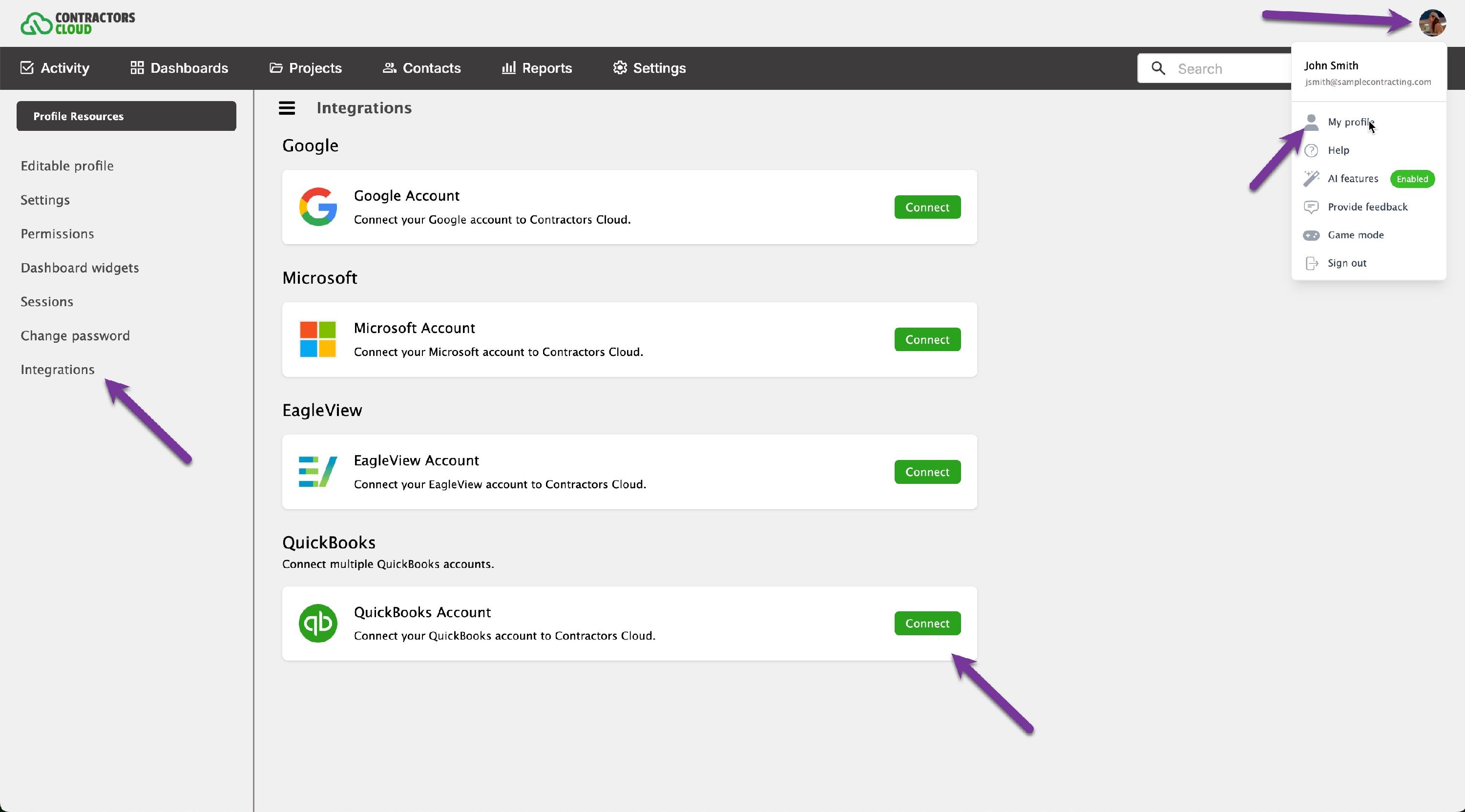
Follow the QuickBooks dialogs to connect your QuickBooks User account to Contractors Cloud.
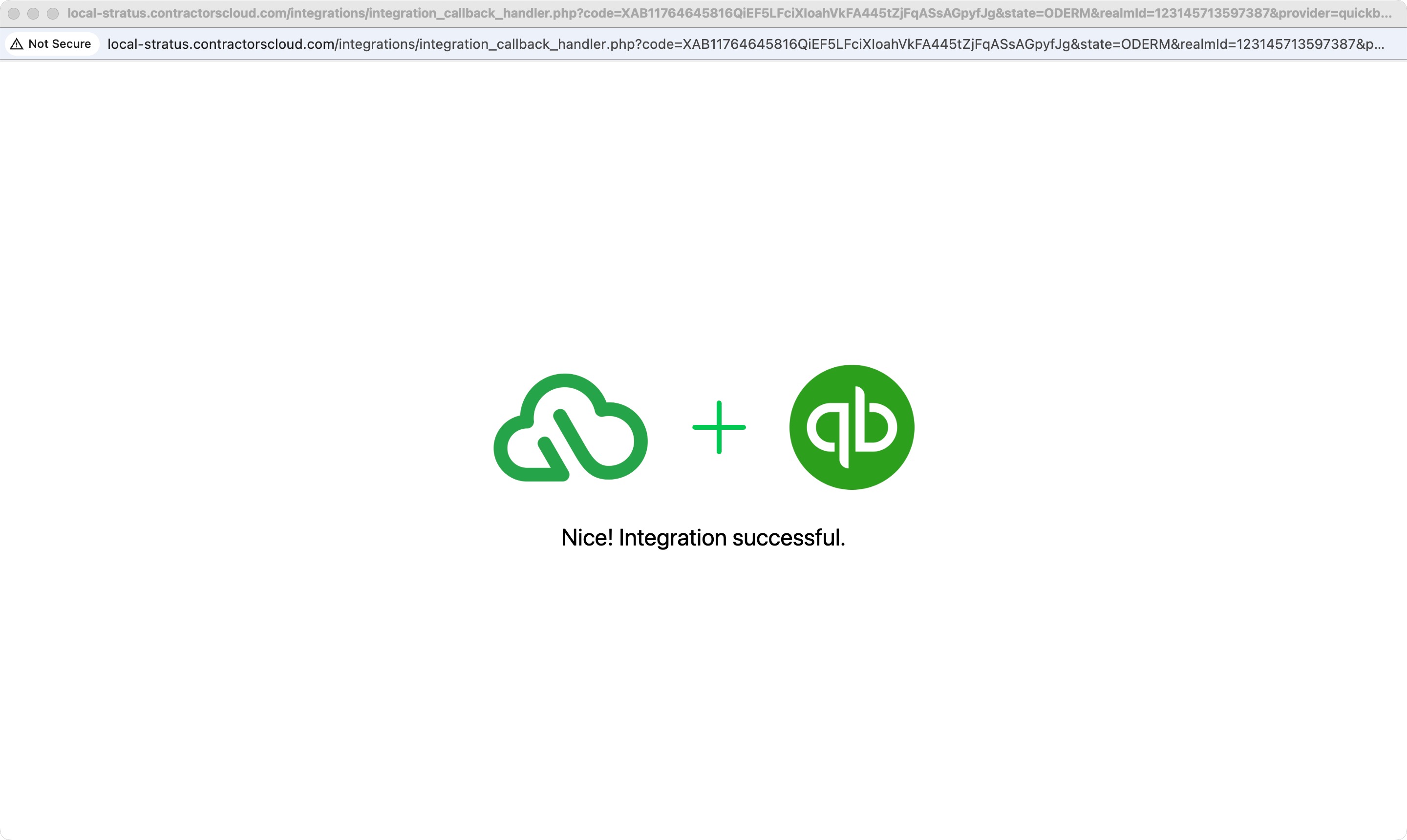
When complete, your QuickBooks User account is now connected to your Contractors Cloud user account.
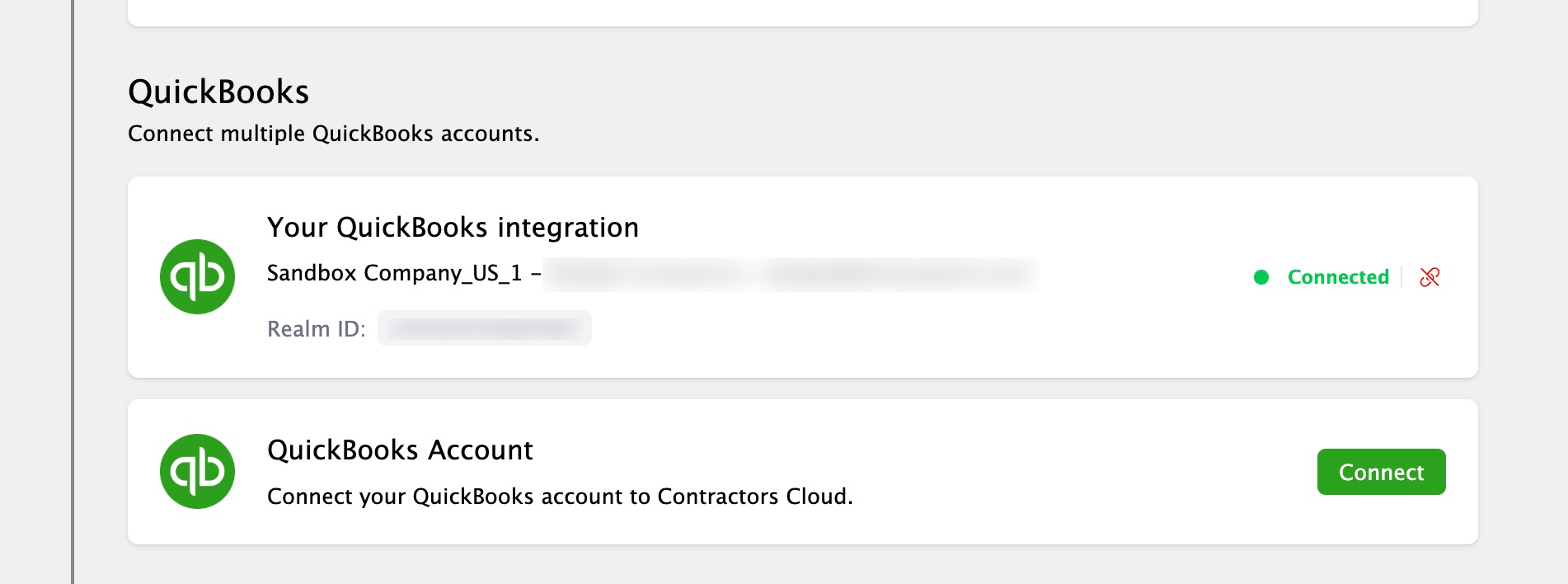
You can always find your realm, or Company ID, within your QuickBooks Online, gear, Subscriptions and billing, Company ID.

Company Connection
Click the QuickBooks integration option within Company Settings (permission required).
The QuickBooks administrator that made the initial connection will need to be the User that connects QuickBooks Online Realms to a Contractors Cloud company.
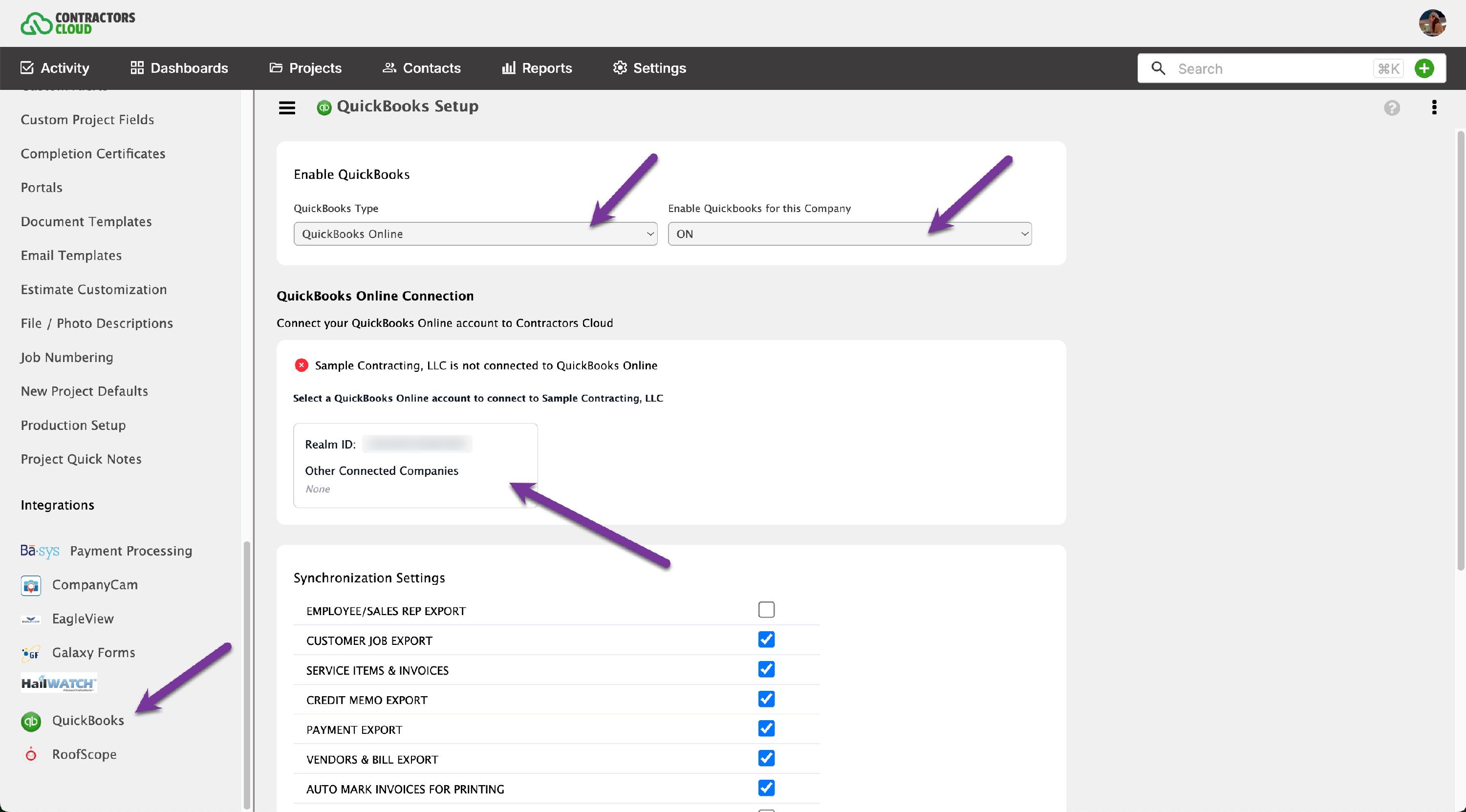
QuickBooks Type
Set to QuickBooks Online.
Enable QuickBooks for this Company
Set this to ON. Setting to OFF will pause all sync between this company and QuickBooks.
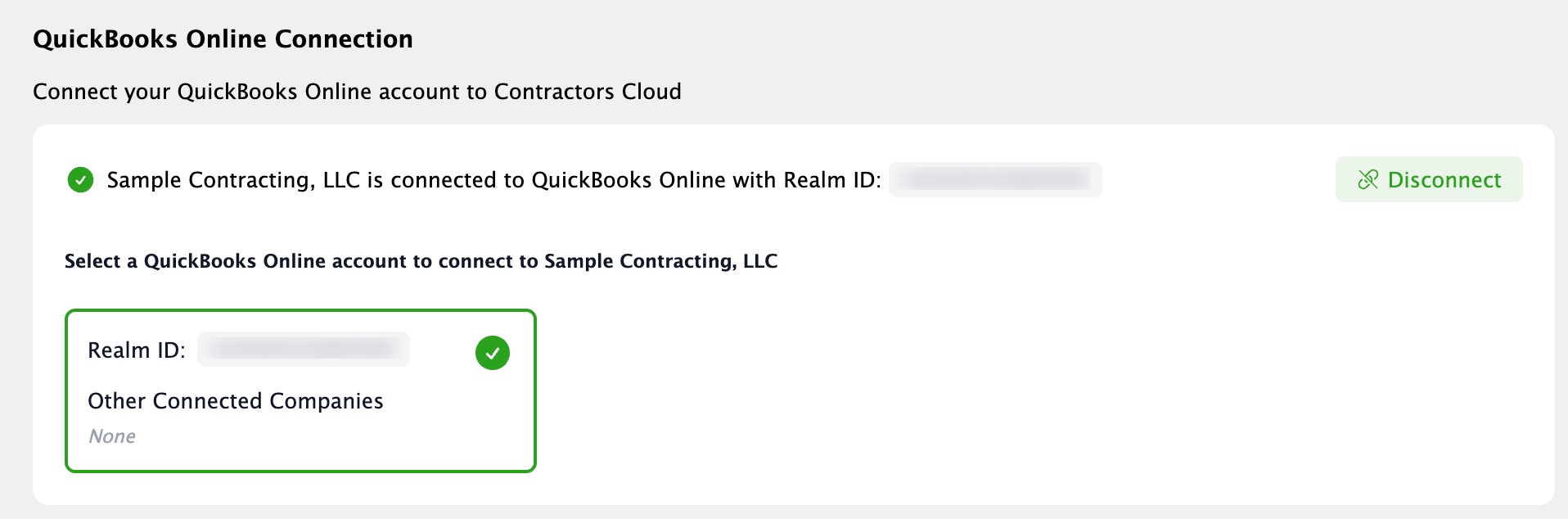
QuickBooks Online Connection
Click the desired Realm ID box to connect the Contractors Cloud to the QuickBooks Company.
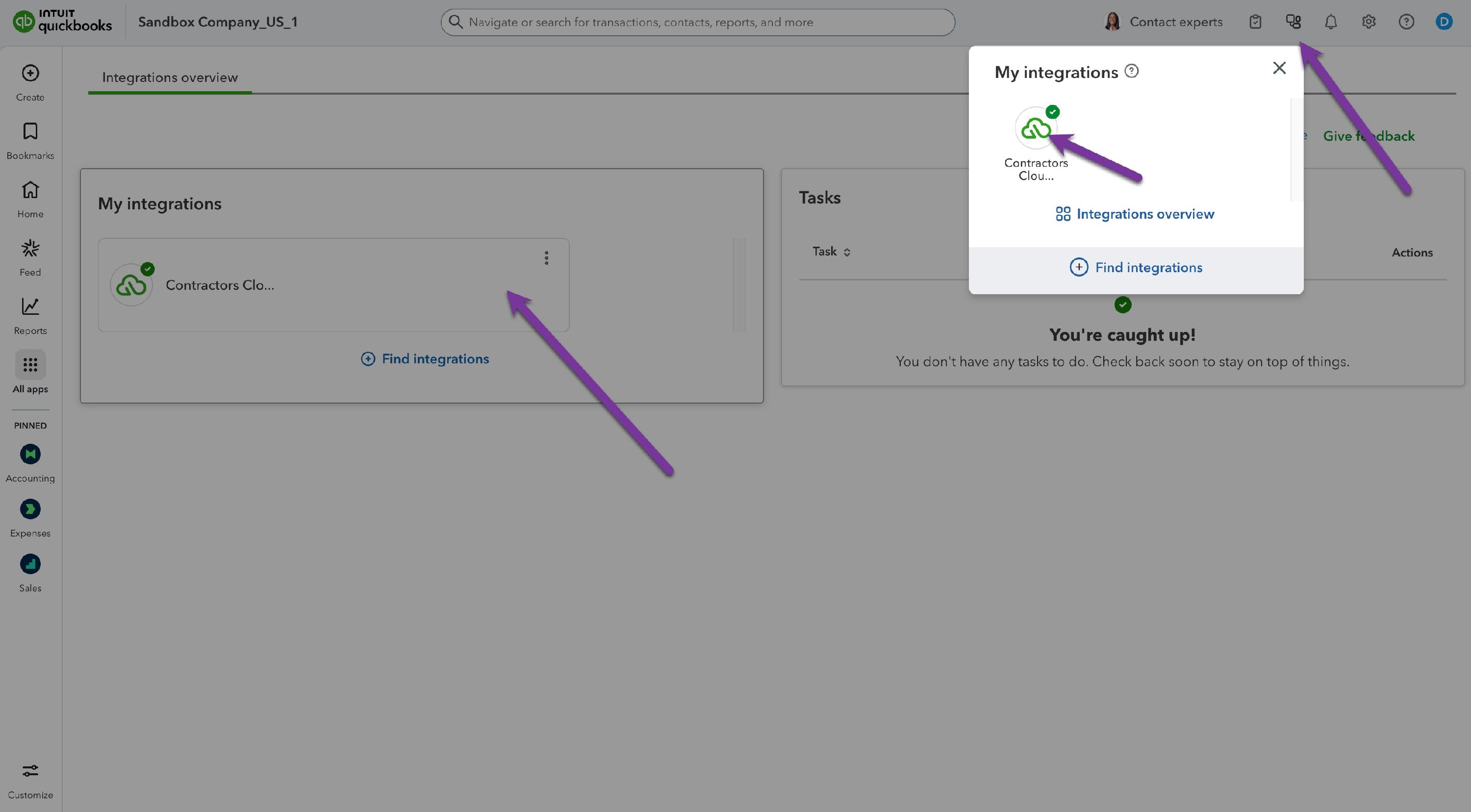
In QuickBooks, click the Integrations icon. You'll see the Contractors Cloud logo. When clicked, you can now manage the QuickBooks/Contractors Cloud connection within My integrations.
Synchronization Settings

EMPLOYEE/SALES REP EXPORT
This syncs employees and sales reps. Click this on if you want the employee/sales rep to be attached to the QuickBooks job and invoices. NOTE: In order for a User to sync, they need a User Type of either Employee or 1099 Vendor.
CUSTOMER JOB EXPORT
Here you can enable customer jobs. WE HIGHLY RECOMMEND ENABLING CUSTOMER JOBS in case you do future work for an existing customer.
INVOICE SYNC
Choose how invoices and their service items sync: Sync disabled (no sync), Export to QuickBooks (invoices flow Contractors Cloud to QuickBooks), or 2-way sync (invoices flow both directions; a new or changed QuickBooks invoice on a matching Customer:Job imports into Contractors Cloud). 2-way sync is available on QuickBooks Online. NOTE: You will have to assign QuickBooks accounts to your invoice items within the Invoice Customization area to the left.
CREDIT MEMO SYNC
Choose how credit memos sync: Sync disabled (no sync), Export to QuickBooks (credit memos flow Contractors Cloud to QuickBooks), or 2-way sync (credit memos flow both directions). 2-way sync is available on QuickBooks Online. NOTE: This does not include refunds or overpayments. Those will have to be entered manually into your QuickBooks.
PAYMENT EXPORT
Choose how customer payments sync: Sync disabled (no sync), Export to QuickBooks (payments flow Contractors Cloud to QuickBooks), or 2-way sync (payments flow both directions, and paid status comes back from QuickBooks). NOTE: payments export as un-deposited payments. To have them automatically marked as deposited, set this in your QuickBooks Company Preferences.
VENDORS & BILL EXPORT
Choose how vendors and bills sync: Sync disabled (no sync), Export to QuickBooks (Contractors Cloud expenses sync to QuickBooks as bills), or 2-way sync (bills entered in either system stay in sync; a QuickBooks bill is only imported if it is tagged to a Customer:Job that matches a Contractors Cloud project).
AUTO MARK INVOICES FOR PRINTING
This setting allows you to automatically mark invoices for printing within your QuickBooks.
AUTO EXPORT EXPENSES ON WORK ORDER COMPLETION
Setting this auto sync is a safety measure to ensure all of your invoices are in QuickBooks when Contractors Cloud senses all work has been completed.
QuickBooks Settings
Synchronize Contracts after this Date
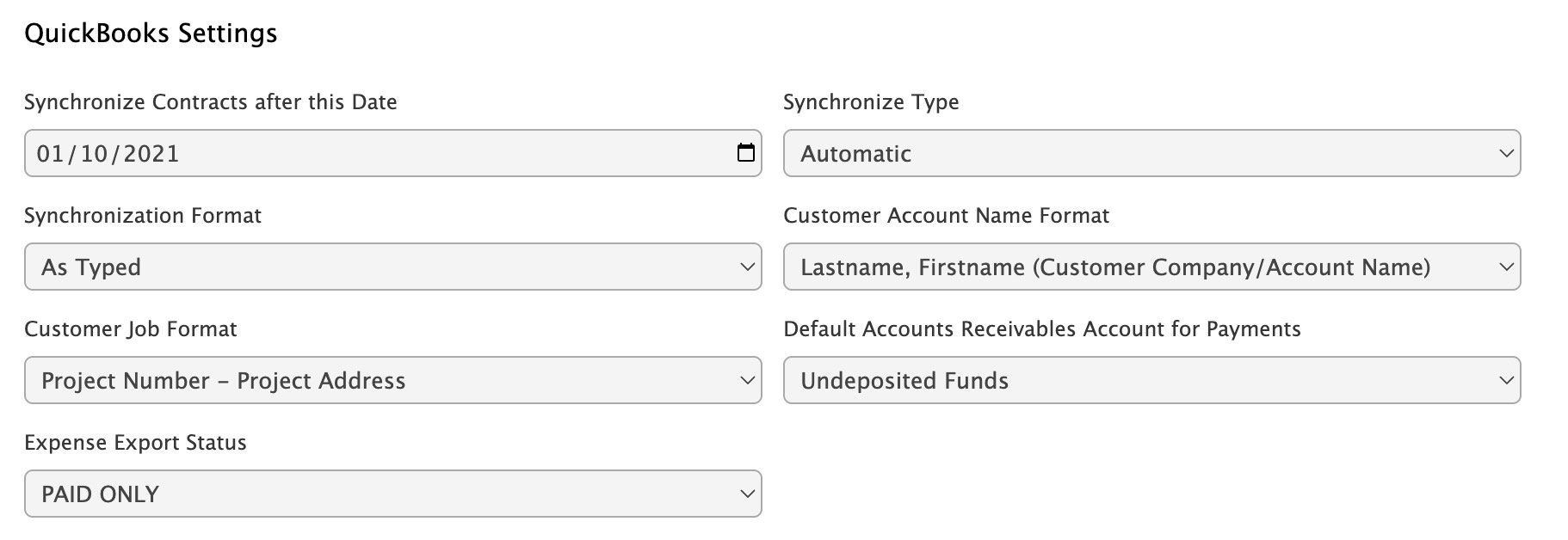
Here you enter a date where any contract on or after this date will have the option to be synced with your QuickBooks.
CAUTION: IT IS HIGHLY RECOMMENDED TO START FRESH WITH NEW CONTRACTS THAT ARE NOT CURRENTLY IN YOUR QUICKBOOKS. So set your date to something that is recent and that is not currently in your QuickBooks. The reason for this is if you have manually entered a customer into QuickBooks and you try to sync from Contractors Cloud it could recreate the customer or duplicate transactions that may have been entered manually.
Synchronize Type
Manual by Button - With this option you will have to push a button within the contract to send the data to QuickBooks.
Automatic - With this option it will automatically send data to QuickBooks whenever a financial transaction is updated in Contractors Cloud.
Synchronization Format
Here you can choose to bring all data with capitalized letters. This is merely a personal preference setting.
Customer Account Name Format
Here you can set how you want your customer names to be formatted in your QuickBooks. It defaults to Lastname, Firstname. We recommend keeping this default.
Customer Job Format
Here you can set the format of your customer jobs. It defaults to Project Number – Project Address. We recommend keeping this format.
Default Accounts Receivables Account for Payments
Payments will automatically be categorized in the Undeposited Funds section of your QuickBooks unless you enter a default Accounts Receivables account here. NOTE: The account must be an Accounts Receivables account.
Expense Export Status
This setting allows you to determine if you want only Paid expenses to transfer or Paid & Approved expenses to transfer.
QuickBooks Imports
Under Company Settings → QuickBooks → QuickBooks Imports, you can import or update these lists directly from QuickBooks Online. Re-run an import whenever the matching list changes in QuickBooks:
- Import Accounts from QuickBooks — your chart of accounts.
- Import Items from QuickBooks — service items used on invoices.
- Import Classes from QuickBooks — QuickBooks classes for class tracking.
- Import Terms from QuickBooks — payment terms.
- Import Tax Codes from QuickBooks — sales tax codes.
- Import Vendors from QuickBooks — installers, suppliers, and vendors.
Contractors Cloud never creates or edits accounts in your QuickBooks chart of accounts — financial accounts import into Contractors Cloud only (1-way from QuickBooks).
Import Accounts
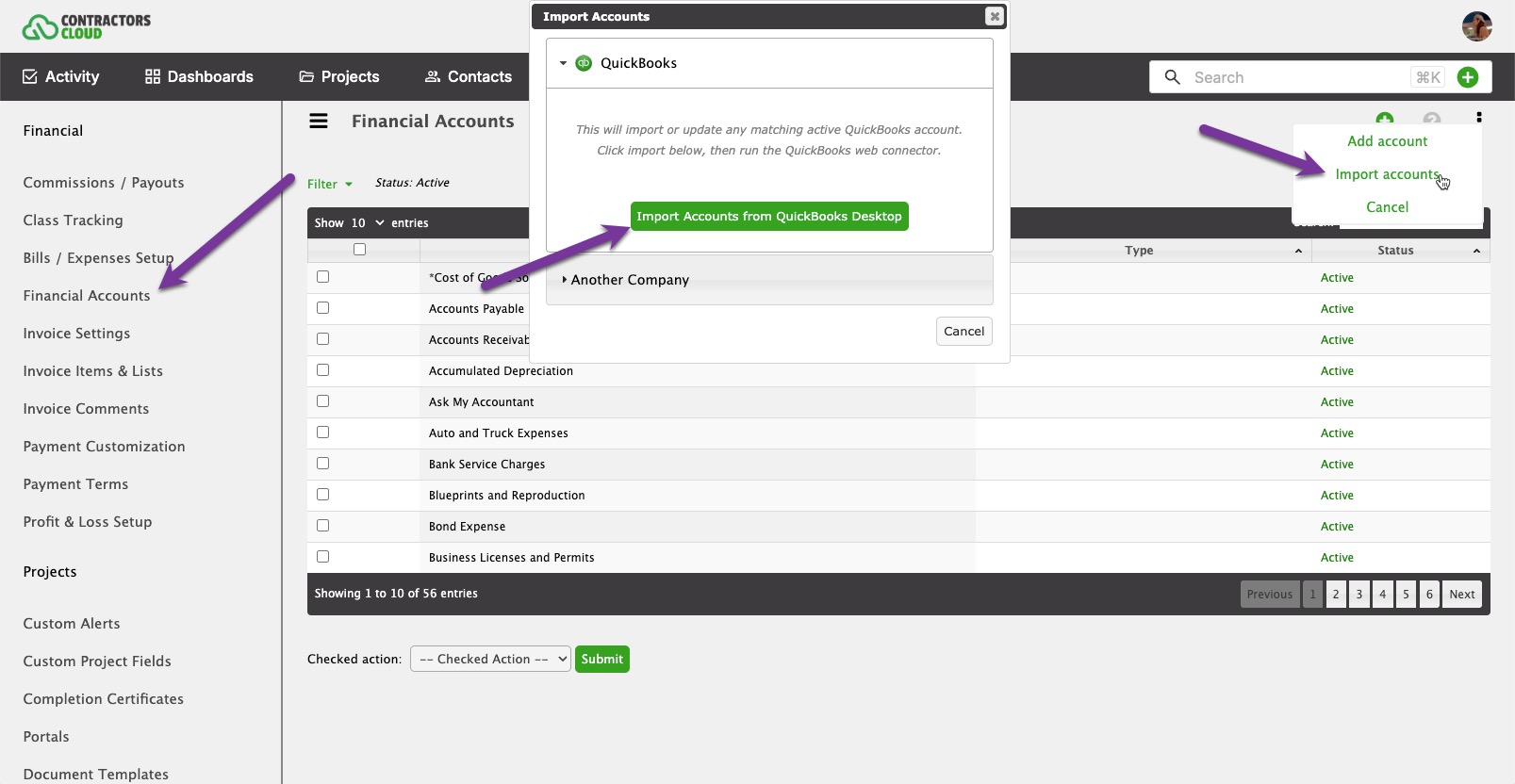
Within Company Settings, go to QuickBooks and, under QuickBooks Imports, click Import Accounts from QuickBooks. This will update any matching accounts and import any new accounts from QuickBooks Online.
If Account changes are made within QuickBooks, this import should be redone in order to update the accounts in Contractors Cloud.
If any errors occur due to a financial account conflict, run this operation to re-sync accounts.
Import Invoice Items
Within Company Settings, go to QuickBooks and, under QuickBooks Imports, click Import Items from QuickBooks. This will update any matching invoice items and import any new items from QuickBooks Online.
If any errors occur due to an invoice item conflict, run this operation to re-sync items.
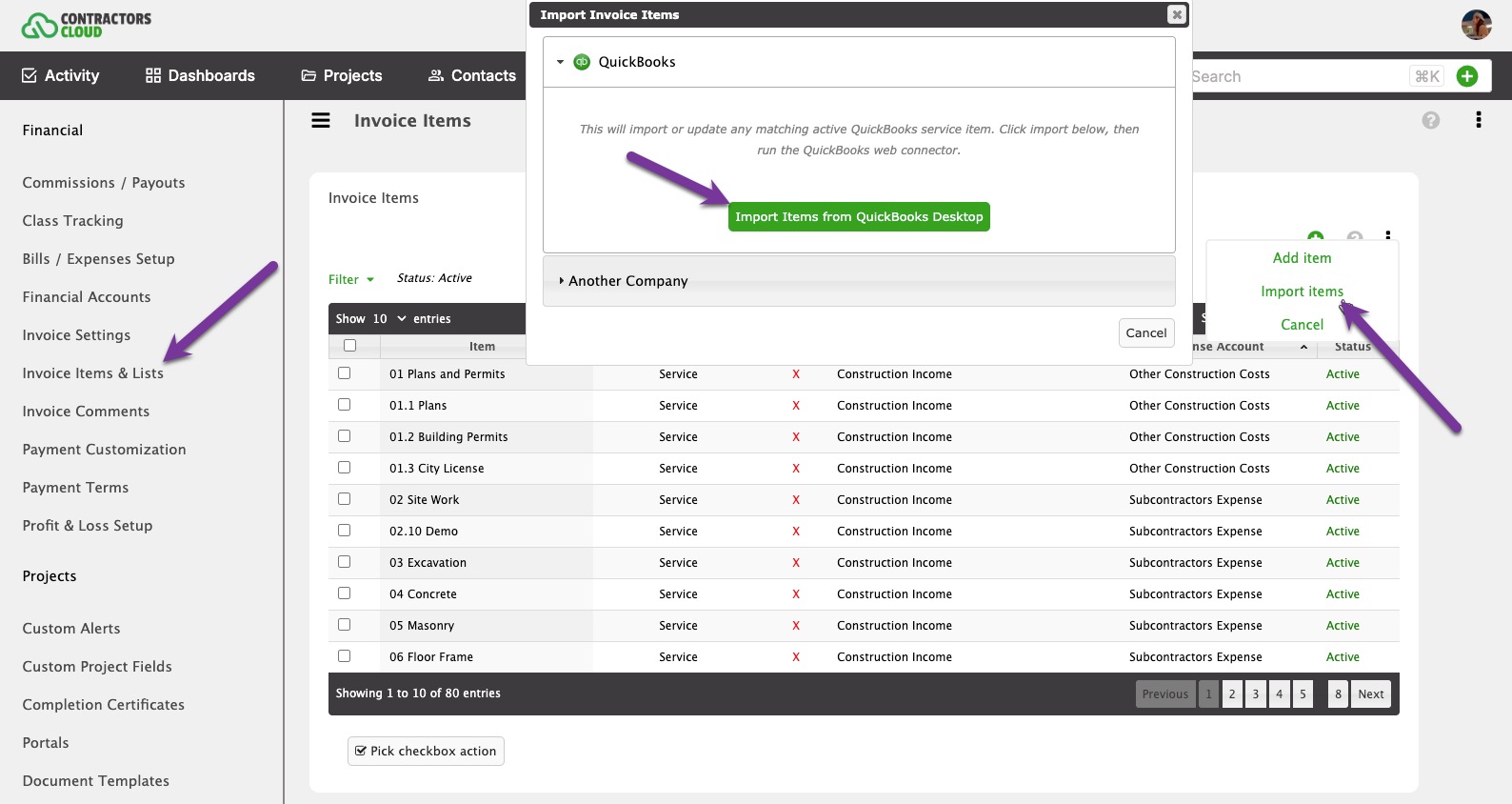
Manually sync data to QuickBooks Online
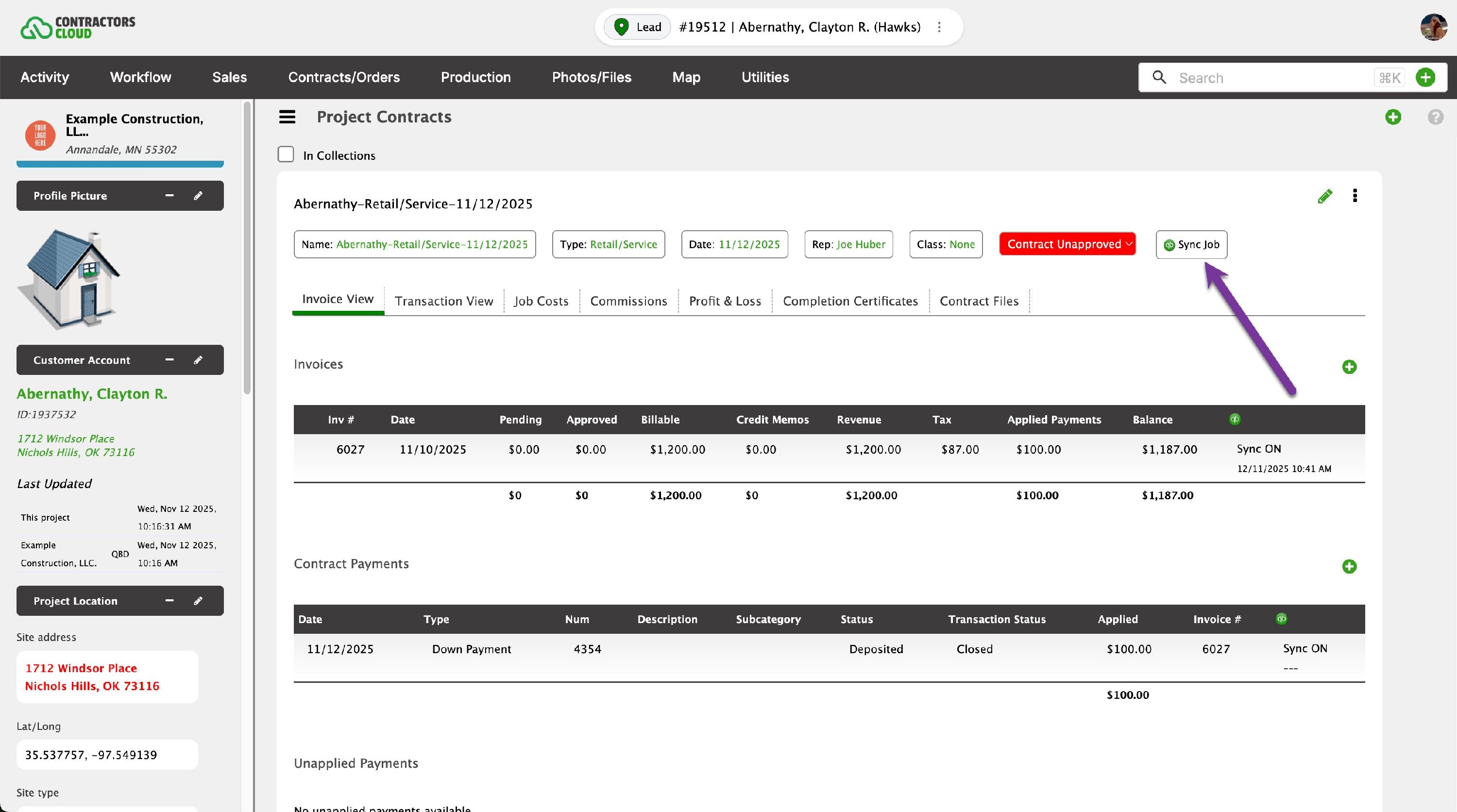
Click Sync Job within a Contract to send the entire job to QuickBooks Online. This includes the Customer Account, Job Data, and all applicable Invoices, Payments, and Bills.
Customer Accounts
When a Customer Account is created in Contractors Cloud and used in a Job, the customer will be added as a Customer in QuickBooks.
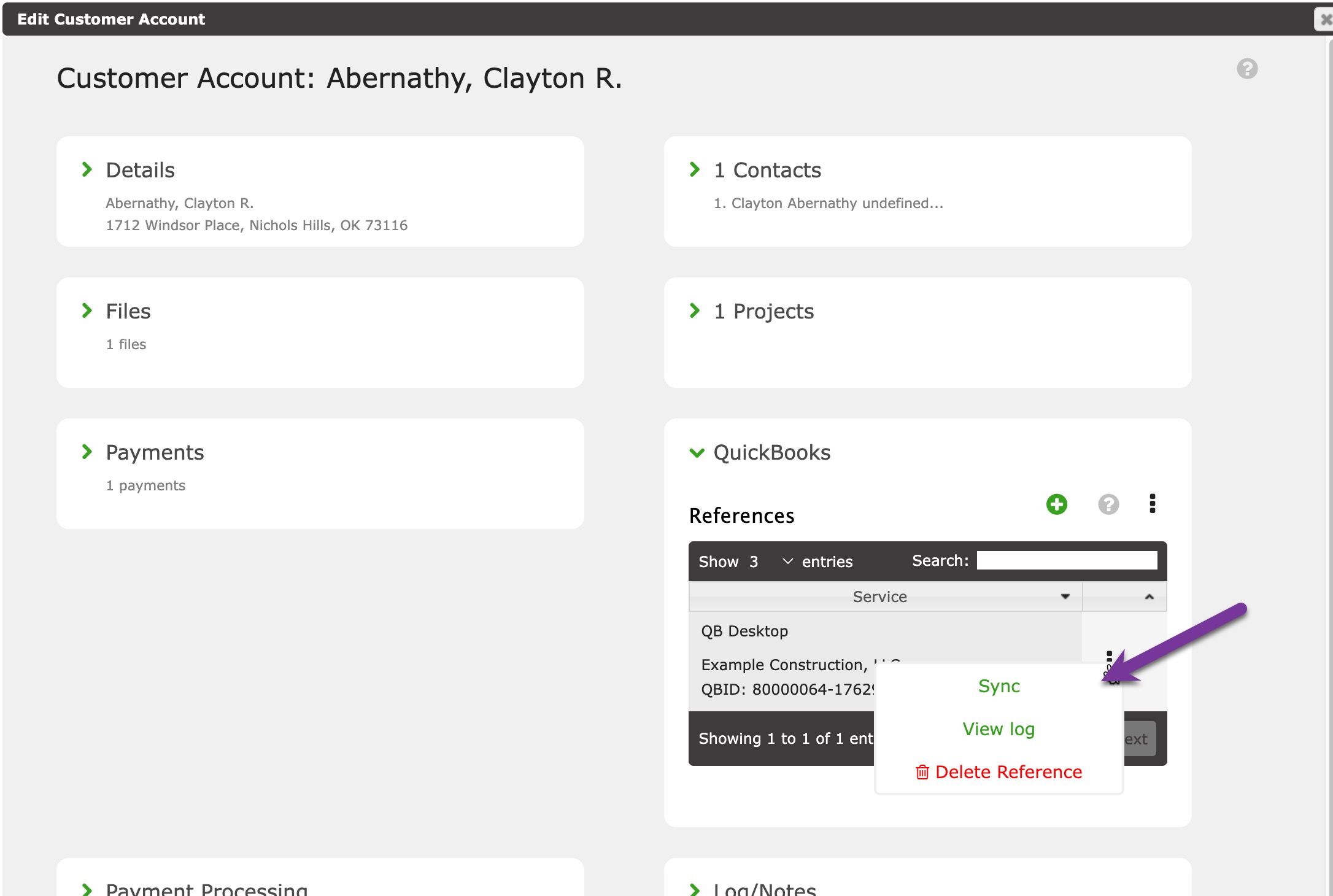
Click Sync to send the customer data to QuickBooks. Click View log to see the sync logs.
Invoice Items
When an invoice item is created in Contractors Cloud and used in an Invoice, the item will be added as a service item in QuickBooks.
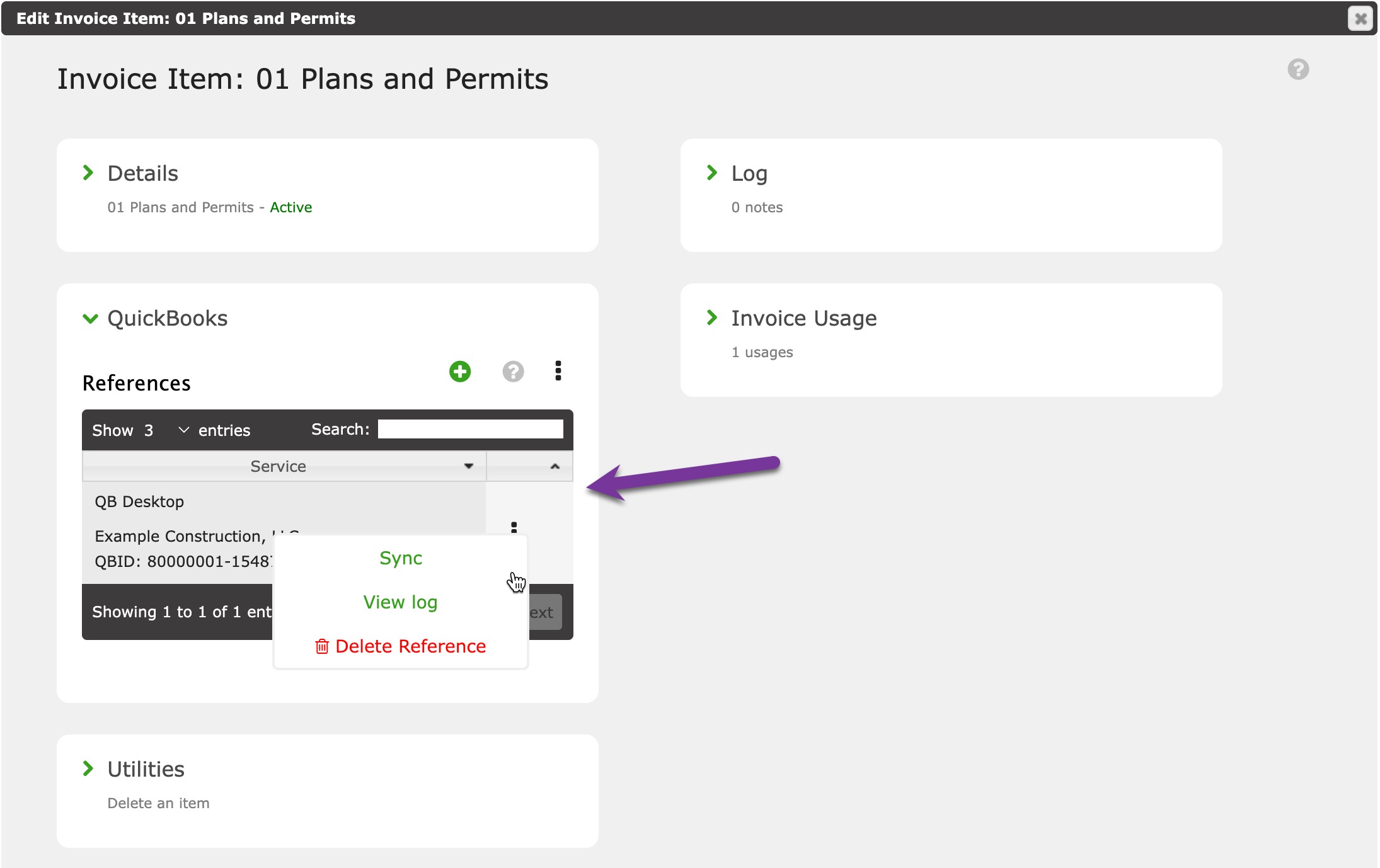
Click Sync to send the invoice item to QuickBooks. Click View log to see the sync logs.
Invoices
When an invoice is created in Contractors Cloud on a synced job with Sync Invoice checked, click Sync & Close in the invoice window to send it to QuickBooks.
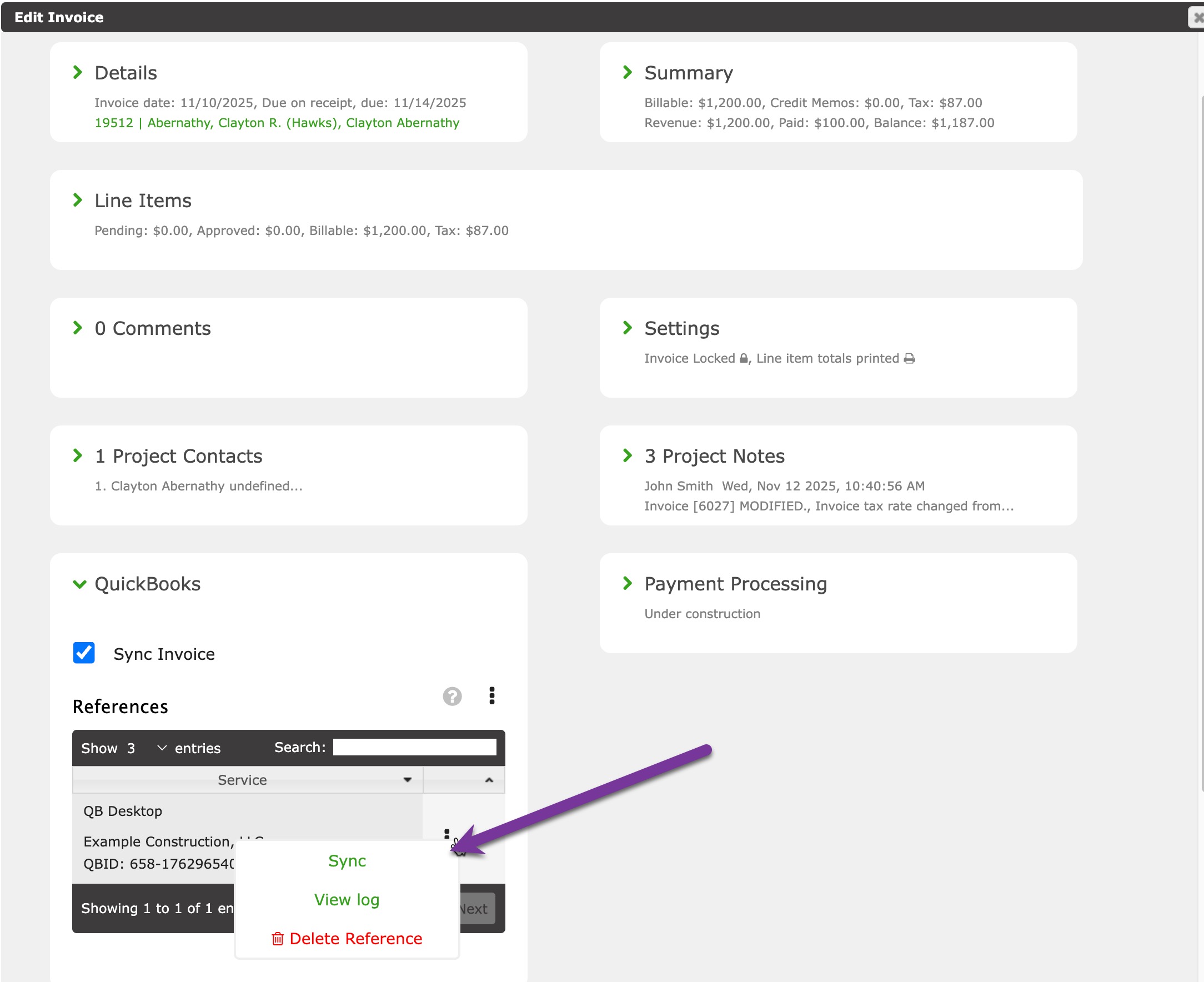
Click Sync to send the invoice to QuickBooks. Click View log to see the sync logs.
Payments
When a payment is created in Contractors Cloud on a synced job with Sync Payment checked, click Sync & Close in the payment window to send it to QuickBooks.
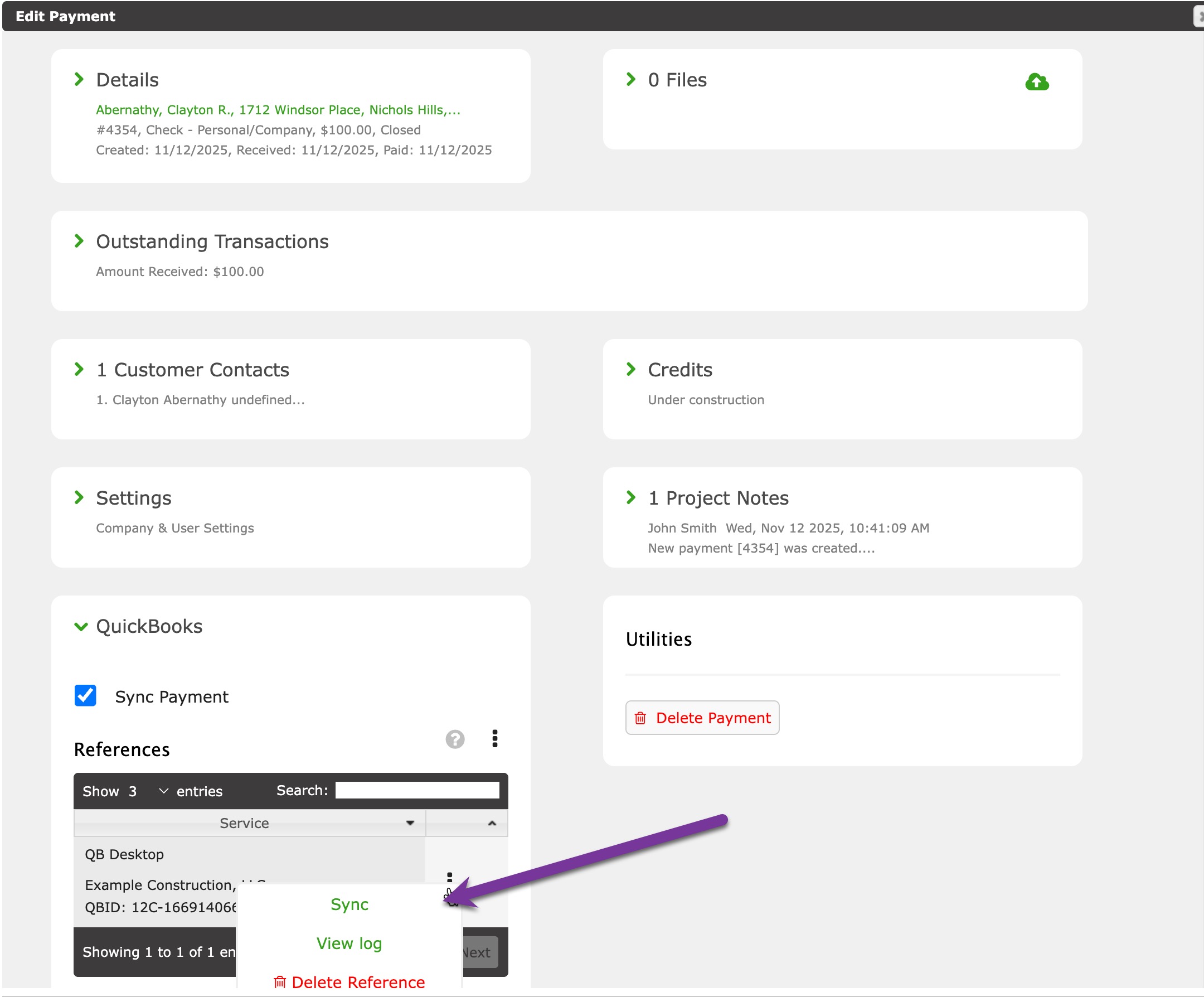
Click Sync to send the payment to QuickBooks. Click View log to see the sync logs.
Bills
When a bill is created in Contractors Cloud on a synced job with Sync Bill checked, click Sync & Close in the bill window to send it to QuickBooks.
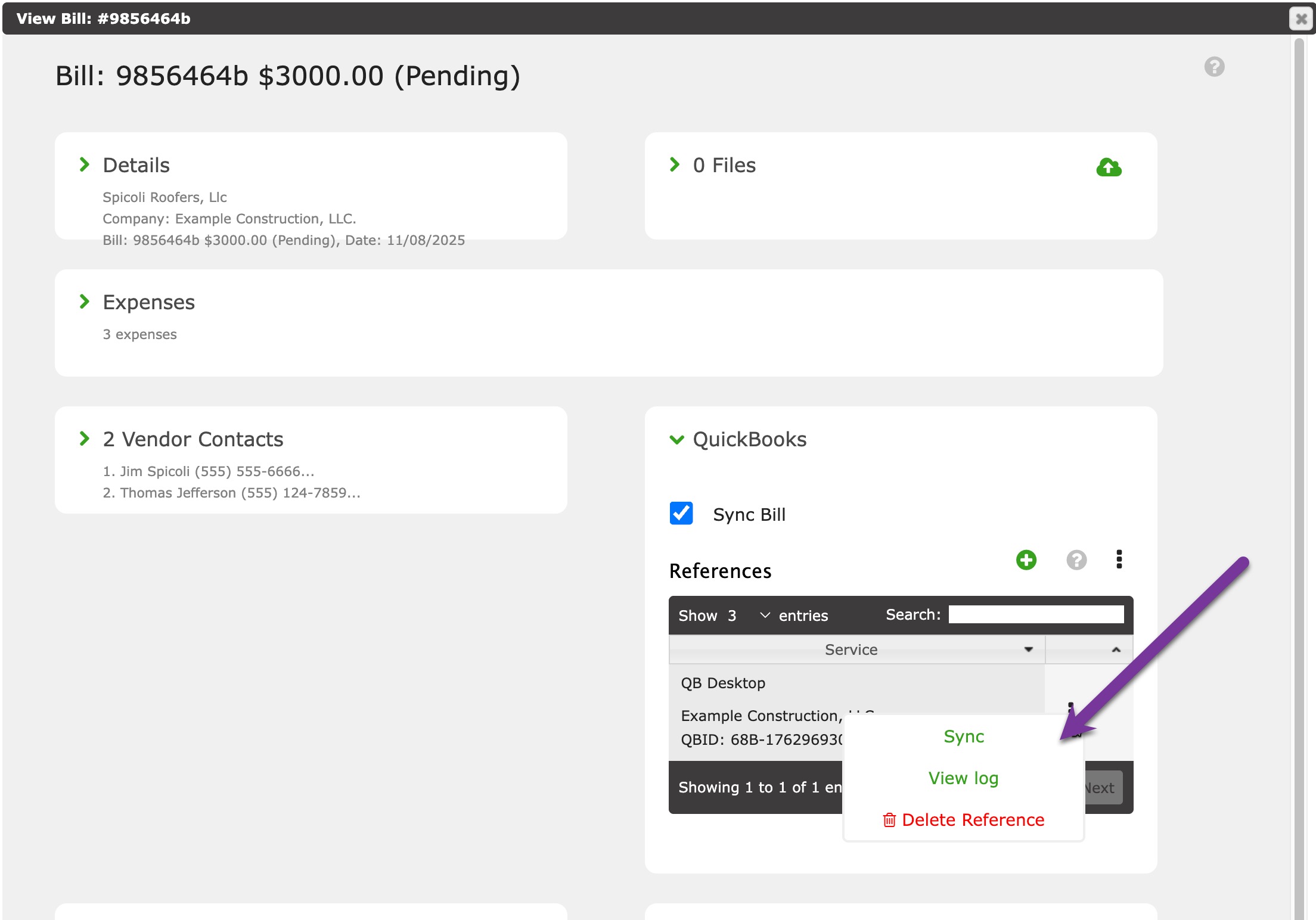
Click Sync to send the bill to QuickBooks. Click View log to see the sync logs.
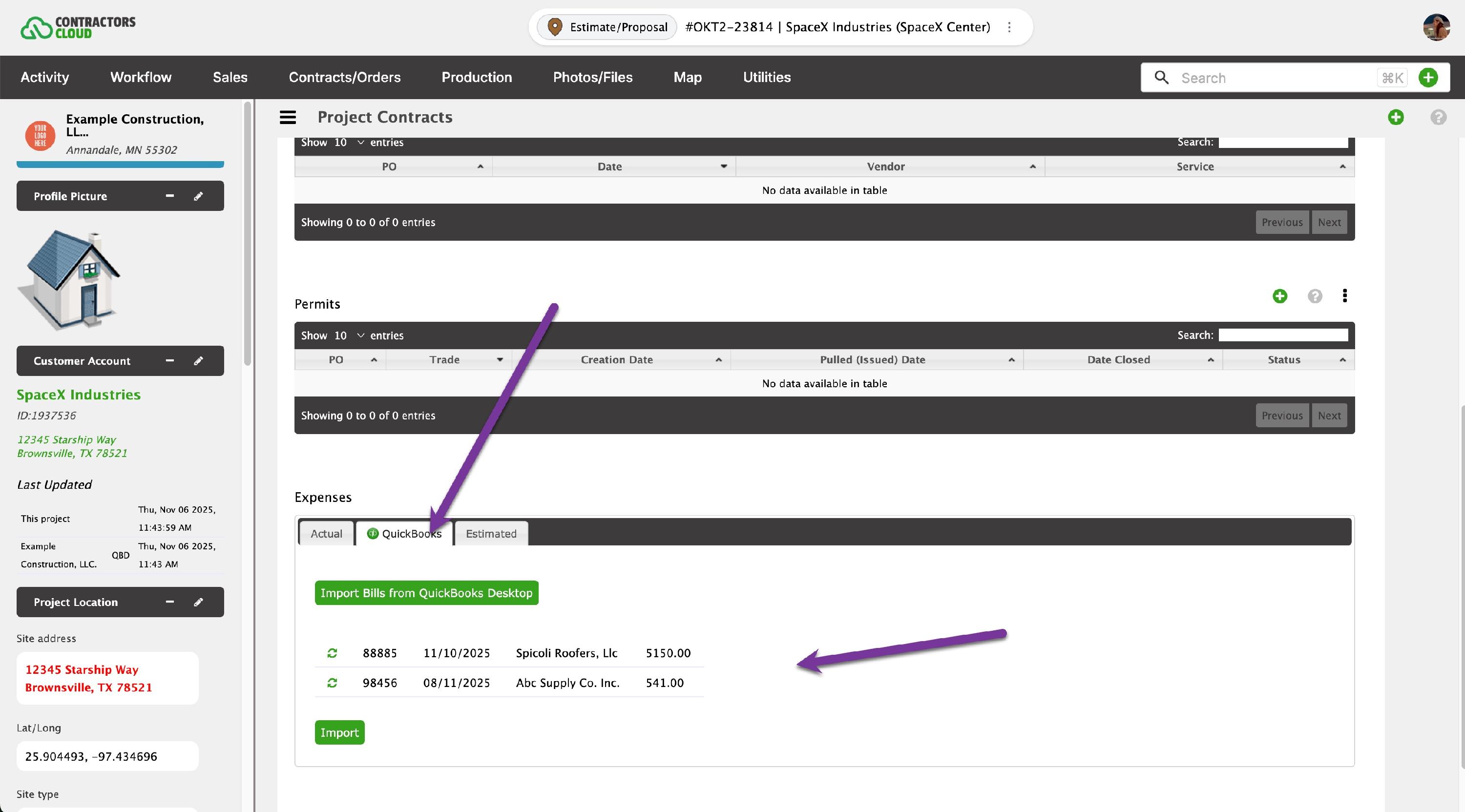
To import bills from QuickBooks into a Job Contract, check the bills related to the Customer:Job within the list and click Import. This is done within the Job Costs tab of a Contract.
Checking sync status
Company-wide: Company Settings → QuickBooks → QuickBooks Log shows a dated list of every sync, with the user who triggered it, the project, the function, the status (green = success, orange = warning, red = error), and a detail message.
Per project: open a project and view its QuickBooks Log panel for the same detail, filtered to that single project.
Troubleshooting
An invoice won't sync
The usual cause is an invoice item that isn't mapped to QuickBooks, so QuickBooks rejects the whole invoice. Run Import Items from QuickBooks, make sure the item on the invoice matches a QuickBooks item, and re-sync. You must also assign QuickBooks accounts to your invoice items in the Invoice Customization area.
A QuickBooks bill isn't showing up in Contractors Cloud
In 2-way mode, a bill is only pulled in if it's tagged to a Customer:Job that matches a Contractors Cloud project. In QuickBooks, set the bill line's Customer:Job to the right job, then it will sync.
Red error in the QuickBooks Log
Open the log message; it names what's missing (for example, a vendor, crew, supplier, or invoice item that needs a QuickBooks account assigned). An admin can correct the mapping and re-sync.
A record synced to the wrong place, or you want to re-link it
Use the record's QuickBooks References → Delete Reference, then sync again to recreate the link.
A payment or invoice won't sync — "books are closed"
QuickBooks blocks any app from posting into a closed accounting period (your books are closed through a certain date). Unlike entering it by hand in QuickBooks, the sync has no way to approve the closing-date warning, so the export can't succeed — Contractors Cloud shows a message explaining this instead of a raw QuickBooks error.
Fix: enter the record directly in QuickBooks. For a payment, use the Contractors Cloud reference number shown in the message so the two match — if your Payment sync is set to "2-way sync" it flows back into Contractors Cloud automatically; if it's "Export to QuickBooks" only, it stays in QuickBooks. Alternatively, ask your bookkeeper to move the closing date.