
Data Merge
Data Merge combines two duplicate records into one: two projects, two customer accounts, or two contacts. Use it when someone created the same project, customer, or contact twice by mistake, so you can clean up the duplicate without losing its history.
Benefits
Merging a duplicate record instead of just deleting it keeps everything that record touched. Notes, files, photos, and links all move to the record you keep, so you're not choosing between "keep the history" and "get rid of the duplicate."
- You don't lose history. Notes, files, photos, and links move to the record you keep instead of disappearing with the duplicate.
- Your reports get accurate again. A duplicate splits activity across two records and can hide or double-count totals until it's merged away.
- You stop re-entering the same customer, project, or contact information twice.
When to use Data Merge
- The same project was entered twice, for example a lead created a second time by mistake.
- The same customer ended up with two accounts, for example from two different intake paths.
- The same person exists as two separate contacts, for example entered once by your team and once through an import.
Before you begin
To open Data Merge, go to API, Data, Integrations in your menu, then Manage Data, then Data Merge. You need access to the API, Data, Integrations area to use it; ask your account administrator if you don't see it.
Merging projects also requires permission to delete both projects: if your account is limited to your own projects, you must be listed as a rep on both. Merging customer accounts requires that your account is not limited to viewing your own projects and customers.
There is no undo. The record you merge away is deleted. Review both records carefully before you confirm.
Quick start
- Go to API, Data, Integrations, then Manage Data, then Data Merge.
- Pick the tab for what you're merging: Projects, Customer accounts, or Contacts.
- For a customer account or a contact, first set each record's Merge Designation in its own Utilities section (KEEP for the record to keep, DELETE for the one to remove). A project merge skips this step; just search for both projects.
- Pick the record to remove and the record to keep.
- Resolve anything the check lists, then check again.
- Click the merge button for that tab, then confirm. This can't be undone.
Merge two projects
Use this when the same project exists twice, for example a lead entered a second time by mistake. Its data moves to the project you keep, except team members and the workflow, which are removed with the project you merge away.
Only a project in an early stage can be merged away: Lead, Prospect, Inspection/Demo, or Estimate/Proposal. A project that already carries money, such as a signed contract, invoice, payment, work order, bill, or material order, has to be cleared up first. The project you keep can't be in the Canceled status. Both projects must belong to the same company.
Steps
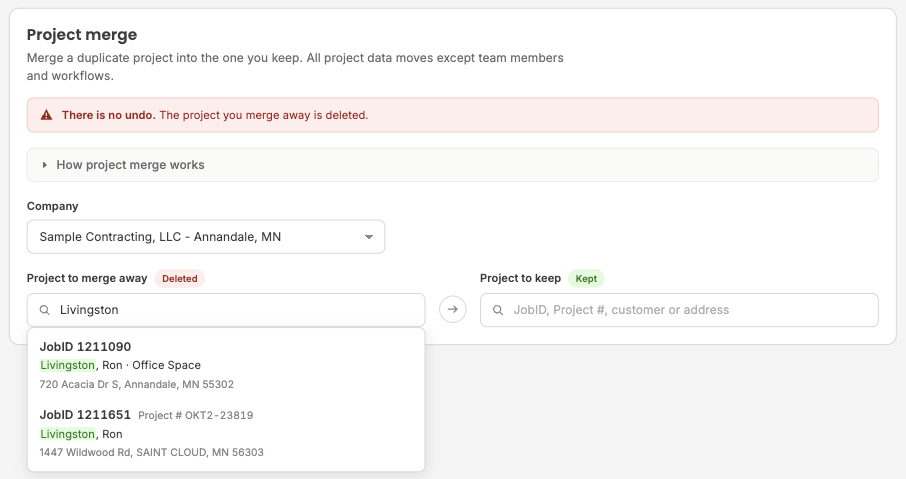
- Under Company, pick the company both projects belong to. Projects can only be merged within the same company.
- Search for the project to merge away and the project to keep by JobID, Project #, customer name, project name, or address. JobID is the project's permanent system number; Project # is the number your team assigned it. Either works in the search.
- Once both are picked, Data Merge checks them automatically. If something is in the way, it lists every reason at once so you can resolve them together. See Troubleshooting.
- When the check clears, you'll see Ready to merge. Click Merge projects, then confirm.
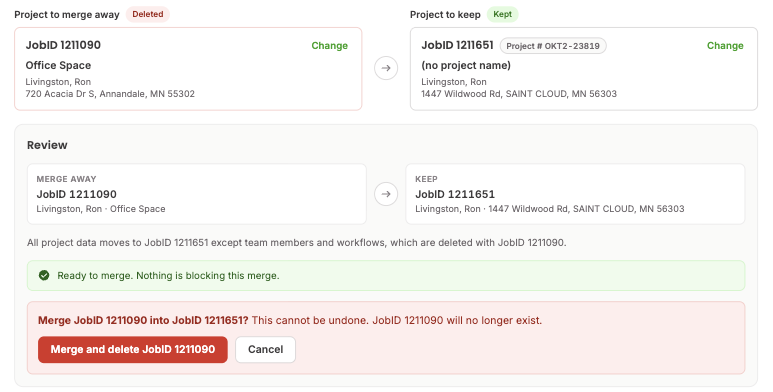
Estimates and proposals, files, photos, notes, appointments, tasks, and linked contacts all move to the project you keep. The project you merge away is deleted.
Merge two customer accounts
Use this when the same customer has two accounts. Everything that belongs to the account you merge away, including its projects, payments, credit memos, contacts, and notes, moves to the account you keep. The account you merge away is then deleted.
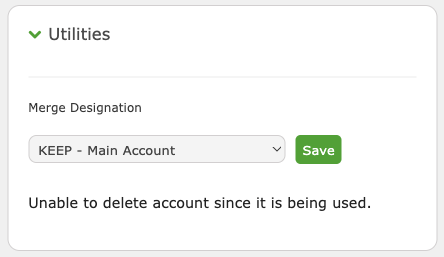
On each customer's account page, open Utilities and set the Merge Designation field: KEEP - Main Account for the account to keep, DELETE - Remove Account for the account to remove, then save. Only accounts marked this way appear on the Data Merge page.
Steps
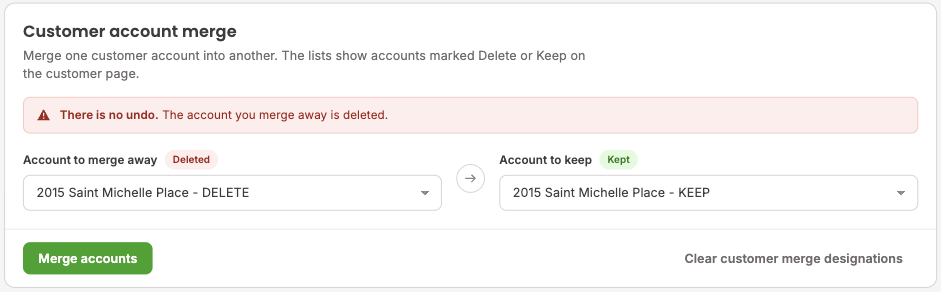
- On the Customer accounts tab, pick the account marked for deletion under Account to merge away, and the account marked to keep under Account to keep.
- Click Merge accounts, then confirm.
If either account is linked to QuickBooks, has a stored payment method, or has a payment in progress, the merge is blocked. See Troubleshooting.
Clear customer merge designations resets the Merge Designation field back to "Do Nothing - Good Account" for every customer account in your account, not just the two you picked.
Merge two contacts
Use this when the same person has two contact records. Everything the merged contact is attached to moves to the contact you keep: its links to accounts, projects, crews, suppliers and vendors, its notes, its roles on insurance claims, the contact listed on invoices, the referrer on projects, appointment invites, and vendor portal history. The merged contact is then deleted.
On each contact's page, open Utilities and set the Merge Designation field the same way: KEEP - Main Contact for the one to keep, DELETE - Remove Contact for the one to fold in.
Steps
- On the Contacts tab, pick the contact to keep and the contact to merge.
- A table compares every field between the two contacts. Where they differ, choose Value to keep for that field: Keep or Merge.
- Click Merge contacts, then confirm.
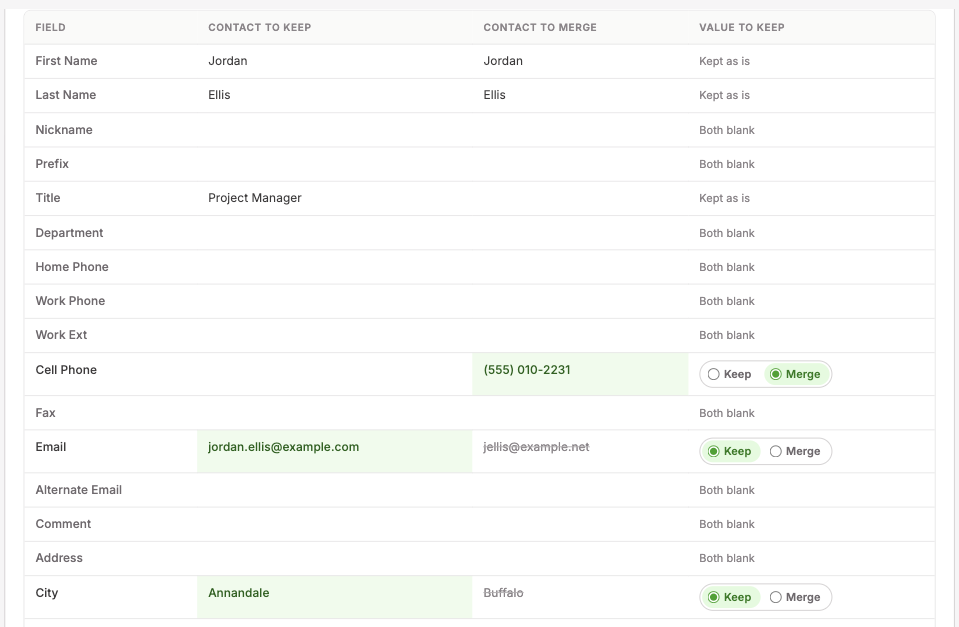
If you don't change anything, the default rule applies: a blank field on the contact you keep is filled in from the merged contact, and a field that already has a value is left as it is. You can override this per field. Every value the merged contact had is saved in a note on the contact you keep, marked as copied over or not, so you can look it up later even though the merged contact is gone.
Clear contact merge designations resets the Merge Designation field back to "Do Nothing - Good Contact" for every contact in your account, not just the two you picked.
Troubleshooting
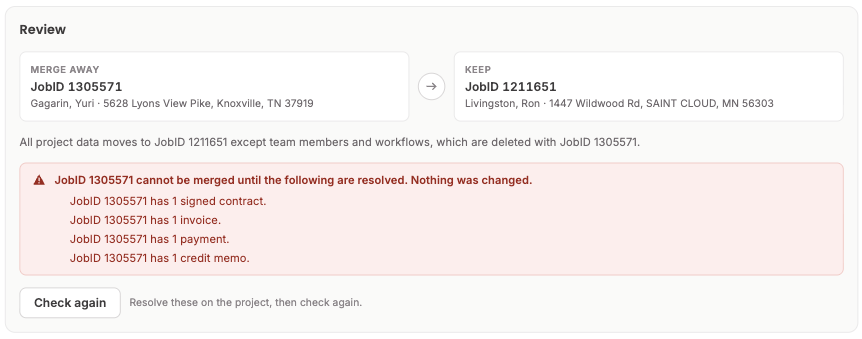
Data Merge checks both records before anything changes. If a merge can't go through, it lists every reason at once so you can resolve them together instead of one at a time.
Project merges
- Symptom: "JobID [N] is in status "[status name]". Only projects in Lead, Prospect, Inspection/Demo or Estimate/Proposal can be merged into another project." Cause: the project you're merging away has moved past an early stage. Fix: merge away only a project that's still Lead, Prospect, Inspection/Demo, or Estimate/Proposal. If the duplicate is further along, resolve its data another way instead of merging it away.
- Symptom: "JobID [N] has [count] [signed contracts / invoices / payments / credit memos / payouts / work orders / bills/expenses / material orders]." Cause: the project you're merging away already carries financial records. Fix: clear up the contract, invoice, payment, work order, bill, or material order first, or use this project as the one you keep instead.
- Symptom: "[count] invoice(s)/credit memo(s)/payment(s)/bill(s) have been synced to QuickBooks," or "JobID [N] is linked to a QuickBooks Customer:Job," or "JobID [N] has [count] QuickBooks Desktop job request(s) waiting on the Web Connector." Cause: the project, or one of its invoices, credit memos, or bills, is synced with QuickBooks, including a QuickBooks Desktop request still waiting on the Web Connector. Fix: resolve the QuickBooks link first, or contact support if you can't find it yourself.
- Symptom: "JobID [N] has [count] pending card/ACH payment(s) (an unpaid down-payment link or a payment not yet settled)." Cause: a down-payment link hasn't been paid, or a card/ACH payment hasn't settled yet. Fix: wait for the payment to settle, or resolve the pending link, then check again.
- Symptom: "[count] EagleView order(s) is/are not complete," "[count] RoofScope order(s) is/are not complete," or "[count] e-sign document(s) is/are awaiting signature (draft or sent)." Cause: an EagleView or RoofScope order hasn't finished, or an e-sign document is awaiting signature. Fix: wait for the order or signature to complete, then check again.
- Symptom: "The project inbox has [count] email(s)." Cause: the project's email inbox has received messages. Fix: contact support about moving or clearing the project's email history before you merge.
- Symptom: "JobID [A] and JobID [B] belong to different companies. Only projects in the same company can be merged." Cause: the two projects aren't in the same company. Fix: pick two projects in the same company.
- Symptom: "JobID [N] is canceled. Pick a project that is not canceled to merge into." Cause: the project you picked to keep is in the Canceled status. Fix: the project you keep can't be in the Canceled status. Pick a different project to keep, or merge into a different project instead.
- Symptom: "You do not have permission to merge JobID [A] into JobID [B]." Cause: your account is limited to your own projects and you're not listed as a rep on both projects, or you're not a member of the project's company. Fix: ask an admin to add you as a rep on both projects, or have a user with full access run the merge.
Customer account merges
- Symptom: "Customer account #[N] is linked to a QuickBooks customer," "[count] project(s) are linked to a QuickBooks Customer:Job (including deleted projects)," "[count] invoice(s)/credit memo(s)/payment(s) have been synced to QuickBooks," or "Customer account #[N] has [count] QuickBooks Desktop customer request(s) waiting on the Web Connector." Cause: the account, or one of its projects (even a deleted one), is linked to QuickBooks, or has invoices, credit memos, or payments already synced to QuickBooks. Fix: resolve the QuickBooks link first, or contact support if you can't find it yourself.
- Symptom: "Customer account #[N] is linked to a customer at the payment processor," "...has [count] stored payment method(s)," or "...has [count] pending card/ACH payment(s) (a pay link not yet paid or a payment not yet settled)." Cause: the account has a stored payment method, or a pending or unsettled card/ACH payment. Fix: remove the stored payment method, or wait for the pending payment to settle, then check again.
- Symptom: "Users limited to their own projects and customers cannot merge customer accounts." Cause: your account is limited to viewing your own projects and customers. Fix: ask a user without that restriction to run the merge.
Contact merges
Contact merges rarely block. There's no QuickBooks or payment check on a contact record, only that both a contact to keep and a contact to merge are picked, and that they aren't the same contact. If you see "Please pick both a contact to keep and a contact to merge," pick both. If you see "A contact cannot be merged into itself. Pick two different contacts," you picked the same contact on both sides.
"Nothing was changed" in a blocked message means exactly that: the check runs before anything is written, so a blocked merge leaves both records untouched. Resolve the listed items, then try again.