
Hover
Hover turns a few smartphone photos of a home into a 3D model with exterior measurements. The Hover integration connects your Hover account to Contractors Cloud so you can order a Hover capture from a project, follow its status, and get the measurements and report back on the same project.
Hover is in Beta. It is available to try now, and it may change as we learn from how you use it.
How it helps: no more asking someone to measure the roof by hand or e-mailing PDFs around. The Hover report lands in the project's files, and the measurements can be used in your estimates.
What you can do with Hover
- Connect your Hover account to a company.
- Order a Hover capture from a project: you capture the photos in the Hover app, or Hover invites the homeowner to.
- Link a Hover job that already exists in your Hover account to a project.
- Follow the job's status from the project's Hover tab.
- Get the measurements report in the project's files and a note on the project when Hover finishes.
- Use the measurements in your estimates.
Before you start
- You need a Hover Pro plan or above on your Hover account.
- You need access to Company Settings.
- An executive links the company to Hover. Everyone else in the company can see the connection status but not change it.
Connect Hover
Connecting takes two short steps. First you sign in to Hover. Then you use that connection for the company.
- Open Company Settings and choose Hover. The page is titled Hover Integration.
- In the Company connection card, click Connect Hover. A Hover sign-in window opens. Sign in to Hover and approve the connection. If nothing opens, allow popups in your browser and try again.
- When the window closes, click Use my Hover connection for this company. You'll see Hover is connected for this company., with the Hover account name, who it was Connected by, and when it was Connected.
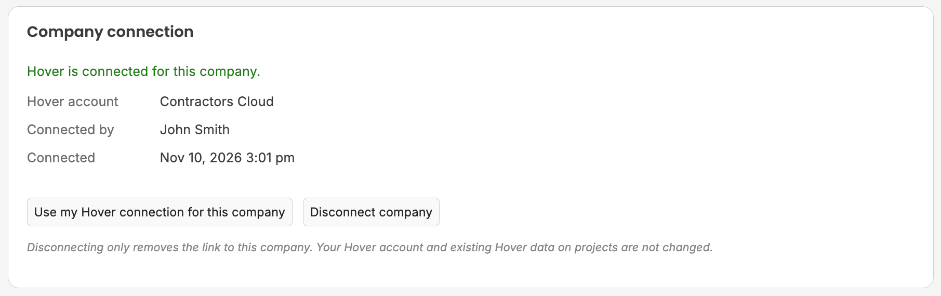
The page header also shows a green Connected chip. If you haven't connected your own Hover account yet, the page tells you: "You have not connected your own Hover account yet. Click Connect Hover first, then use it for this company."
If you are not an executive, the page reads "Hover is not connected for this company." and "Only an executive can connect Hover."
Choose the default deliverable
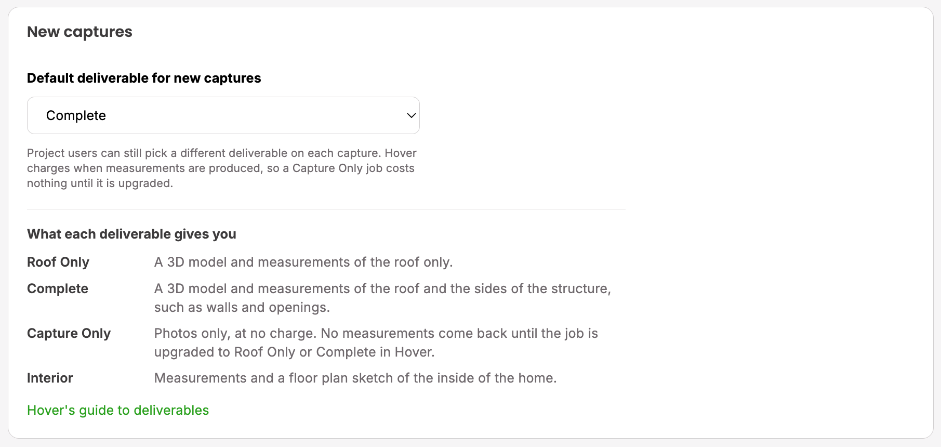
A deliverable is the kind of result Hover produces for a capture. Under New captures, the Default deliverable for new captures list sets the one that is pre-selected when someone orders a capture. It saves as soon as you pick it. People ordering a capture can still choose a different deliverable each time.
What each one gives you (the same list is on the page under What each deliverable gives you):
| Deliverable | What you get |
|---|---|
| Roof Only | A 3D model and measurements of the roof only. |
| Complete | A 3D model and measurements of the roof and the sides of the structure, such as walls and openings. |
| Capture Only | Photos only, at no charge. No measurements come back until the job is upgraded to Roof Only or Complete in Hover. |
| Interior | Measurements and a floor plan sketch of the inside of the home. |
If nobody has chosen a default, new captures start on Complete.
For Hover's own explanation of deliverables and the team default, use the link on the page: Hover's guide to deliverables.
Billing basics
Hover charges when measurements are produced, not when the capture is requested. So a Capture Only job costs nothing until it is upgraded in Hover.
Order a Hover capture from a project
Open the project and choose its Hover tab. The tab lists the project's Hover jobs with their Address, Deliverable, Captured by, Ordered date and Status. If there are none, it reads "No Hover jobs on this project yet."
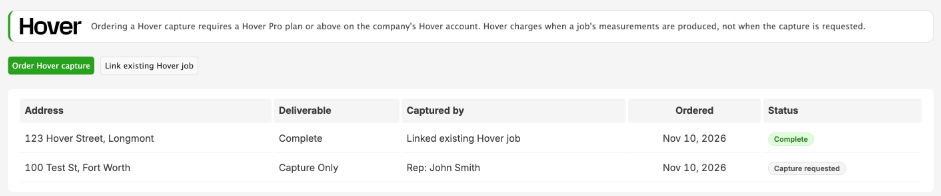
Anyone who can open the project can see its Hover jobs. The ordering buttons appear once Hover is connected for the company.
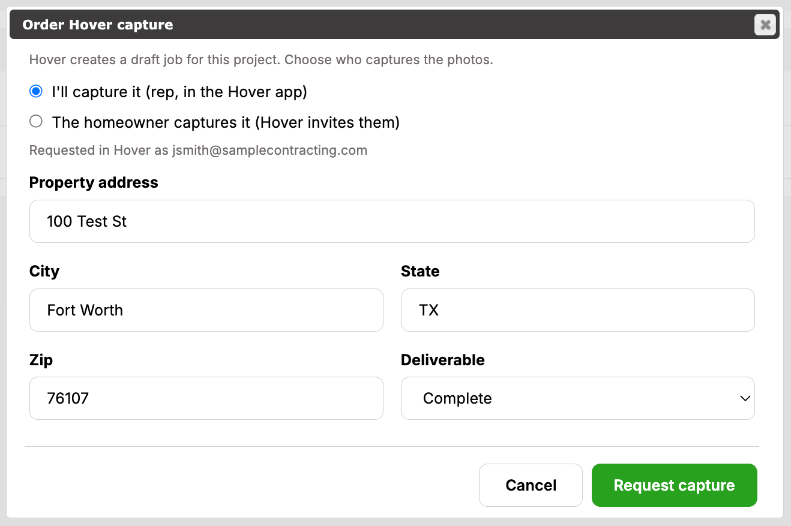
- Click Order Hover capture (or use the green + at the top of the page and choose Order Hover capture). The Order Hover capture form opens with the project's address and contact filled in.
- Choose who captures the photos:
- I'll capture it (rep, in the Hover app): you take the photos in the Hover app.
- The homeowner captures it (Hover invites them): Hover sends the project contact its own invitation by email and text. Hover needs the contact's Name and Email; Mobile phone is also on the form. Edits you make here are used for this request only and are not saved to the contact. If you'd rather Hover not e-mail or text your homeowners, ask Hover to turn those invitations off for your account.
- Check the Property address, City, State and Zip, and pick the Deliverable.
- Click Request capture.
You'll see "Hover capture requested. Open the Hover app to capture the property." for a rep capture, or "Hover capture requested for the homeowner." for a homeowner capture. Hover creates a draft job on the project, the job appears in the list, and a note, "Hover capture requested," is added to the project.
Click Request capture once. The app won't send a second request for the same project within a minute ("A Hover capture was just requested for this project. Give it a minute before ordering another.").
Link a Hover job that already exists
If the job is already in your company's Hover account, link it instead of ordering a new one.
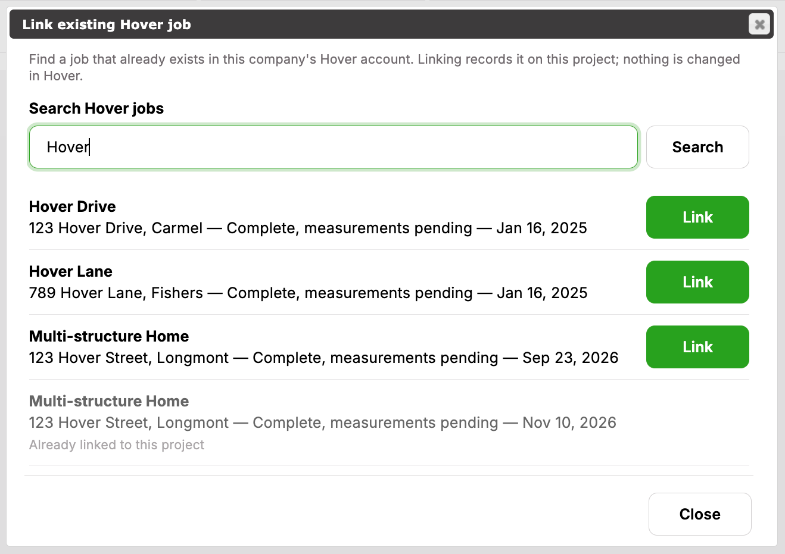
- On the Hover tab, click Link existing Hover job.
- In Link existing Hover job, the search is pre-filled with the project's address. Change it if needed and click Search.
- Find the job. Each result shows its name, address, status and date. Click Link.
Linking records the job on this project; nothing is changed in Hover. You'll see "Hover job linked." If Hover has already finished the job, its measurements are brought in right away. Otherwise: "Measurements will be imported when Hover finishes the job."
A job can be linked to one project only. Results that can't be linked are greyed out with the reason: "Already linked to this project", "Already linked to" the project it belongs to, or "Hover job belongs to another project". If nothing matches, the list reads "No Hover jobs matched."
Follow the job's status
The Status on the Hover tab shows where each job is. Click a job to open it. The status badge at the top of the job shows the same thing. Hover decides the status; the page shows what Hover last told us. The status updates on its own as Hover works on the job.
| Status | What it means |
|---|---|
| Capture requested | The capture has been requested. The photos haven't been taken and processed yet. |
| Processing | Hover is working on the job. |
| Complete, measurements pending | Hover finished the job but has not produced measurements yet. A Capture Only job stays here until it is upgraded in Hover. |
| Complete | Hover finished and the measurements are on the project. |
| Import problem | The last attempt to bring the measurements in failed. The reason is shown under Activity on the job (and under the status in the list). Click Refresh from Hover to try again. |
| Failed | Hover reported that the job failed. |
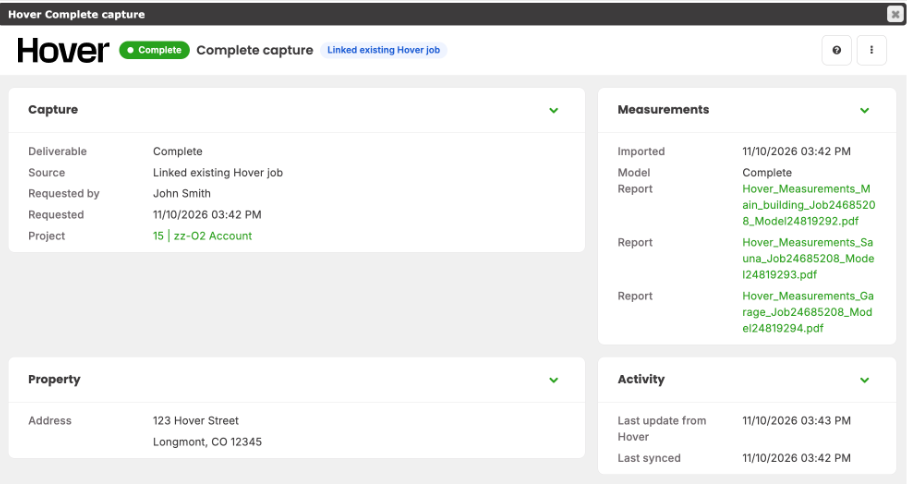
The job opens with four cards:
- Capture: the Deliverable, Source (Rep capture, Homeowner capture, or Linked existing Hover job), who it was Requested by, when it was Requested, and the Project.
- Measurements: when they were Imported and the Report files. Before the import it reads "No files yet. Hover sends the measurements when the job is complete."
- Property: the address.
- Activity: Last update from Hover and Last synced, plus the reason if something needs attention.
Refresh from Hover
Click Refresh from Hover (the main button at the top of the job) to ask Hover for the job's latest status and measurements. While the measurements are not in yet, opening the job also checks Hover once on its own, so you usually don't need to click. You may briefly see Checking Hover... on the button. Once the measurements are in, the button is gone because there is nothing left to refresh.
You may see:
- "Refreshed. Hover has not finished this job yet."
- "Refreshed. Hover has not produced the measurements yet."
- "Hover measurements imported. The report is in the project's files."
- "This job is already complete. Its measurements are on the project."
What arrives on the project when the job completes
When Hover finishes a job and produces measurements:
- The measurements report is added to the project's files as a PDF, one for each model Hover produced. Open it from the Report line in the job's Measurements card or from the project's files.
- A project note, "Hover measurements received," is added.
- The measurements themselves are saved on the job so they can be used in your estimates.
Nothing is imported twice: a job that is already imported is left alone.
Use the measurements in your estimates
Once a job has been imported, its measurements are available wherever Contractors Cloud offers measurement reports:
- The Import Measurement Report dialog lists Hover reports named "Hover - the job's address", with the date they were imported, alongside your other measurement providers.
- The Import Measurements dialog for estimate custom fields lists your Hover reports, so Hover figures can fill the custom fields you have mapped to them.
Disconnect Hover
- Open Company Settings and choose Hover.
- In the Company connection card, click Disconnect company and confirm "Are you sure you want to disconnect Hover from this company?"
Disconnecting only removes the link between Hover and this company. Your Hover account and any Hover data already on projects, such as saved measurements and report files, are not changed. After you disconnect, projects still list their Hover jobs, but new captures can't be ordered until Hover is connected again.
Troubleshooting
| What you see | Why | What to do |
|---|---|---|
| Reconnect needed (on the Hover page), or "Hover needs to be reconnected" on the project's Hover tab | Hover stopped accepting the company's connection. The page shows the Reason and when it was Disconnected. Existing jobs still show; new captures can't be ordered. | An executive clicks Connect Hover, signs in, then clicks Use my Hover connection for this company. If you aren't an executive, the page says "Ask an executive to reconnect Hover." |
| "Hover isn't connected for this company. An executive can connect it in Company Settings." | The company isn't linked to Hover. | An executive connects it (see Connect Hover). |
| "Please allow popups at the top of your browser to connect Hover." | Your browser blocked the Hover sign-in window. | Allow popups for Contractors Cloud and click Connect Hover again. |
| "We could not check the Hover connection right now. Please refresh this page in a moment." | The connection status couldn't be read. | Refresh the page and try again. |
| "Add the property's street address before ordering a Hover capture." | The project has no street address. | Add the address on the project (or in the form) and request again. |
| "Homeowner capture needs the project contact's email address. Add an email to the contact (or choose rep capture)." | A homeowner capture needs a valid email. | Add an email to the contact, or choose I'll capture it (rep, in the Hover app). |
| "Add a name to the project contact." | A homeowner capture needs the contact's name. | Add the name, or choose rep capture. |
| "Your user profile has no email address. Hover needs it to attribute the capture to you." | Your user has no email. | Add an email to your user profile. |
| "Your user profile has no name." | Your user has no name (rep capture). | Add your name to your user profile. |
| "No active Hover user found for this company's org." | Nobody on the company's Hover account could be matched to the request. | Check that your email belongs to an active user on the company's Hover account, then try again. |
| "Hover did not accept the capture request. Check the property address and that your email belongs to an active Hover user, then try again." | Hover refused the request. | Check the address and that your email belongs to an active Hover user. |
| "Hover is busy right now. Please try again in a minute." | Hover asked us to slow down. | Wait a minute and try again. |
| "Hover could not be reached right now. Nothing was ordered. Please try again in a moment." | Hover didn't answer. Nothing was ordered. | Try again shortly. |
| "Hover accepted the capture request but did not return a job reference, so it could not be saved here. Check Hover before ordering again." | The request may exist in Hover but couldn't be saved on the project. | Check your Hover account before ordering again. |
| "The Hover capture was created at Hover, but it could not be saved on this project. Please tell support (job reference …) before ordering again." | The job exists in Hover but isn't recorded here. | Contact Contractors Cloud Support with that job reference. |
| Import problem on a job, or "The measurements could not be imported yet. The reason is shown on the job." | The last attempt to bring measurements in failed. | Open the job, read the reason under Activity, and click Refresh from Hover. |
| Complete, measurements pending doesn't change | Hover finished the job but has not produced measurements. A Capture Only job stays here until upgraded. | Upgrade the job to Roof Only or Complete in Hover, then Refresh from Hover. |
| "Hover is already importing this job. Check back in a moment." | An import is already running. | Wait a moment and refresh. |
| "That Hover job is already linked to another project." / "That Hover job was just linked. Give it a minute." | The job is linked elsewhere, or you clicked Link twice. | Pick a different job, or wait a minute. |