
ABC Supply

The ABC Supply integration connects your ABC Supply account to Contractors Cloud. You can search ABC's catalog, see your own account pricing, and send Material Orders straight to your ABC branch, all from the Material Order you already use.
How it helps: no more re-typing orders into ABC's site or phoning them in. Prices come from your ABC account at the moment you order, so your job costs match what you'll be billed. Every order carries a confirmation number you can track back to the job.
What you can do with ABC Supply
- Connect your ABC Supply account and choose the company's default ABC account (ship-to).
- Link your ABC branches as Suppliers, so a Material Order can be placed with a specific branch.
- Search ABC's catalog from the Material Order item dialog, at the order's branch.
- See your account pricing on every ABC item, with the time the price was fetched. You can also check your price at the other branches you've linked.
- Send the Material Order to ABC Supply with one button. Prices are re-checked first, and you get an ABC confirmation number back.
- Check the order's status from the order card with Refresh status.
- Try again or resolve an order whose outcome is unknown, for example after a connection timeout, without risking a duplicate order.
- See the order's history on the project: every send, retry, resolution and status change is recorded as a project note.
Before you start
- You need an ABC Supply online account (the login you use for ABC's own website) with access to the ship-to account you buy on.
- The ABC Supply integration must be turned on for your Contractors Cloud account. If you don't see ABC Supply under Integrations, contact Contractors Cloud Support.
Quick start
- My Settings → Integrations: on the ABC Supply Co. Account card, click Connect and sign in with your ABC login.
- Company Settings → Integrations → ABC Supply: turn on the switch so the company shows "{your company} is connected to ABC Supply".
- On the same page, under Default ABC Supply Account, pick the account (ship-to) you order on.
- Under that account, click Link as Supplier on each branch you buy from.
- On a Material Order, assign the linked ABC branch as the Supplier, set the Delivery date, and add items with Search.
- Click Review & send at the top of the Material Order. It opens the Order tab (it has the ABC Supply logo) on the Materials card. Check the order there and click Send to ABC Supply.
Connect ABC Supply
Connecting takes two short steps. First you connect your ABC login. Then you attach it to the company.
Step 1: connect your ABC account (My Settings)
- Open My Settings and choose Integrations.
- On the ABC Supply Co. Account card ("Connect your ABC Supply Co. account to Contractors Cloud."), click Connect.
- You are taken to ABC Supply's sign-in page. Sign in with your ABC login and approve access.
- You return to Contractors Cloud. The card now reads Your ABC Supply Co. integration with a green Connected.

To remove the connection later, use the Disconnect icon on the same card.
Step 2: connect the company and choose its default account (Company Settings)
- Open Company Settings and, under Integrations, click the ABC Supply logo.
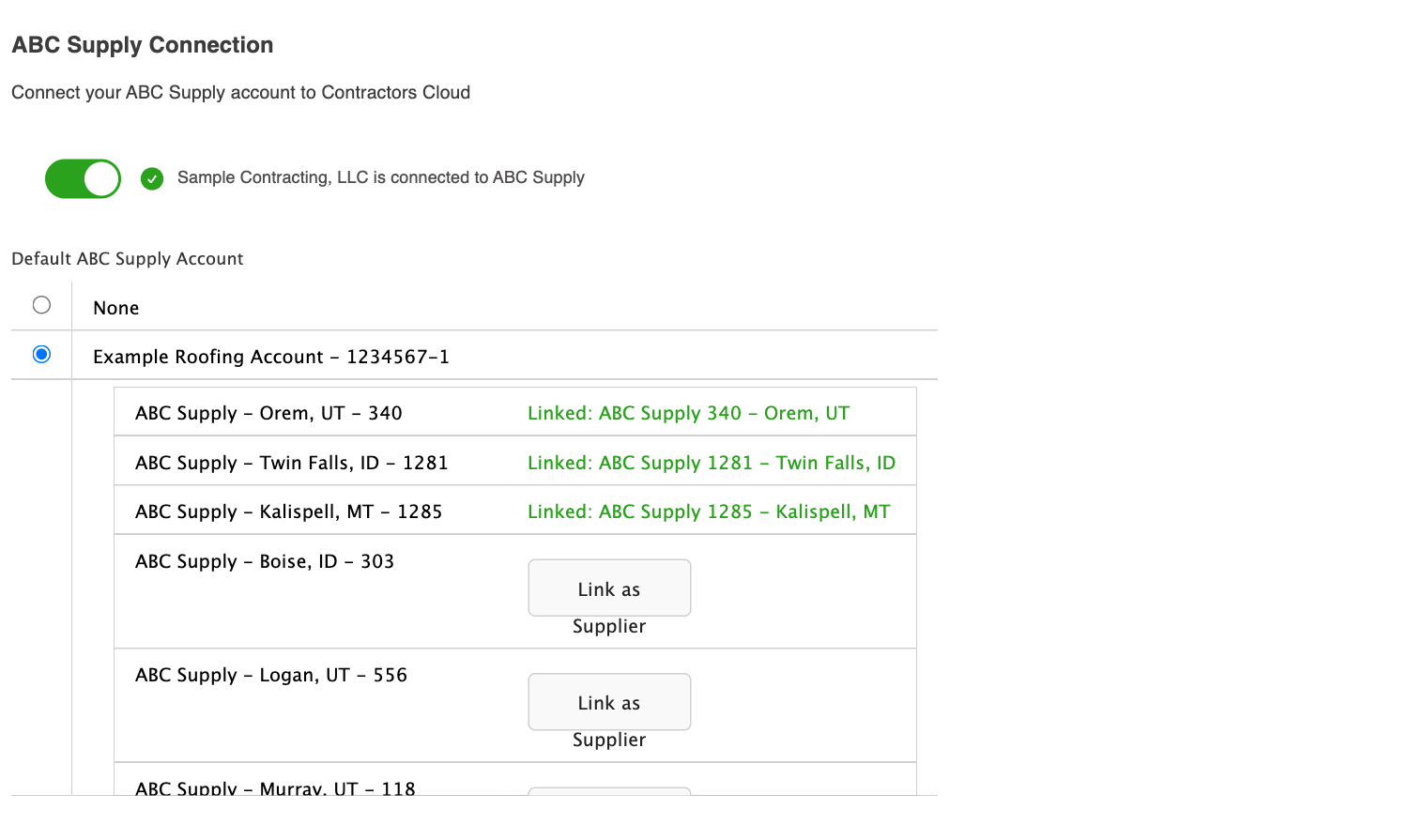
- In ABC Supply Connection, turn on the switch. You'll see "ABC Supply connection established", and the status reads "{your company} is connected to ABC Supply".
- If the page says "There are no ABC Supply integrations set up.", finish Step 1 first.
- Under Default ABC Supply Account, select the account (ship-to) the company orders on. It saves as soon as you pick it ("Default account updated"). Pricing and orders use this account.
Step 3: link your branches as Suppliers
Each ABC branch you buy from becomes a Supplier in Contractors Cloud. The Supplier is what a Material Order is placed with.
- From Company Settings: under your default account, click Link as Supplier next to a branch. It changes to Linked, and afterwards shows "Linked: {supplier name}".
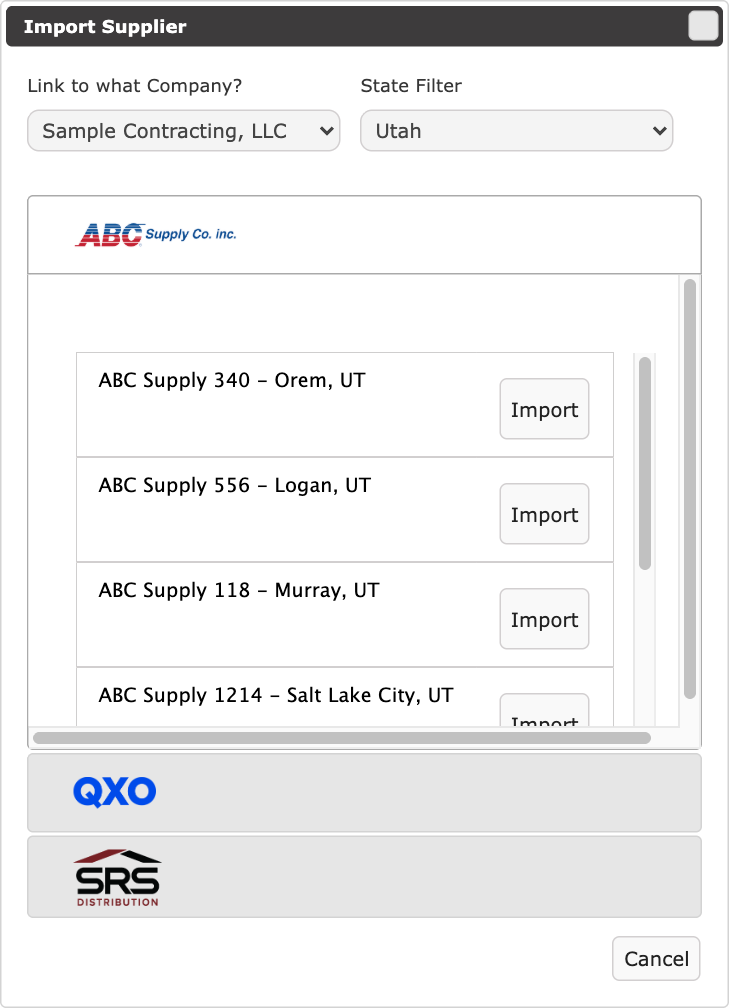
- From a Supplier: in the Supplier dialog's menu, choose Import supplier. Pick the company (Link to what Company?) and, optionally, a State Filter. Expand ABC Supply and click Import on the branch.
A linked Supplier shows the ABC Supply logo in its header ("Connected to ABC Supply · branch N").
Order from ABC Supply
1. Set up the Material Order
- Supplier: click Edit in the Supplier section and choose your linked ABC branch. ABC branches carry a blue ABC chip in the list. Changing the supplier needs production authority.
- Delivery: set the requested delivery date. ABC Supply needs a delivery date after today.
- PO#: up to 16 characters for ABC Supply.
- Instructions: sent to ABC Supply as the order's delivery instructions, up to 255 characters. The Order tab shows them as Delivery instructions before you send.
2. Add ABC items
- In the Materials card, click Add item. The form opens on the ABC Supply side of the Catalog | ABC Supply switch.
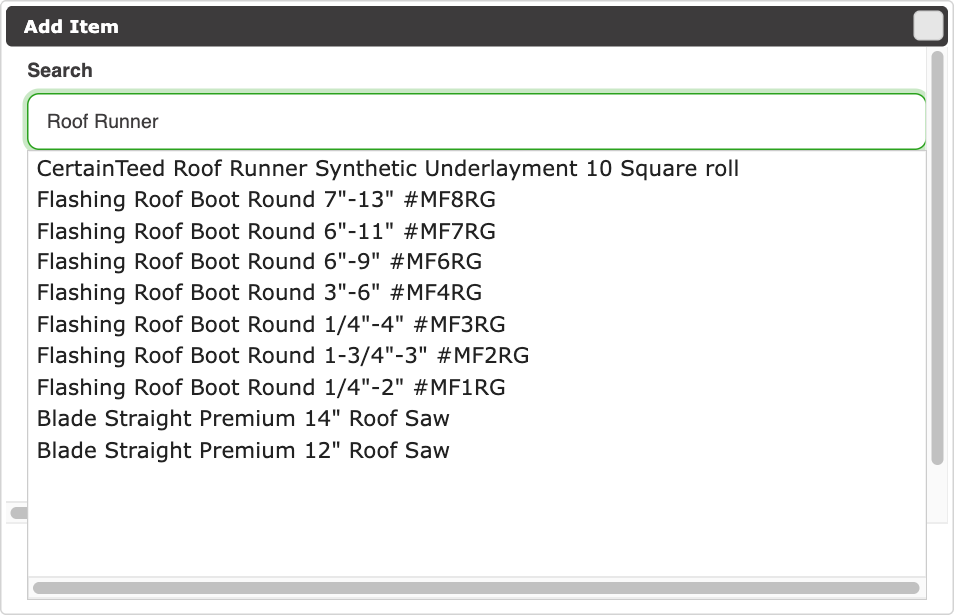
- In Search, type at least three letters, for example "Roof Runner", or type an ABC item number such as "05CTSRR10". Results come live from ABC's catalog at the order's branch. Each result shows the color, size, unit and item number under the name.
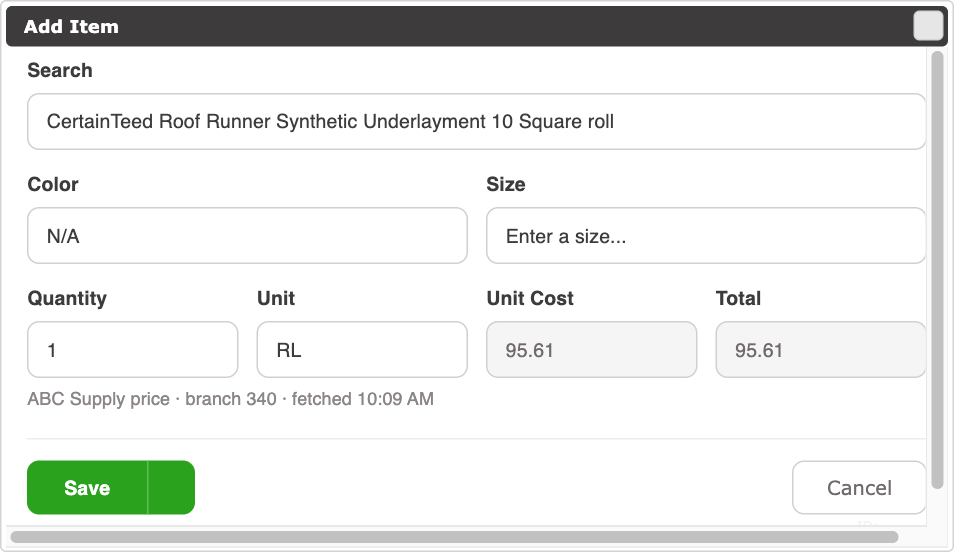
- Pick a product. The unit fills in, and so do Color and Size when ABC has them, and Unit Cost fills with your ABC price. The cost is locked, because it comes from ABC. Under it you'll see where the price came from, for example "ABC Supply price · branch 340 · fetched 2:14 PM".
- Set the Quantity and save.
- To add one of your own Catalog items instead, switch to Catalog. Items that can go on the ABC order show the ABC Supply logo and are listed first. See Picking Catalog Items.
- Other branches: click the green $ beside Unit Cost to open Explore Pricing. It shows your price at each of your linked branches. Pick one to use it.
- No price: if ABC can't price an item, the cost stays empty and the reason shows under it. Examples: "Cannot price item … Call for pricing." or "No price entered at this branch — contact the branch for pricing." Contact your ABC branch for those items. They stay on the Material Order but are not sent.
3. Review and send
Click Review & send at the top of the Material Order, or open the Order tab next to Materials on the Materials card. The tab carries the ABC Supply logo and shows, for example, "Order · Draft · 2 of 2 included".
- Will be sent: the items that go to ABC Supply, with quantity, unit price and total.
- Not sent: items that stay on the Material Order but are not ordered through ABC Supply, each with a reason. For example: "free-text item", "not yet priced", "no unit of measure", "zero quantity", "no ABC Supply product linked to this item".
- Before sending: anything ABC Supply requires that is missing. Send to ABC Supply stays disabled until the list is empty. For example: "Set a delivery date after today before sending to ABC Supply."
- Delivery instructions: the Material Order's Instructions, exactly as they will be sent. If there are none, it reads "none (set them under Instructions on this material order)".
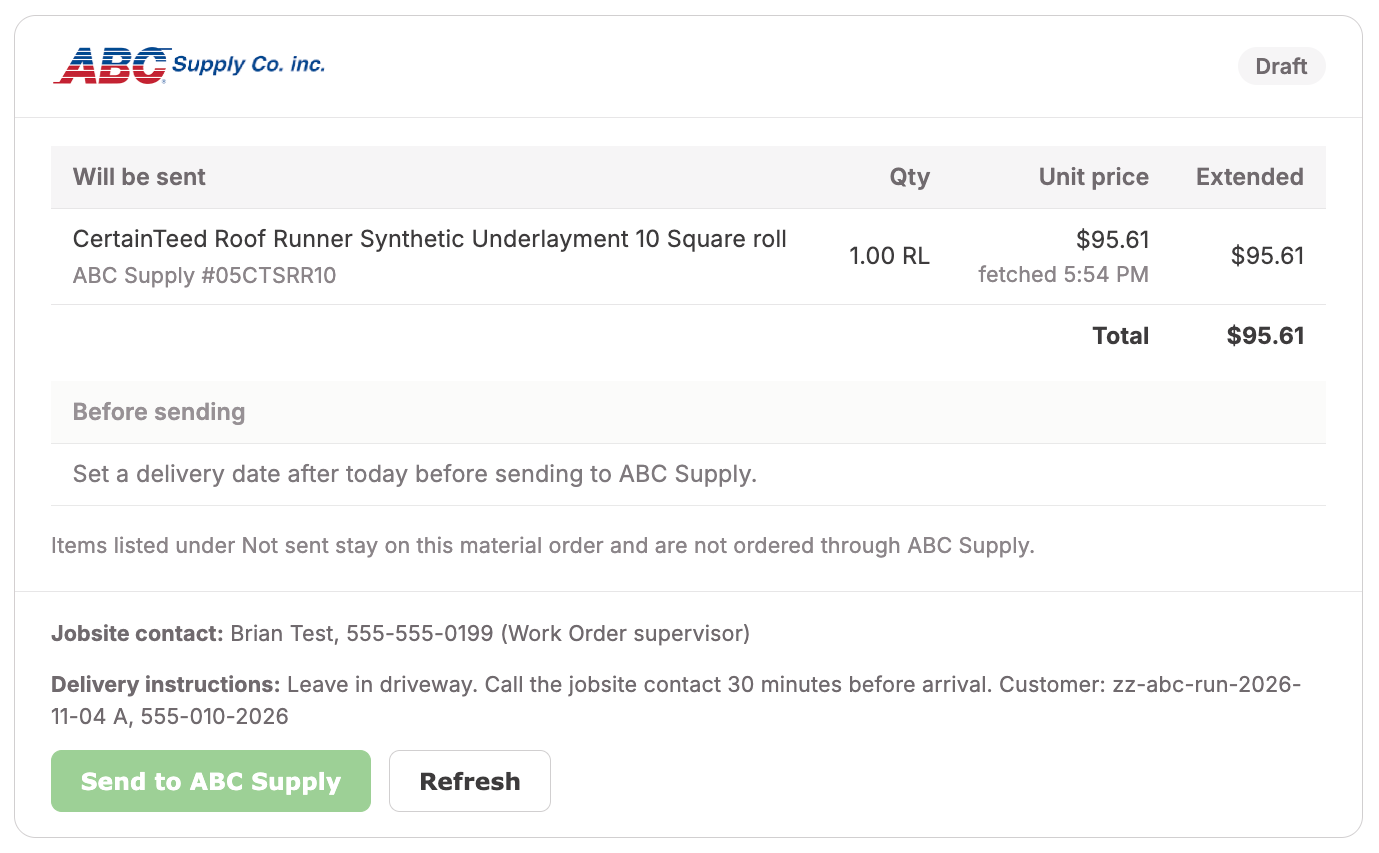
Items ABC sells by length can't be ordered from Contractors Cloud yet. When you add one, it is listed under Before sending, for example "Item name is sold by length, which can't be ordered from ABC Supply here yet. Remove it or order it from the branch directly." Remove it from the Material Order, or order it from your branch. Items added before this check existed are not flagged.
Click Send to ABC Supply. Contractors Cloud re-checks every price with ABC first:
- Prices unchanged: the order is sent. You'll see "Order submitted to ABC Supply. Confirmation C…. Sent N lines."
- A price changed: nothing is sent. A Prices changed card shows old → new for each item, and the costs on the Material Order are updated. Review the changes and press Send to ABC Supply again.
- ABC Supply refuses the order: nothing is ordered. You'll see ABC's reason, for example: 'ABC Supply did not accept this order, so nothing was ordered. ABC Supply said: "Item 05CTSRR10 is not available at branch 340". Fix the problem and send it again.' The order card shows Failed with the same reason, and a project note records it. Fix what ABC named, then build and send the order again.
After a successful send:
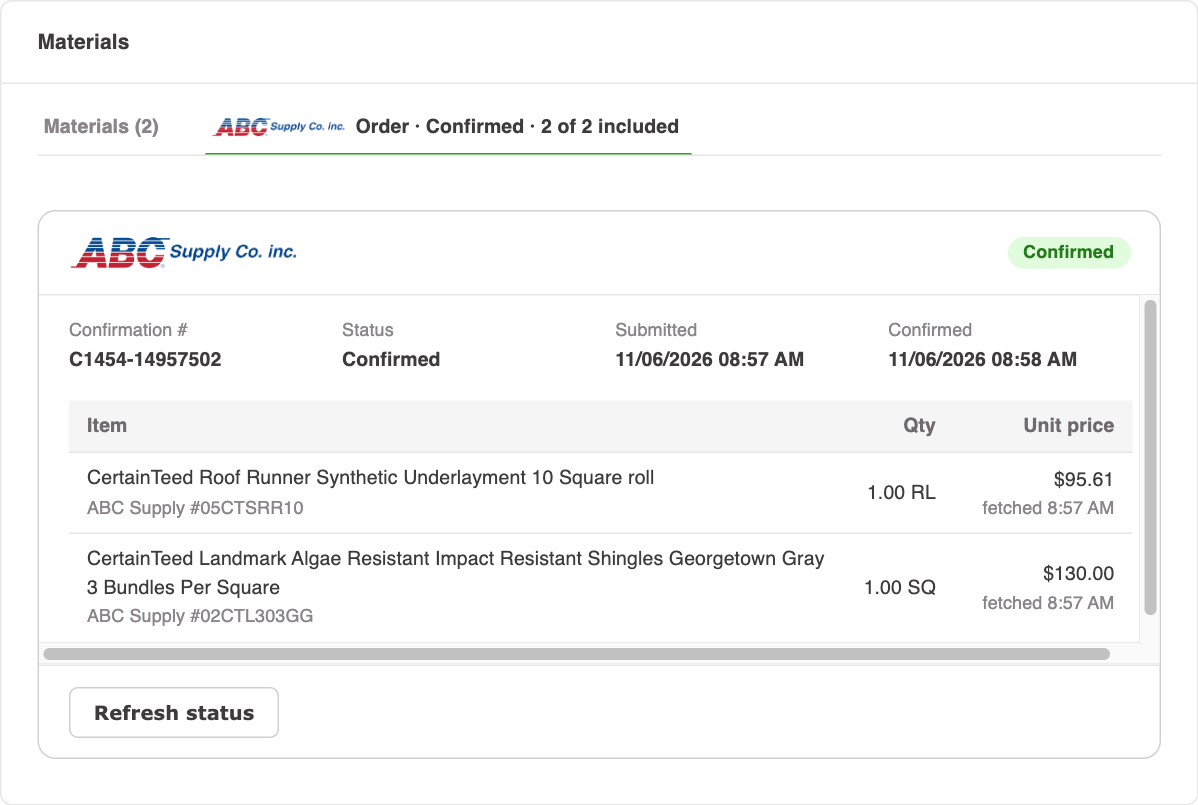
- The order card shows Confirmed with the Confirmation #.
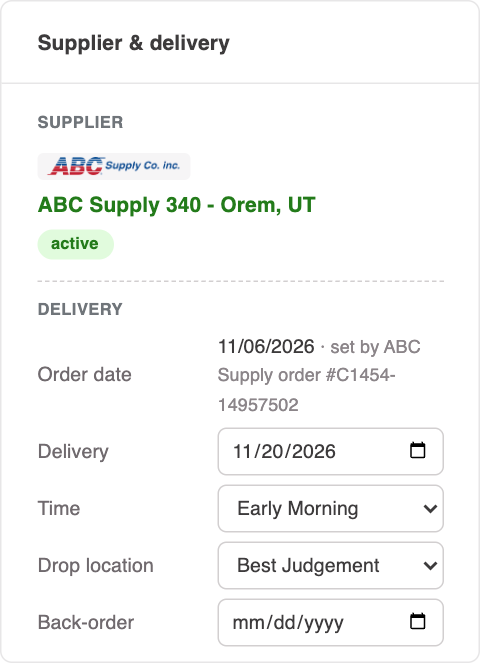
- The Material Order status becomes Ordered. The Order date is set and shows "set by ABC Supply order #C…".
- The items, supplier and PO# are locked. To order more for the job, use Create WIP order to start a new Material Order.
What ABC Supply receives
| On the order | Comes from |
|---|---|
| Branch | The Material Order's Supplier (a linked ABC branch) |
| Account (ship-to) | The company's Default ABC Supply Account |
| Delivery address | The project's address |
| Jobsite contact | The Work Order's supervisor, when the Material Order is on a Work Order with an active supervisor who has a phone (cell first, then direct line, then company phone). Otherwise the project customer's first contact: name and phone (cell, then home, then work). If neither has a name and phone, the person sending the order is used. A home number is sent to ABC as a mobile number. |
| Submitting contact | The user who clicks Send: name, company email, company phone (or cell) |
| Requested delivery date | The Material Order's Delivery date |
| PO number | PO# |
| Delivery instructions | Instructions |
| Items | The Will be sent items, at the price ABC just quoted |
| Delivery method | ABC's standard delivery by their truck (Our Truck Ground) |
Who ABC calls about the delivery: the jobsite contact. When the supervisor is the jobsite contact, the customer's name and phone are added to the end of the delivery instructions ("Customer: name, phone") so the branch can still reach them, as long as they fit in the 255-character limit. If they don't fit, your instructions are sent unchanged and the Order tab says the customer line was left out. The Order tab shows the Jobsite contact and the Delivery instructions exactly as they will be sent.
Tip: set a supervisor with a cell phone on the Work Order, and put a phone number on the customer.
Track the order
Click Refresh status on the order card to ask ABC Supply for the latest status. Once ABC's branch accepts the order, the card can show:
- ABC Supply status
- Shipment
- Delivered
- ABC Supply total
Common answers:
- "ABC Supply is still processing this order (Order has not yet been processed by ERP) - check again shortly." The branch has not accepted the order yet. This is normal at first.
- "ABC Supply status updated: status."
If ABC Supply rejects or cancels the order later
If ABC reports a confirmed order as cancelled, rejected, declined or void, Contractors Cloud marks it in two places so it can't be missed:
- At the top of the Material Order, a red Cancelled by ABC Supply (or Rejected by ABC Supply) label. Point at it to see ABC's status.
- On the order card, the same label replaces Confirmed, with: 'ABC Supply now reports this order as "status" after confirming it (C…). Check with ABC Supply before relying on this delivery.'

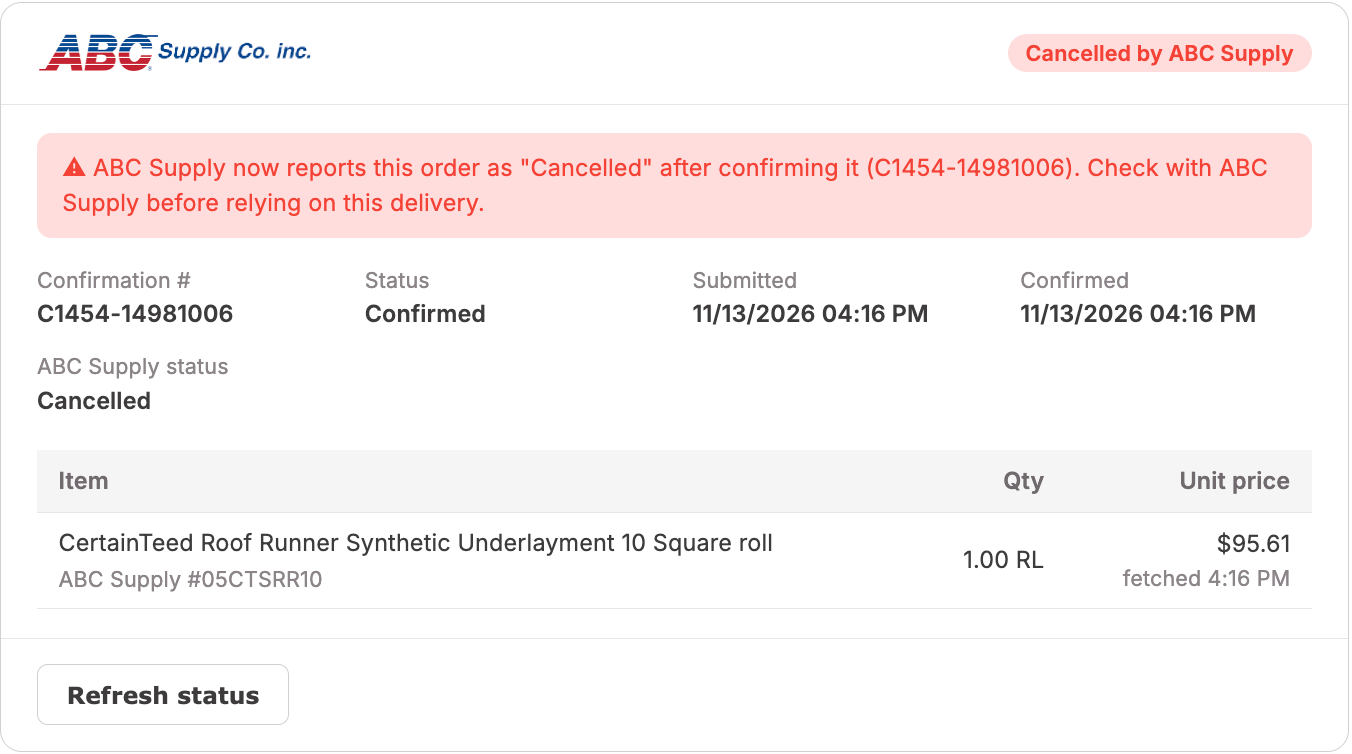
A project note records the new status. Contractors Cloud doesn't change the order or cancel it on its own: call your branch to find out why, and order again on a new Material Order if you still need the materials.
Order history on the project
Contractors Cloud records what happens to the order as notes on the project, so anyone working the job can see it. Each note starts with "Material Order [PO#]". Notes are written when:
- the order is sent: confirmed with its confirmation number and the number of lines, not accepted (with ABC's reason), or sent without a clear answer;
- Try again is used: which try it was and what ABC answered;
- an order is resolved as sent (with the confirmation number) or as not sent;
- ABC reports a new status for the order, or confirms an order whose outcome was unknown.
A status check that finds nothing new adds no note. Notes about your actions show you as the author.
When the outcome is unknown
If ABC Supply doesn't answer clearly when an order is sent, for example after a connection timeout, the card shows Outcome unknown with this message:
"ABC Supply did not give a clear answer when this order was sent. Its outcome is unknown - confirm with ABC Supply before re-ordering."
When ABC said something, its words follow, for example: 'Last answer: "Error: Unable to retrieve confirmation information".' If a status check finds that ABC has cancelled or rejected the order, the card also shows that in red.
Do not re-order. Contractors Cloud never re-sends an order on its own. When you open the order, it checks ABC's status once. Use Refresh status to check again.
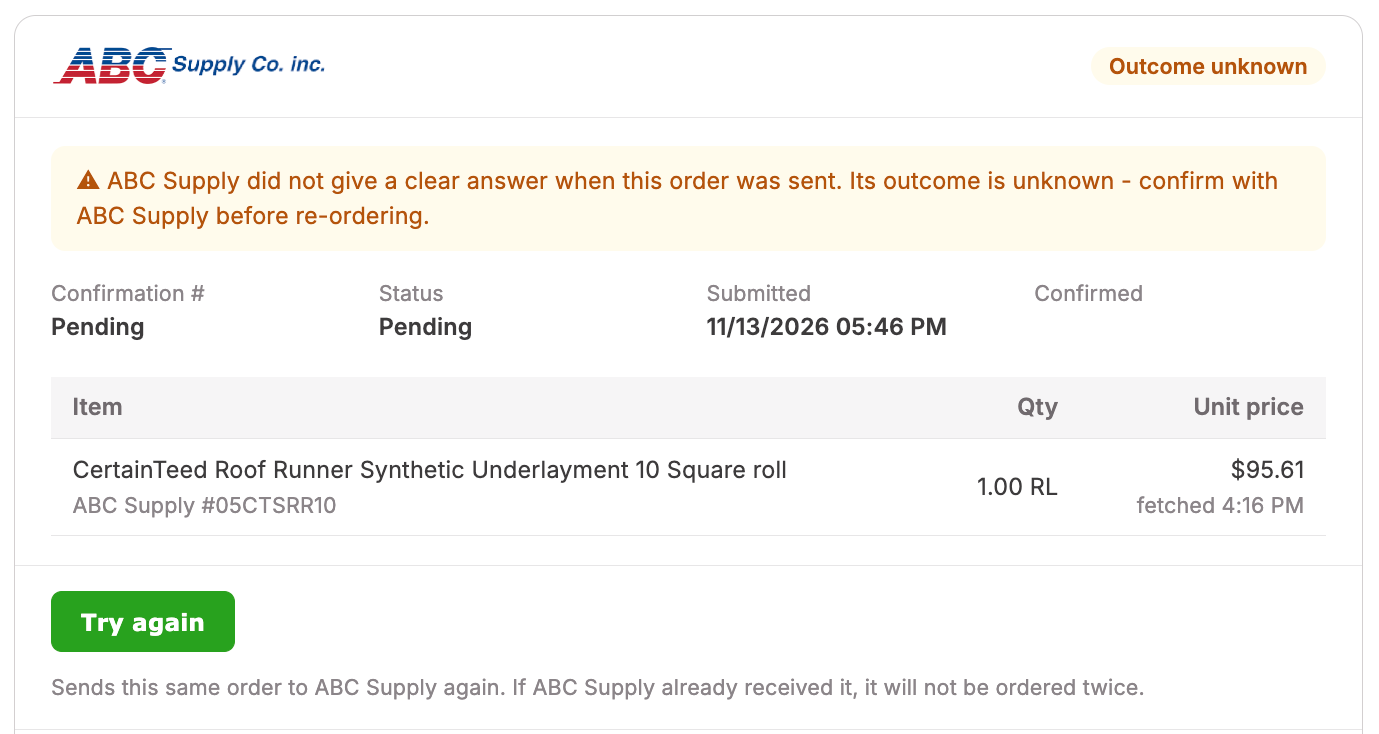
Try again sends the very same order to ABC Supply again. If ABC already received it the first time, it will not be ordered twice.
- ABC confirms it: the card shows Confirmed with the confirmation number, exactly as after a normal send.
- ABC refuses the repeat or still gives no clear answer: the order stays Outcome unknown, and you see ABC's words, for example: 'ABC Supply said: "Error: Unable to retrieve confirmation information". This order may already be with ABC Supply - check with the branch, then resolve it.' ABC may already have the first attempt, so check with your branch before doing anything else.
- The delivery date has passed: Try again won't send, because the order can't change. Check with your branch and resolve it.
If it is still unclear, check with your ABC branch, then use Resolve this order after checking with ABC Supply:
- Sent as #: ABC has the order. Enter the confirmation number they gave you.
- Not sent: use this only if ABC confirmed they have no such order. The Material Order can then be edited and sent again, as a new order that ABC can't match to the first one, so prefer Try again.

Try again is available to anyone who can send the order. Resolve is available to users with production authority. If you can't resolve, ask a user with production authority. Both wait a few minutes after the send, so ABC has time to answer.
Good to know
- One ABC order per Material Order. A sent order can't be sent again. Add more items on a new Material Order (Create WIP order).
- Return Material Orders are never sent to ABC Supply.
- Not available from Contractors Cloud yet:
- cancelling an ABC order (contact your branch)
- choosing a delivery method
- tracking numbers
- items ABC sells by length (they are listed under Before sending; order them from your branch)
- The Material Order's delivery Time and Drop location are not sent to ABC Supply. Put any delivery details in Instructions.
- Up to 99 items per order. Split larger orders into two Material Orders.
- Pricing, stock, credit and deliveries are handled by your ABC branch. Contractors Cloud shows and sends what ABC Supply returns for your account.
Troubleshooting
| You see | Why | What to do |
|---|---|---|
| No ABC Supply under Integrations | The integration isn't turned on for your account | Contact Contractors Cloud Support |
| "There are no ABC Supply integrations set up." | You haven't connected your own ABC login yet | Do Step 1 (My Settings → Integrations → Connect) |
| "This company has no default ABC Supply account (ship-to) set, so prices can't be confirmed — nothing was sent." | No Default ABC Supply Account chosen | Pick one in Company Settings → ABC Supply |
| "Set a delivery date after today before sending to ABC Supply." | The Delivery date is empty, today, or past | Set a future Delivery date |
| "ABC Supply needs a jobsite contact phone. Add a phone number to the customer or to your company." | No usable phone for the supervisor, the customer or you | Add a phone to the Work Order's supervisor or the project's customer |
| "ABC Supply needs the sending user's name. Add a first and last name to your user profile." | Your user profile has no name | Add your first and last name |
| "ABC Supply accepts a PO number of up to 16 characters; this one is N. …" | PO# too long | Shorten the PO# |
| "ABC Supply accepts delivery instructions of up to 255 characters; …" | Instructions too long | Shorten the Instructions |
| "ABC Supply prices changed since they were quoted. Review the changes and press Send again." | ABC's price moved since the item was added | Review the Prices changed card and send again |
| "Couldn't confirm ABC Supply prices right now — nothing was sent." | ABC didn't answer the price check | Try again in a moment |
| "Cannot price item … Call for pricing." or "No price entered at this branch — contact the branch for pricing." | ABC has no price for that item on your account at this branch | Call your ABC branch. The item stays on the Material Order but isn't sent. |
| Item shows "Not sent to ABC Supply" | The item isn't an ABC product, has no price or unit, or has zero quantity | See the reason in the Not sent table |
| "Item name is sold by length, which can't be ordered from ABC Supply here yet. Remove it or order it from the branch directly." | The item is sold by length | Remove it from the Material Order and order it from your branch |
| "ABC Supply did not accept this order, so nothing was ordered. ABC Supply said: "reason". Fix the problem and send it again." | ABC refused the order (for example an item not available at the branch) | Fix what ABC named, then build and send the order again |
| Cancelled by ABC Supply or Rejected by ABC Supply at the top of the Material Order | ABC reported a confirmed order as cancelled or rejected | Call your branch. Order again on a new Material Order if you still need the materials. |
| Outcome unknown | ABC didn't confirm whether it received the order | Don't re-order. Use Refresh status or Try again, then Resolve if it is still unclear. |
| "ABC Supply said: "message". This order may already be with ABC Supply - check with the branch, then resolve it." | ABC refused the repeated order, which can mean it already has the first attempt | Check with your branch, then resolve the order (or ask a user with production authority) |
| "ABC Supply already has this request - check with the branch, then resolve it." | ABC already received this order | Check with your branch for the confirmation number, then resolve it as Sent as # |
| "This order was sent moments ago - wait a few minutes for ABC Supply to answer before trying again." | The first send may still be running | Wait a few minutes and try again |
| "This order asked for delivery on date, which has passed, so it cannot be sent again unchanged. …" | The delivery date has passed since the first send | Check with your branch and resolve the order |