
Picking Catalog Items
What it is
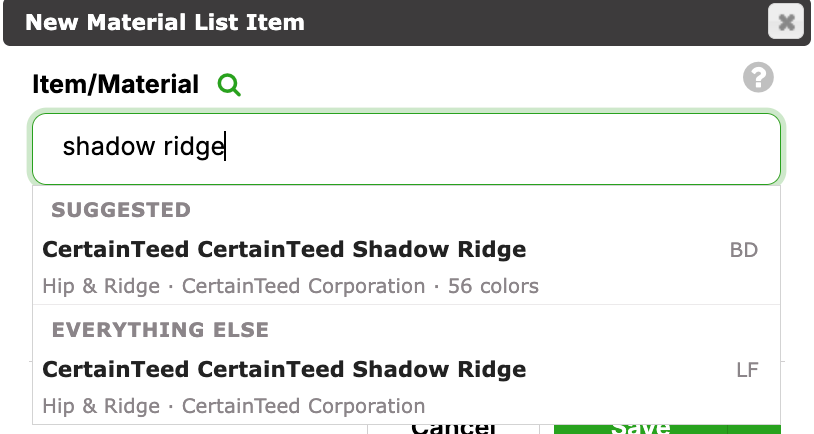
Every line you add to an estimate, a material order, a work order or a Material List starts with the same box: Item/Material. Type a few letters to find an item in your Catalog (your company's Materials), or click the search icon to browse the whole Catalog with filters.
It helps you add the right item quickly and consistently. Search matches the item's name, category and manufacturer, remembers what you used recently, puts the items that suit the line first, and lets you add several items in one step. Colors and sizes are picked right in the line form.
Where you will see it
- Estimate item (an estimate's line) and Estimate component
- Material order items (the Add Item form)
- Work order labor items (the Add Labor Item form)
- Material List items
Material order forms only offer materials, and work order labor forms only offer labor items. Archived items never appear.
Quick start
- In the line form, click in Item/Material and type part of the item's name, category or manufacturer.
- Pick the item from the list (click it, or use the arrow keys and Enter).
- If the item has colors or sizes, pick them under Color and Size. If your pick has a different Catalog price or cost than the one already on the line, you are asked whether to Update to it or Keep what you have. The same question appears when you pick a different item on a line that already has a price or cost.
- Check the quantity, then save the line.
To look through the Catalog instead, click the search icon beside Item/Material (Browse items).
Searching as you type
- Type at least two letters. Every word you type must appear in the item's name, its category or its manufacturer, so
ridge cap shinglefinds items that match all three words. - Click in an empty box to see the last few items you picked (Recently used; materials and labor are kept apart). The list is kept in your browser.
- Results are grouped. Suggested comes first: items that match the line's trade and estimate type. Everything else follows. Suggestions only put items first; nothing is hidden.
- Each result shows the item's unit, and under the name its category, manufacturer and how many colors and sizes it has.
- Up to 25 items show at a time. When there are more, the list ends with More matches. Keep typing to narrow.
- The x in the box (Clear material) removes the pick. The quantity, unit and cost you entered stay as they are.
Not in your Catalog? Type the item's name and save it as a custom line. A custom line has plain Color and Size boxes you can type in.
The browse window
Click the search icon (Browse items) to open Add Item/Material, a window for looking through the whole Catalog.
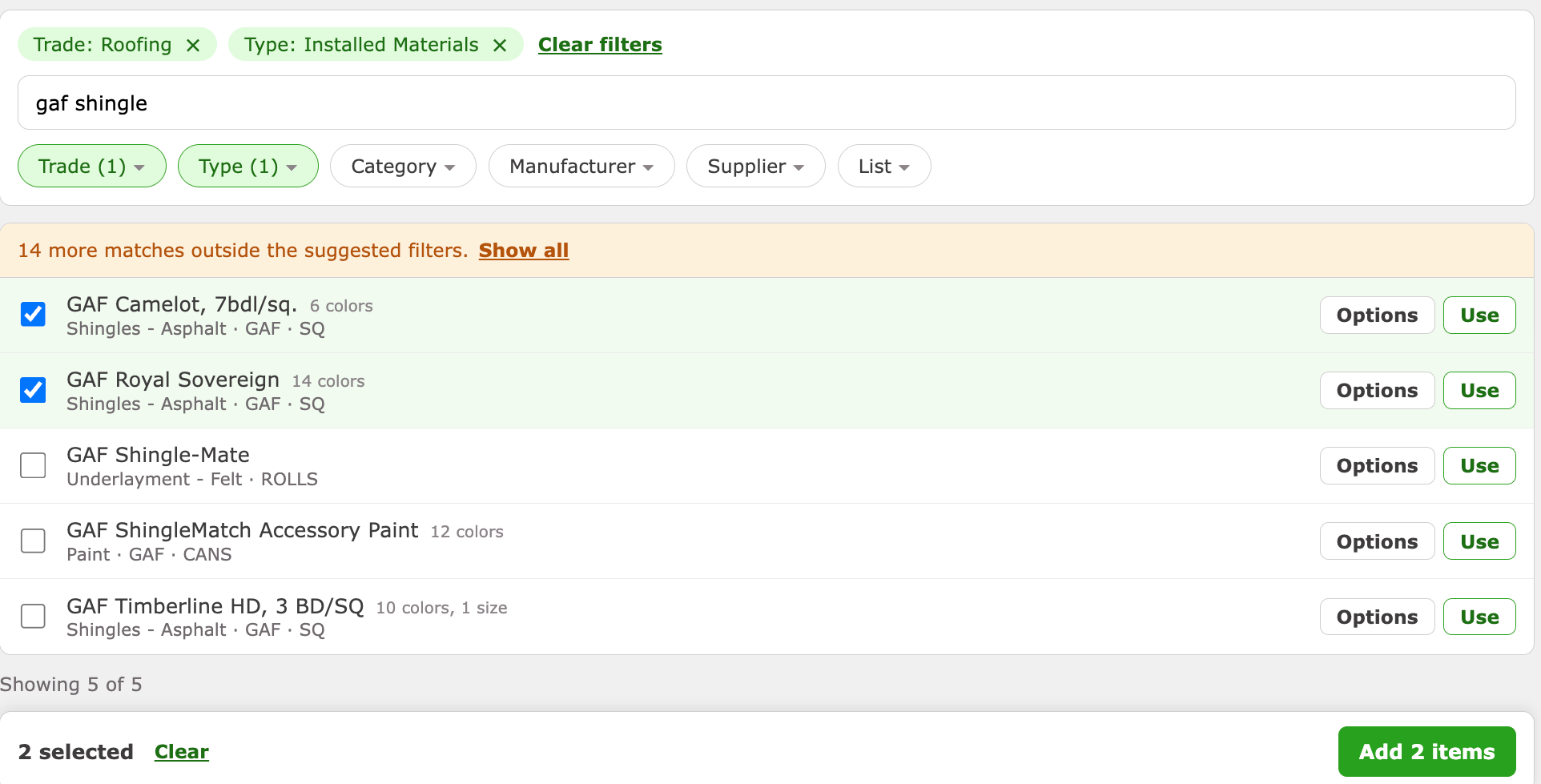
- Search - type in Search name, category, manufacturer. It matches the same way as the box in the form.
- Filters - Trade, Type, Category, Manufacturer, Supplier and List. Click one to open its list, type in the find box to narrow it, and tick one or more options. Each option shows how many items match. Ticked filters show as chips above the search; click a chip's x to remove it, or Clear filters to remove them all.
- Suggestions - the line's trade and estimate type arrive already ticked. They are suggestions: remove them to see more. When removing them would show more items, a note says how many (for example 4 more matches outside the suggested filters) with Show all. Suggest ... again puts a removed suggestion back.
- Rows - each row shows the item, its colors and sizes, category, manufacturer and unit. Users who can see financials also see the item's Event Cost for the project's event, or No Event Cost.
- Options - opens the row's colors and sizes, and for users who can see financials the item's costs (Costs, for reference only. The line takes the Event Cost.). Picking a color or size here carries into the form.
- Use - puts the item in the form and closes the window. Double-clicking a row does the same.
- When the window opens with an empty search, Recently used items come first, then the Catalog.
- 50 items show at a time; Show more loads the next 50. The footer reads, for example, Showing 50 of 1431.
Adding several items at once
When you are adding a NEW line to an estimate, a material order or a Material List (at the end of the list), each row has a tick box.
- Tick the items you want. Pick a color and size in a row's Options if needed.
- Click Add 3 items (the button counts what you ticked).
Each item is added as its own line, the same as picking it and saving: the item's unit, its Event Cost and the quantity the form would suggest (otherwise 1 on a material order). If your company requires colors and sizes on estimate lines, rows still missing one are marked (Please pick a color.), and nothing is added until you pick one or untick the row.
Work order labor items and estimate components add one item at a time.
Colors and sizes
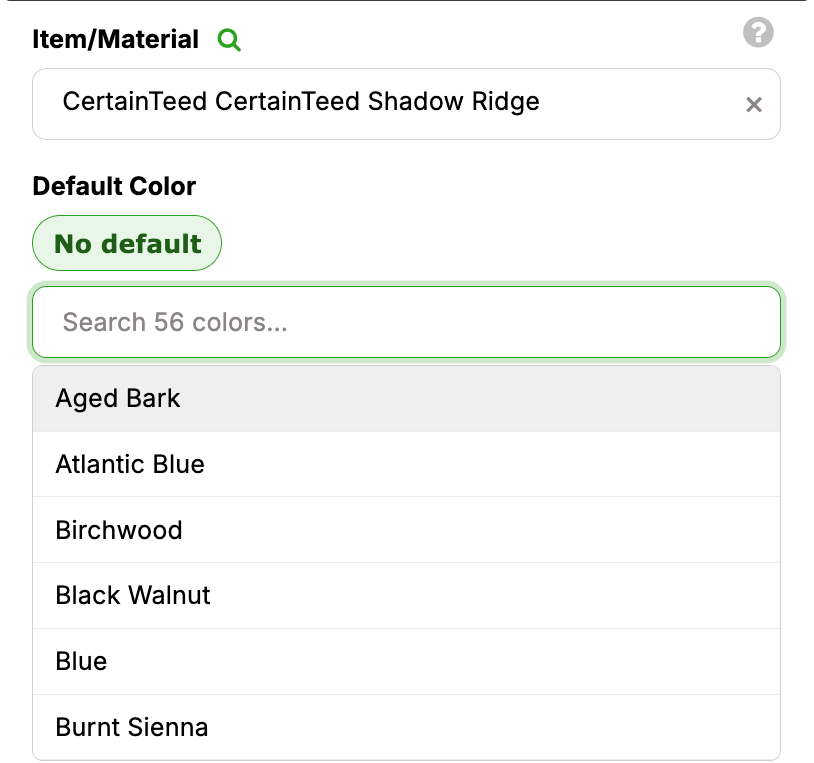
After you pick an item, its colors and sizes appear right in the form.
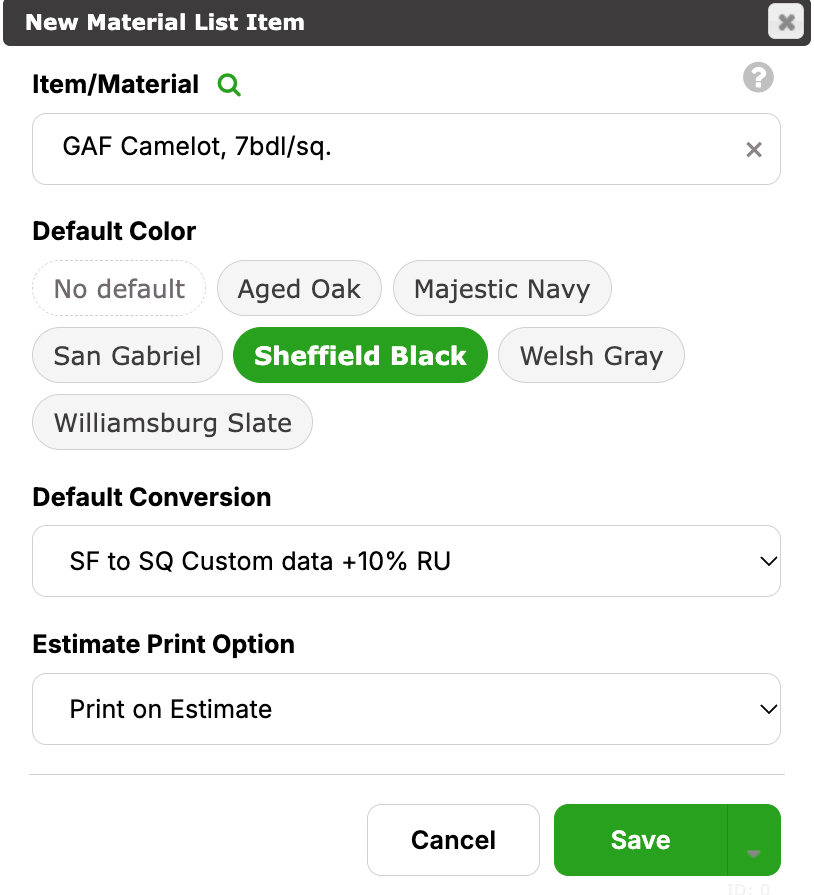
- Up to 12 options show as buttons. Click one to pick it; None clears the choice (a Material List item says No default).
- More than 12 options show as a list with a search box (Search 34 colors...). Change reopens the list and Clear removes the choice.
- An item with no colors (or no sizes) shows n/a in that box.
- If a line was saved with a color or size that has since been removed from the item, it shows in amber as No longer available on this item. Pick another one.
- Required colors and sizes. With the company setting Required colors and sizes for the estimate item if available turned on (Company Settings, Estimate Customization), estimate lines and estimate components need a color and size whenever the item has them. The fields are marked with an asterisk, and saving without one says Please pick a color. or Please pick a size.
Typed colors and sizes are for custom items only; a Catalog item uses its own options.
Material orders with a connected supplier
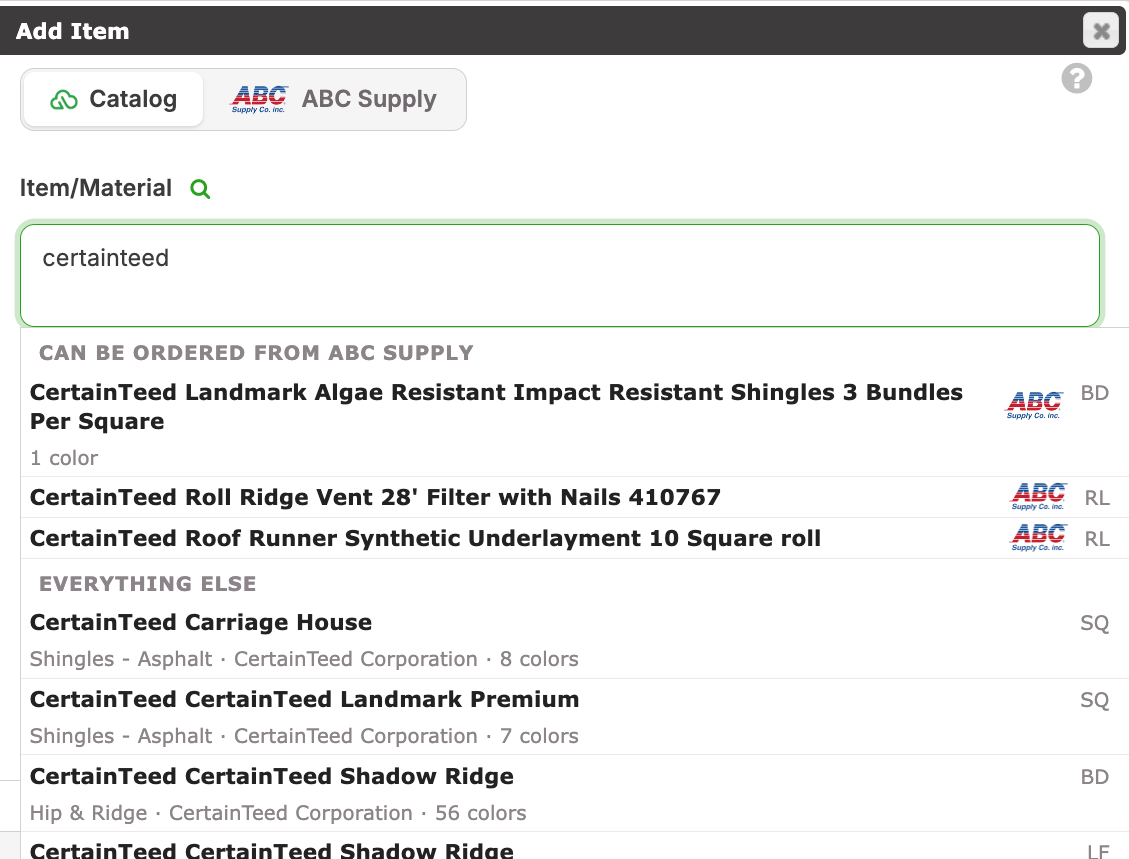
When a material order's supplier is a branch of a distributor connected to Contractors Cloud (such as ABC Supply), the Add Item form has a switch at the top: Catalog and the distributor's name, each with its logo.
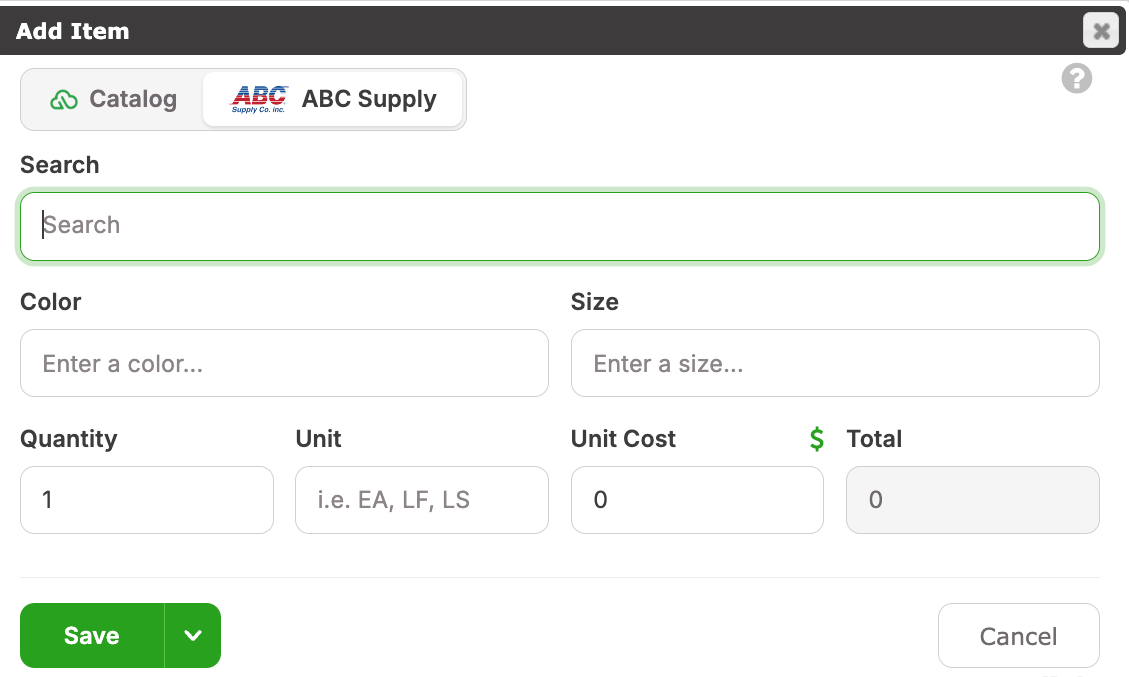
- The distributor's side searches the distributor's own products at your branch. Type in Search (at least three letters). Each result shows the product name and, under it, its color, size, unit and item number, so look-alike products are easy to tell apart. Picking a product fills in Color, Size and the unit, and the distributor's price. A product with no color or size leaves those boxes empty.
- The Catalog side is the same Catalog picker as every other form. Catalog items that can go on this supplier order show the distributor's logo (hover: Can be ordered from ABC Supply) and are listed first, under Can be ordered from ABC Supply. In the browse window, the On ABC Supply orders button shows only those items; turn it off to see everything again. If no Catalog item is linked yet, it says No Catalog items are linked to ABC Supply yet.
- After you pick a Catalog item that is not linked to one of the distributor's products for the chosen color and size, a note under the box says Not linked to an ABC Supply product, so it won't be on the Supplier order. The line stays on your material order; it is just not sent. (The logo in the list means at least one of the item's colors or sizes is linked, so pick the color and size before relying on it.)
- A new line opens on the distributor's side; a saved Catalog line opens on the Catalog side. Switching sides clears the other side's pick, color, size, unit and cost, so a line is always one or the other.
Linking Catalog items to distributor products is done in the Material's Suppliers card. See ABC Supply for connecting and ordering.
If you cannot see financials
- The search and the browse window show no costs to users who cannot see financials (no cost column, no costs in Options).
- Those users do not see Unit Cost or Total on material order and work order lines. The line still saves with the Event Cost for the item, color and size you picked, and editing only the quantity keeps the saved cost.
- They see a work order's labor items listed without the Cost and Total columns.
Troubleshooting
| What you see | Why | What to do |
|---|---|---|
| The item does not appear in search | Every word must match the name, category or manufacturer; archived items never appear; material forms show only materials and labor forms only labor | Use fewer words, check spelling, or browse with filters |
| 4 more matches outside the suggested filters | The line's trade and type are ticked as suggestions | Click Show all, or remove the Trade or Type chip |
| No longer available on this item. (amber) | The saved color or size was removed from the item | Pick another option |
| Please pick a color. / Please pick a size. | Your company requires colors and sizes on estimate lines | Pick one, or untick the row in the browse window |
| Not linked to an ABC Supply product, so it won't be on the Supplier order. | The Catalog item (with that color and size) has no linked distributor product | Pick the distributor's product on its side of the switch, or link the Material to the product |
| No Catalog items are linked to ABC Supply yet. | No Material has a linked distributor product | Turn the button off, or link Materials under their Suppliers |