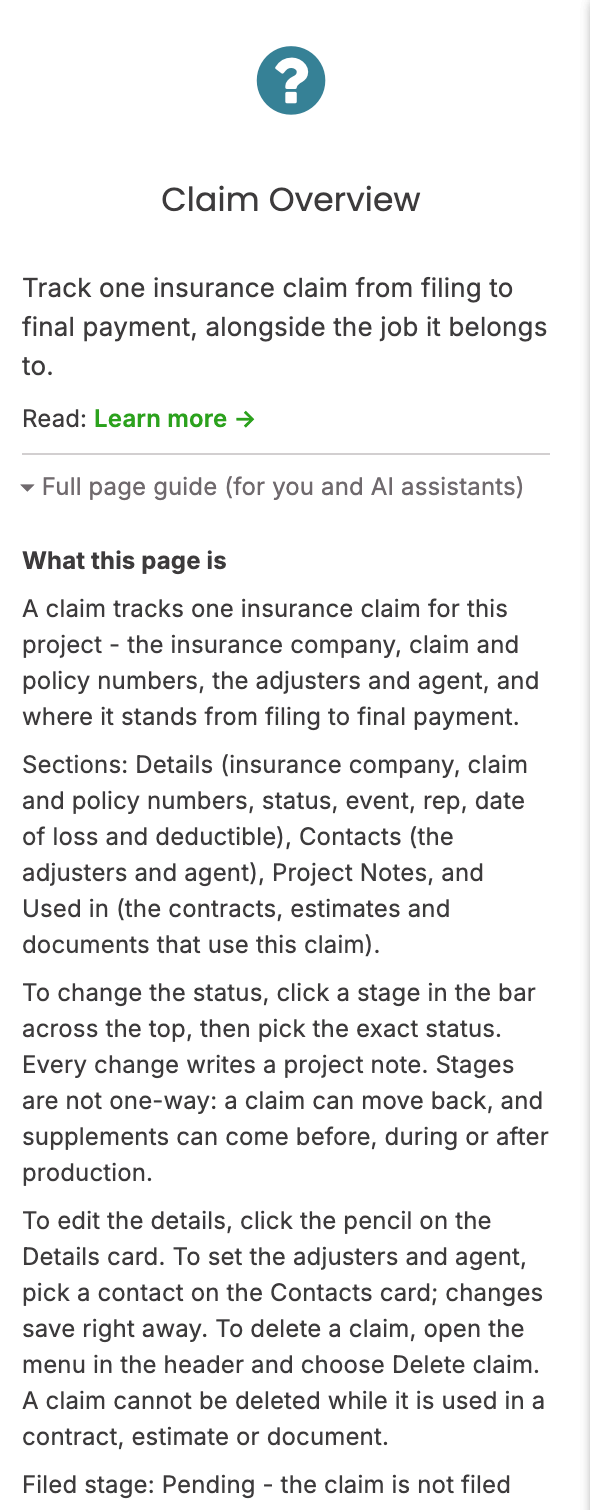
Claims Overview
A claim tracks one insurance claim on a project: the insurance company, the claim and policy numbers, the adjusters and agent, and where the claim stands from filing to final payment.
It helps you keep every claim in one place instead of in notes and email. The stage row shows where the claim stands at a glance, the people to call are one click away, and every status or contact change is written to the project's notes.
Claims live on the project's Mortgage, Storm, & Claims tab, in the Claims card, and on the insurance company's page. Click a claim's row to open it.
Quick start
- On the project's Mortgage, Storm, & Claims tab, click the green plus on the Claims card.
- Pick the Insurance Company, type the Claim Number, fill in anything else you know, and click Save. The new claim opens.
- On the Contacts card, click Change to pick the Field Adjuster, In-House Adjuster and Agent. These save as you pick.
- As the claim moves along, click a stage in the bar across the top and pick the exact status.
Claims on the project
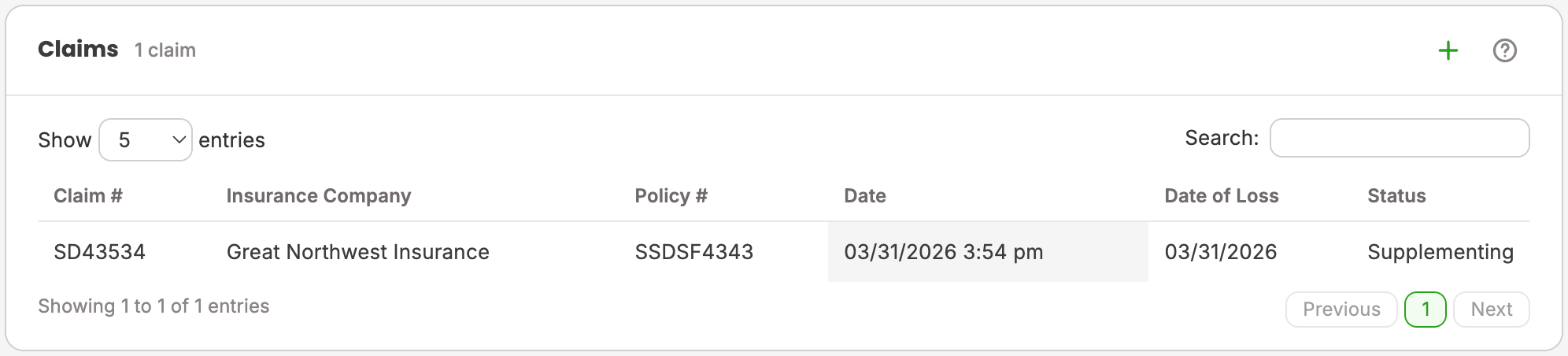
The Claims card shows how many claims the project has and lists them with these columns: Claim #, Insurance Company, Policy #, Date, Date of Loss, and Status.
- Click the green plus (Create claim) to add a claim.
- Click a row to open the claim.
- Click the ? for help on the card.
Header bar
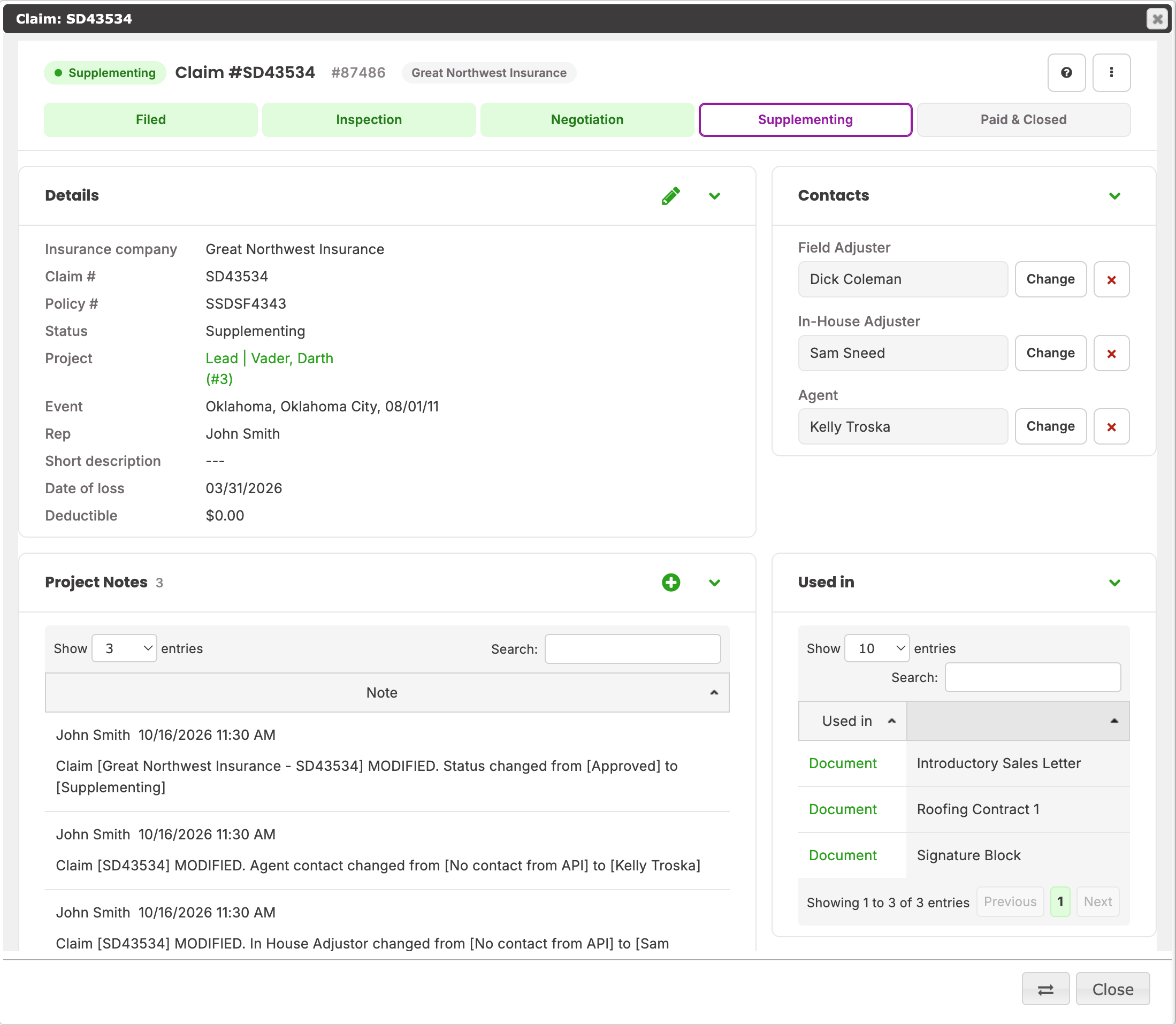
The bar across the top shows a status pill with the claim's exact status, the claim number (for example Claim #SD43534), the record number, and a chip with the insurance company. On the right, ? opens help and the three-dot button (More actions) opens the menu (see Menu options below).
Stage row
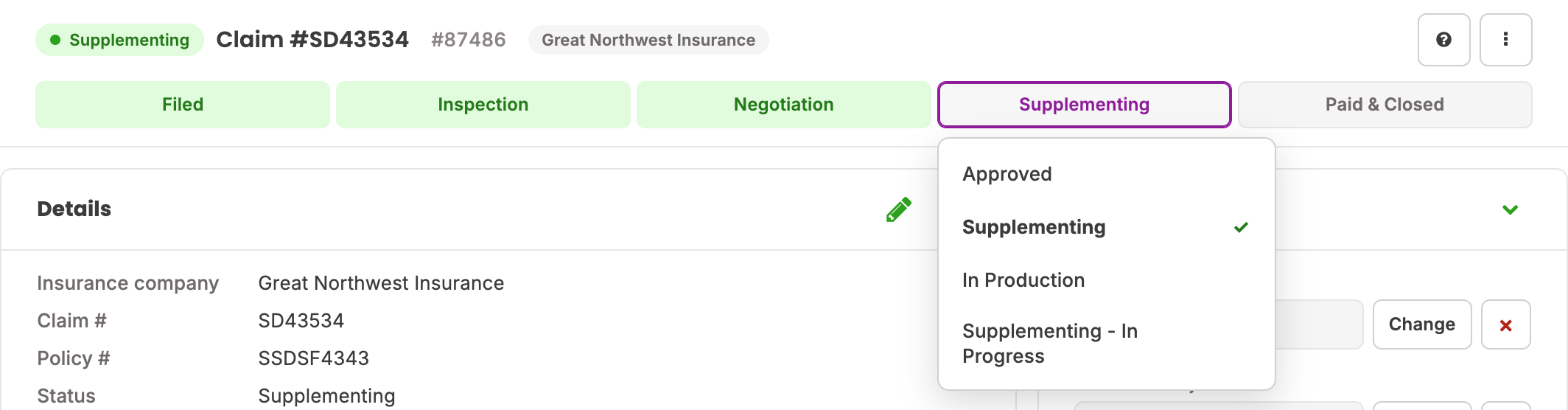
Below the bar, the stage row has five stages: Filed, Inspection, Negotiation, Approved, and Paid & Closed.
- To change the status, click a stage, then pick a status from its menu. A check marks the current status. The change saves right away.
- The current stage has a purple outline and shows the exact status instead of the stage name. Stages before it are light green (passed) and stages after it are grey (upcoming).
- The current stage turns solid green only when the status is Closed.
- Stages are not one-way. A claim can move back to an earlier stage, and a supplement can come before, during or after production.
- Every status change writes a project note, for example Status changed from [Approved] to [Supplementing].
What each status means
- Filed stage:
- Pending - the claim is not filed yet or is being prepared.
- Filed - the claim is filed with the insurance company.
- Inspection stage:
- Inspection - the adjuster inspection is scheduled or done.
- Inspection - 2nd - a re-inspection, usually requested after a denial or an incomplete first inspection.
- Negotiation stage:
- Negotiating - working out the scope and amount with the adjuster.
- Appraisal - the formal dispute process when the parties cannot agree on the amount.
- Approved stage:
- Approved - the insurance company approved the claim.
- Supplementing - requesting additional items or amounts not in the original scope.
- In Production - the work is underway.
- Supplementing - In Progress - a supplement raised while the work is underway.
- Paid & Closed stage:
- Final Pay - waiting on or collecting the final payment, including released depreciation.
- Closed - the claim is complete.
Details
The Details card summarizes the claim: Insurance company, Claim #, Policy #, Status, Project (click it to open the project), Event, Rep, Short description, Date of loss, and Deductible. Fields with no value show ---. The card is always shown; it cannot be hidden in the Layout panel.
Edit details
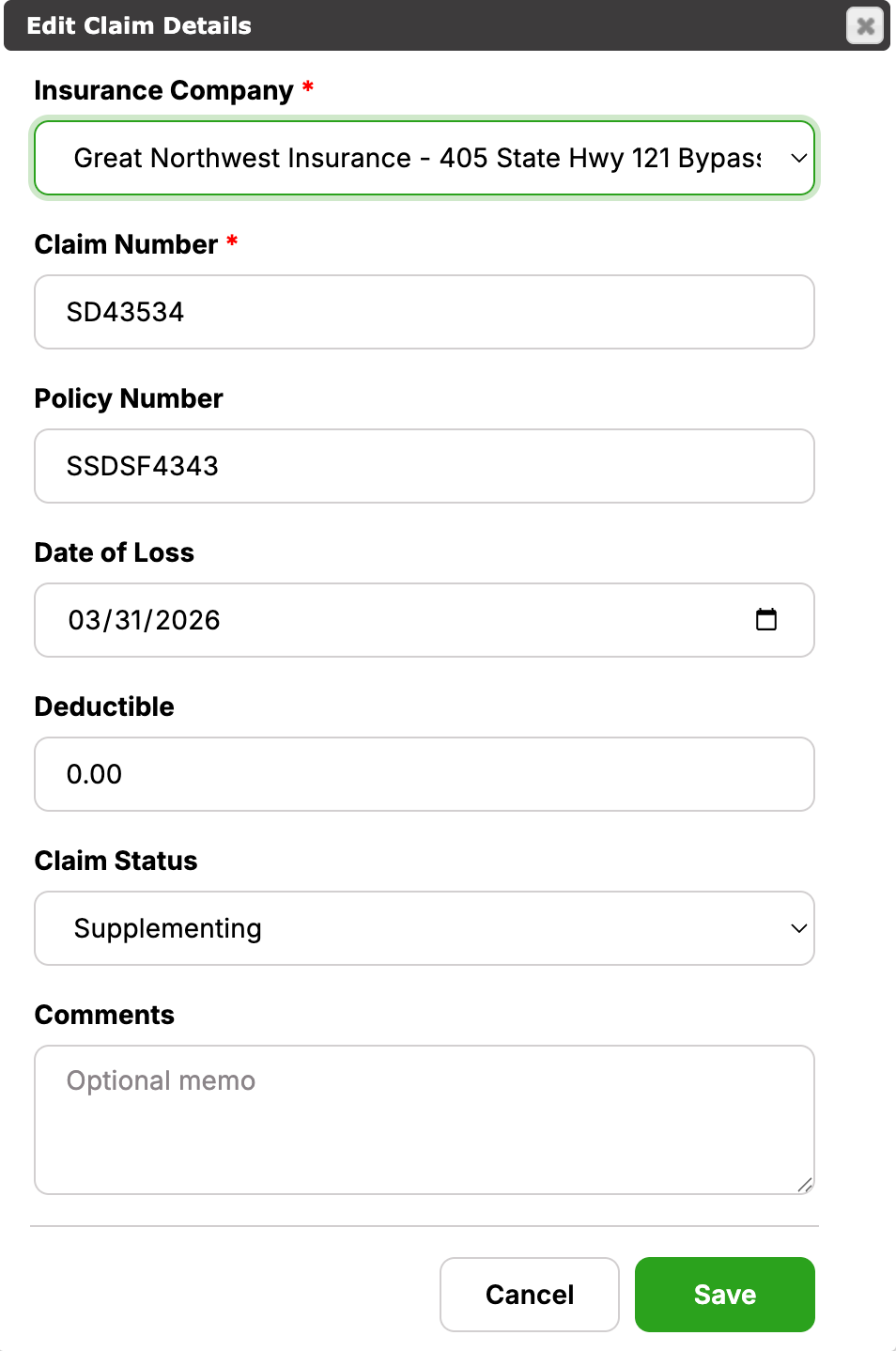
Click the pencil on the Details card to open Edit Claim Details:
- Insurance Company (required) - pick a company from the list.
- Claim Number (required)
- Policy Number
- Date of Loss
- Deductible - a dollar amount. Not shown to users whose permissions hide project financial data.
- Claim Status - the same statuses as the stage row.
- Comments - an optional memo. It appears as Short description on the card.
Click Save to keep your changes or Cancel to close the form without saving.
Contacts
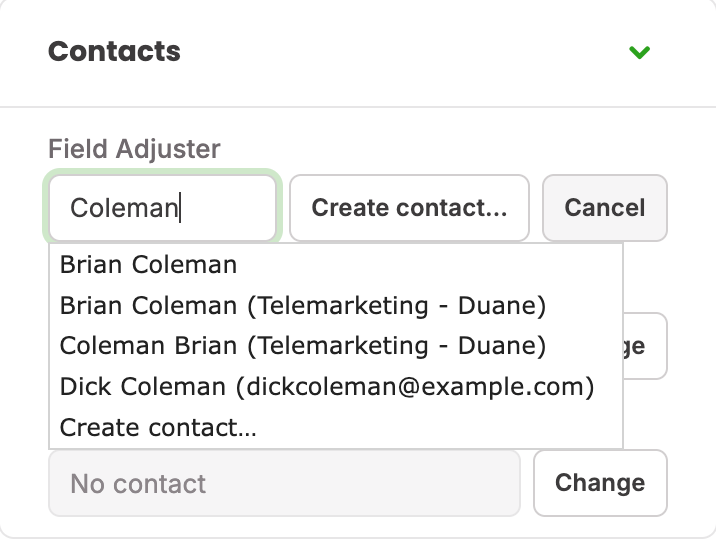
The Contacts card holds three people for the claim: Field Adjuster, In-House Adjuster, and Agent. An empty role shows No contact. Contacts save as soon as you change them; there is no Save button.
- Click Change and start typing a name or email (at least two characters). Click a contact in the list to pick it. A short Contact saved. message confirms it.
- Click Cancel next to the search box to close it without changing anything.
- Click the × (Remove contact) to clear a role.
- If the person is not in your contacts, click Create contact…, at the end of the list or beside the search box. Fill in the contact form and save it. The new contact fills the role and is saved to the claim.
Picking or creating a contact also adds that contact to the claim's insurance company, so the person shows up on the insurance company's page. Each change writes a project note.
Project Notes
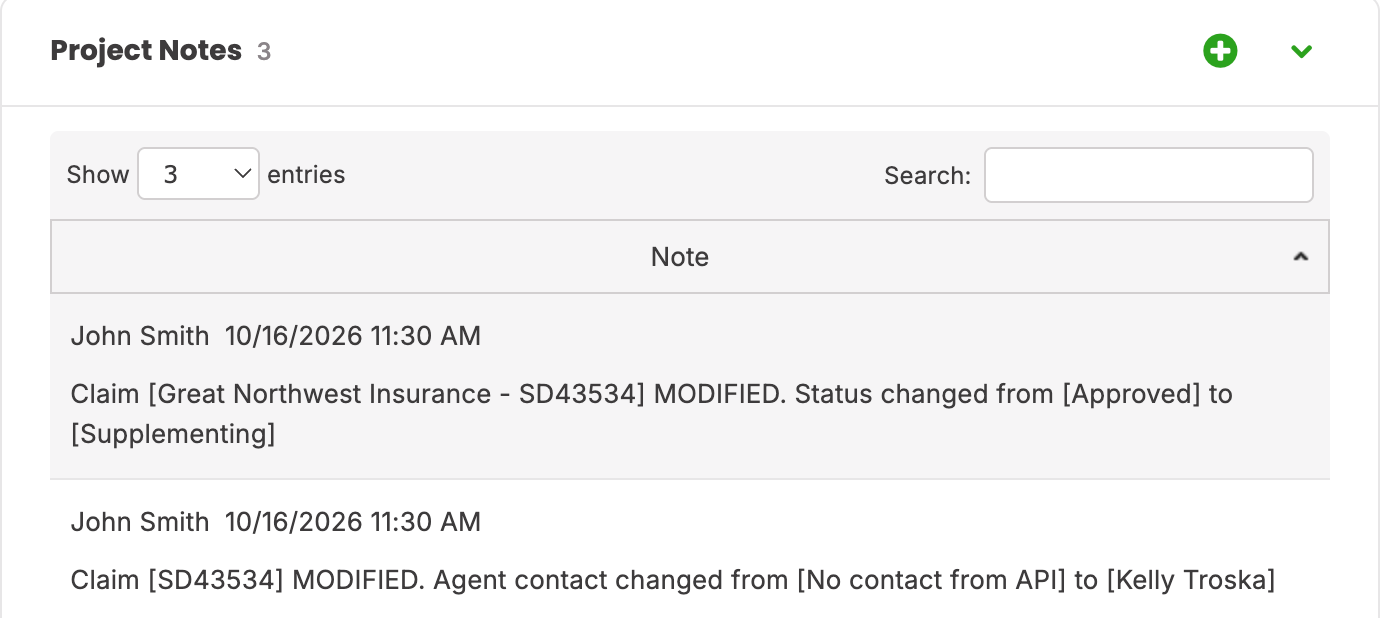
The Project Notes card lists the notes for this claim, with a count next to the title. Status changes, contact changes, and claim deletion are written as notes automatically, for example Claim [SD43534] MODIFIED. Agent contact changed from [...] to [...]. Click the green plus (Add note) to write your own.
Used in
The Used in card lists the contracts, estimates and documents that reference this claim, with the type (Contract, Estimate or Document) and its name. The card header shows the number of usages. Click a row to open the project it belongs to in a new tab.
Layout
Choose Layout… from the three-dot menu to change how the dialog looks.
- Density - Comfortable or Compact.
- Sections - clear a card's check box to hide it, or check it to show it again. Details always stays.
- Expand all and Collapse all - open or close every card.
- Reset layout - back to the default sections and density.
Menu options
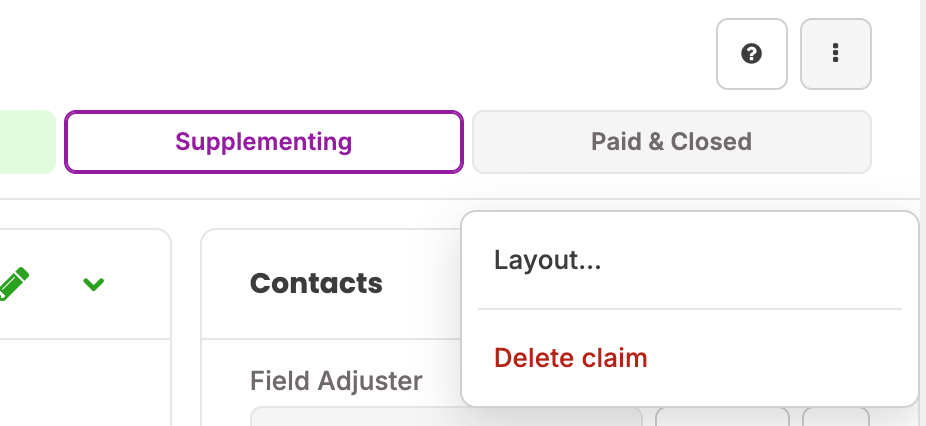
The three-dot button in the header opens the menu: Layout… (see above) and Delete claim.
Deleting a claim
Choose Delete claim and confirm Are you sure you want to delete the claim?. The claim is removed and a project note, Claim [number] was deleted., records it.
A claim cannot be deleted while it is used in a contract, estimate or document. The message names where it is used. Check the Used in card to see which items use it.
Troubleshooting
- "Please pick an Insurance Company." or "Please type a Claim Number." - the form needs both. Choose a company and enter a claim number, then click Save.
- "Sorry. Unable to locate that insurance company." - the company you picked no longer exists. Pick another company from the list and save again.
- "Sorry. Unable to locate that contact." - the contact was deleted or is not available to you. The role goes back to its previous contact. Search for the person again, or use Create contact….
- "Sorry. That claim status is not valid." - the status could not be recognized, usually because the page is out of date. Reload the project and pick the status again from the stage row.
- "Sorry. You do not have permission to change the deductible." - your user permissions hide project financial data, so you cannot change the deductible. Ask an administrator if you need access.
- "Claim [number] cannot be deleted. It is currently being used in..." - the claim is on a contract, estimate or document. Open the Used in card to see which items use it. Once none do, you can delete it.
- "Sorry. The contact change was not saved." - the save did not reach the server. The role goes back to its last saved contact. Check your connection and try again.
- The search box finds no one. - type at least two characters. If the person is not listed, click Create contact….
- The Deductible field or row is missing. - it is hidden from users whose permissions hide project financial data.
Getting help
Click the ? in the upper right of the dialog to open the help drawer for the claim. It explains the sections, the stage row and each status.