
Basys Payment Processing
Basys is Contractors Cloud's built-in payment processor. Once your company is connected, customers can pay invoices and down payments online from a hosted pay page by Card or ACH / eCheck, and staff can key a card or bank account over the phone for a customer who calls in. Every completed payment records itself back onto the right project and customer automatically — nothing to re-enter, no separate system to reconcile. The payoff: customers pay faster and more of them pay online instead of mailing a check, and once a payment settles it flows straight through to invoice balances, customer credit, and QuickBooks (when connected) without anyone keying it twice.
Quick start — get paid
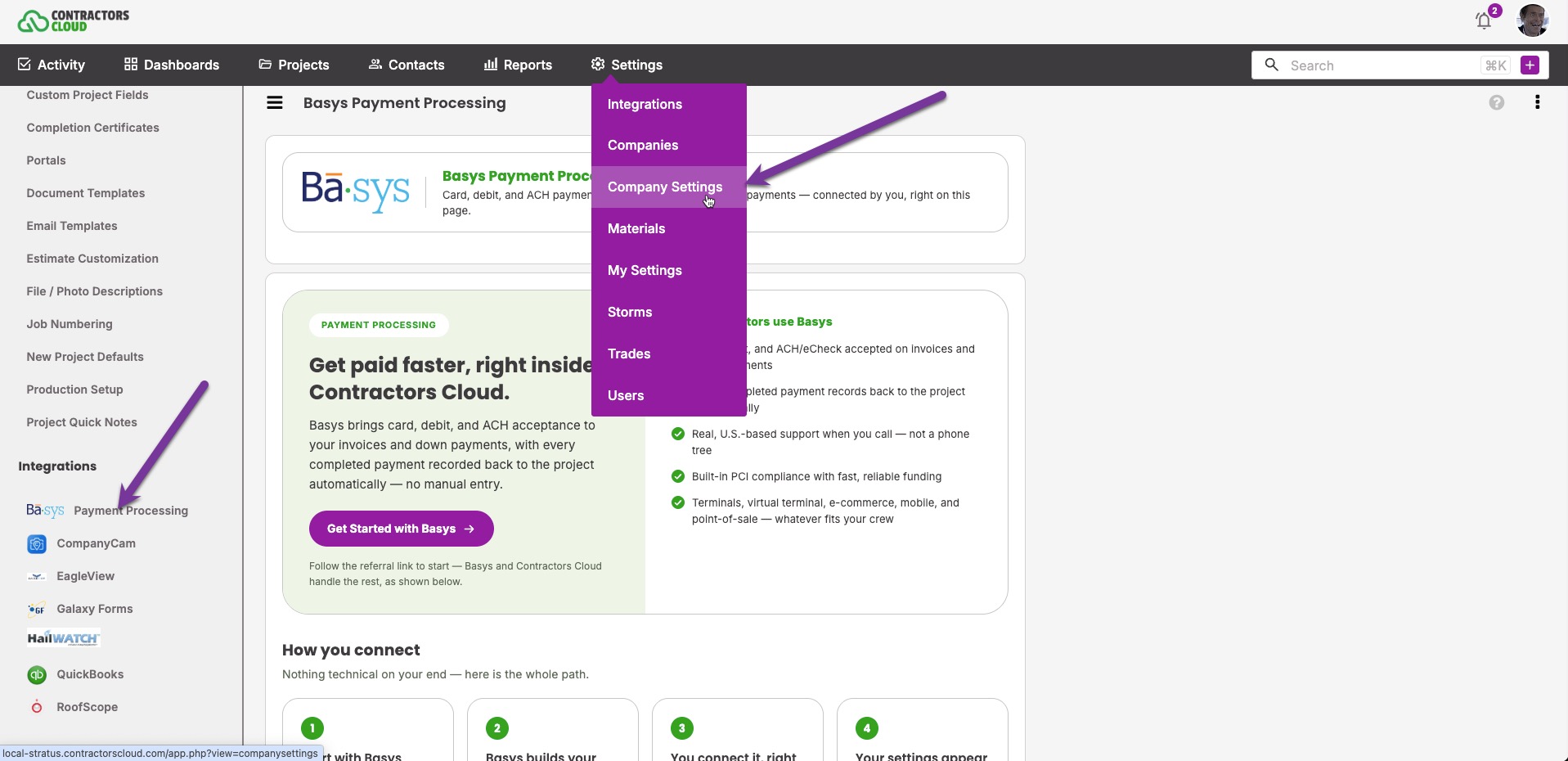
- Go to Settings → Integrations → Payment Processing.
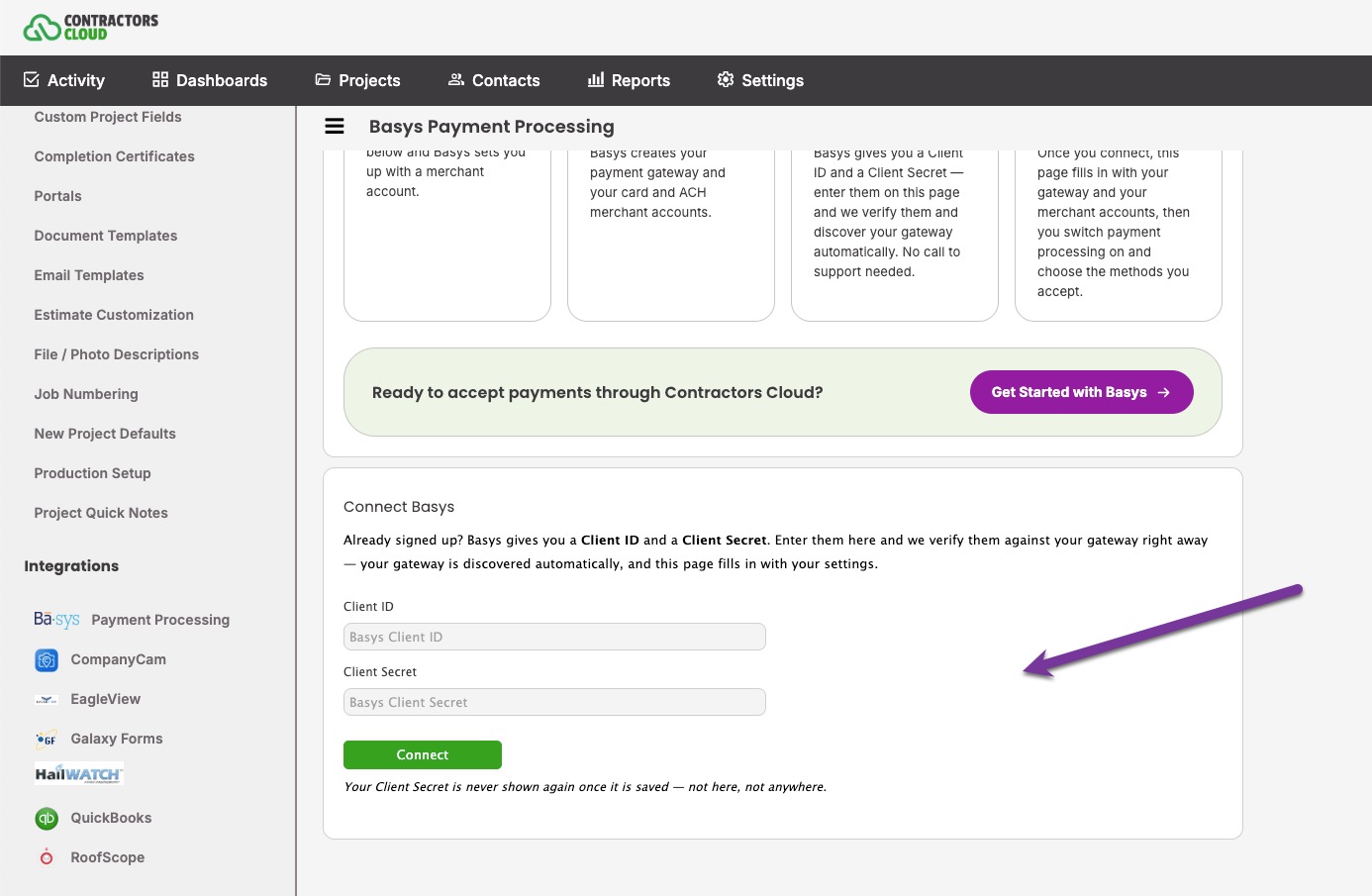
- Enter the Client ID and Client Secret Basys gave you and click Connect. Contractors Cloud verifies them and discovers your gateway automatically.
- In Settings, set Basys Processing to ON, check the Accepted Methods you take (Card, ACH / eCheck), and click Save Settings. (Connecting already installed your gateway's merchant accounts — check Merchant Accounts if a rail looks empty.)
- Open an invoice and click Sync invoice with Basys (or close it with Sync Basys & Close).
- Copy the Payment URL that appears and send it to your customer yourself — Basys does not contact the customer for you.
- The customer pays on the hosted page. The payment shows as Pending, then Deposited once Basys settles it.
Before you start
You need a Basys merchant account. If you don't have one, the not-connected view of this page links to get started with Basys directly — Basys builds your gateway and your Card and ACH merchant accounts, then hands you a Client ID and a Client Secret.
Follow the prompts within the screen. Or click here to start with Basys.
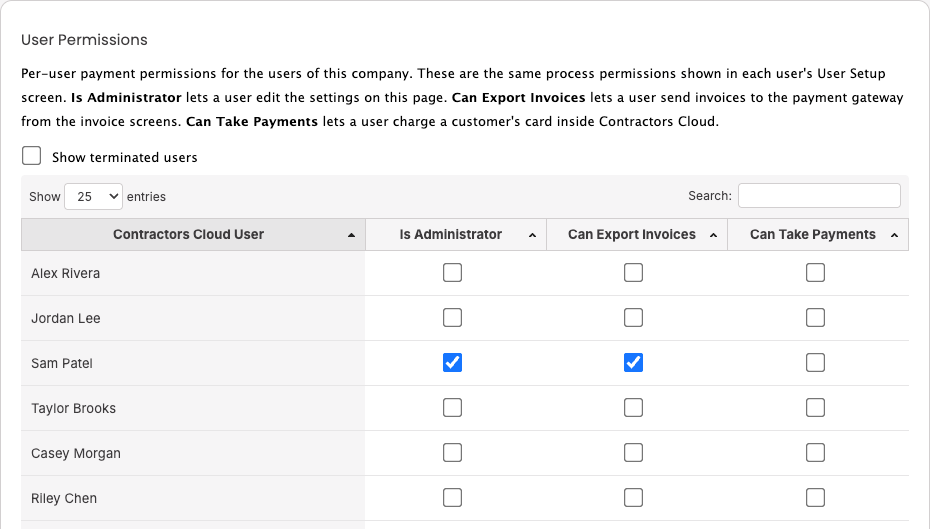
You'll also need one of three permissions, grouped under Integration Permissions in User Setup: Is Administrator (connect/disconnect, Settings, Merchant Accounts), Can Export Invoices (sync invoices, request down payments), and Can Take Payments (key a card or bank account by phone). A user or payments administrator grants these, and Reset to recommended leaves all three untouched: "Payment (BASYS) permissions are kept as they are."
Connecting your company
On a company that has never connected, this page opens with a short pitch and a Connect Basys form: enter your Client ID and Client Secret and click Connect. Contractors Cloud verifies them and discovers your Gateway ID on its own — you never type or copy it. Your Client Secret is never shown again once saved — not here, not anywhere.
When Connected
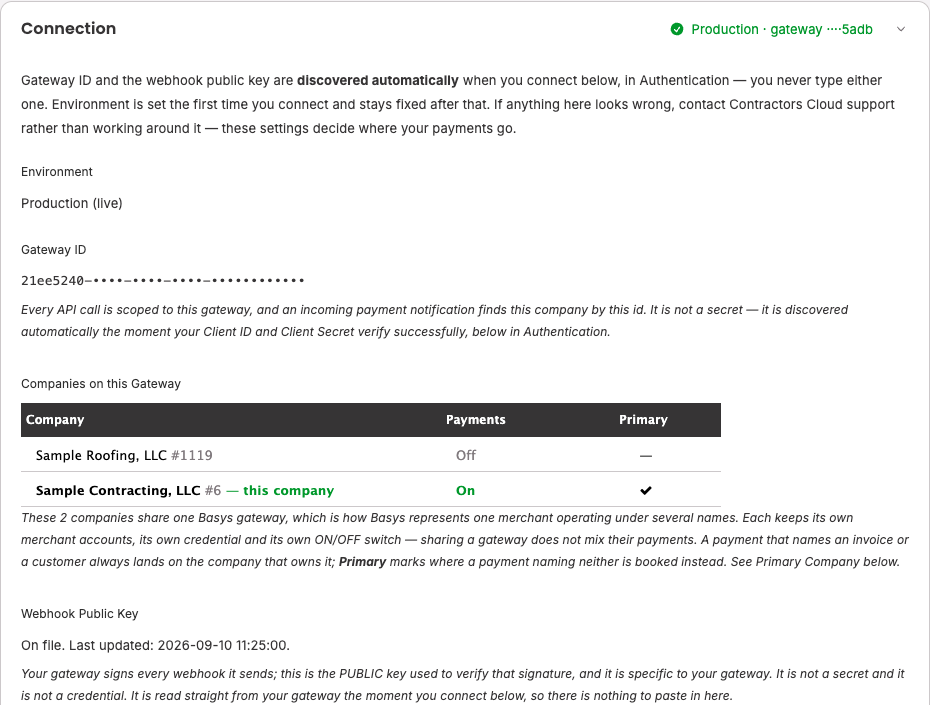
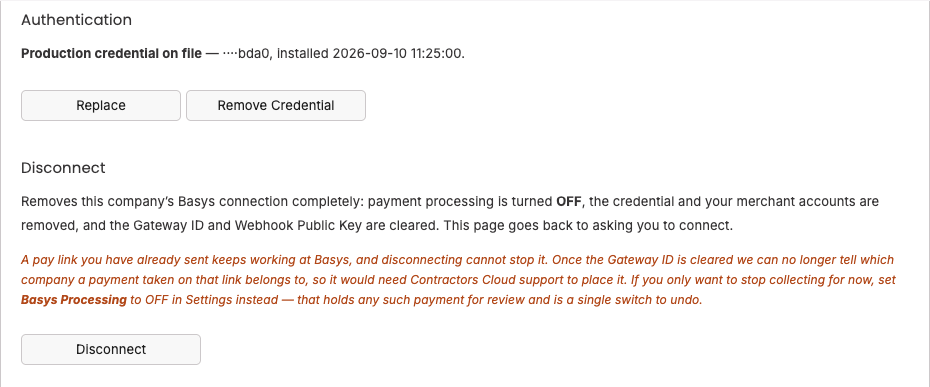
Once connected, three cards fill in. Connection shows your Gateway ID as a plain fact, a Companies on this Gateway table listing every company that shares the gateway (each row’s name, whether its own payments are on, and which is Primary), and whether the Webhook Public Key is on file. Inbound Webhook shows a read-only Webhook URL field with a Copy button — register it in your Basys portal under Developer Hub → Webhooks so completed payments make their way back here. Authentication, once a credential is on file, reads along the lines of "credential on file — [masked Client ID], installed [date]", with Replace and Remove Credential beside it.
Connecting does not turn payment processing on. A new connection, or a reconnect, leaves Basys Processing OFF until you switch it on yourself in Settings. It does install your gateway's existing merchant accounts automatically, one default per rail, so Merchant Accounts is usually already populated.
If your Client ID and Client Secret don't verify, Contractors Cloud says why:
- "Basys did not accept that Client ID and Client Secret. Check both values and try again."
- "Basys refused to authorize this connection. The credentials may not be an Integrated Service Account, or this may be a setup problem on our side — Contractors Cloud support can see the reason."
- "Basys could not be reached to verify those credentials. Try again in a moment."
Settings
Two controls, both requiring Is Administrator to change:
- Basys Processing — OFF or ON. OFF stops everything, both directions: no charges go out, and a payment taken at the gateway while off is held for review instead of recorded.
- Accepted Methods — Card and ACH / eCheck checkboxes. Turning a method on here doesn't make it chargeable alone — it also needs a merchant account.
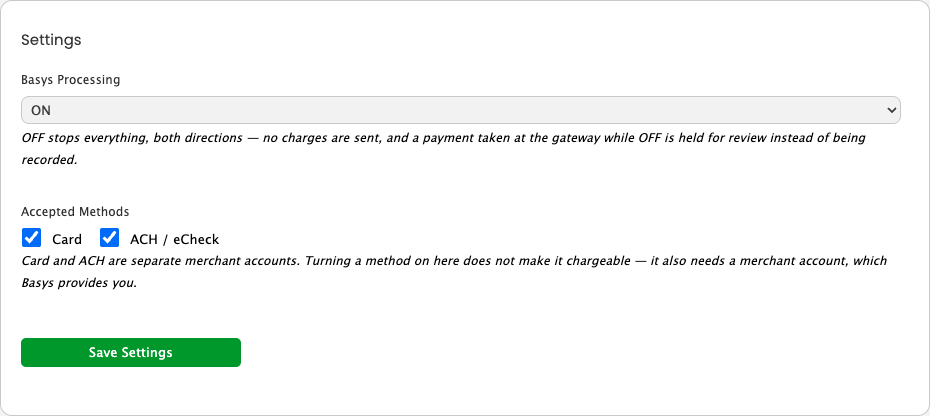
Click Save Settings to apply changes.
Merchant Accounts
Card and ACH are separate merchant accounts with separate processor IDs, so each method needs its own account and its own default. The table lists Status, Method, Processor ID, Name, Default, and Action. Active accounts are chargeable now; Inactive ones were removed but kept on file (Reactivate any time); Available marks a gateway account not installed yet; Stale marks an installed one Basys no longer recognizes.
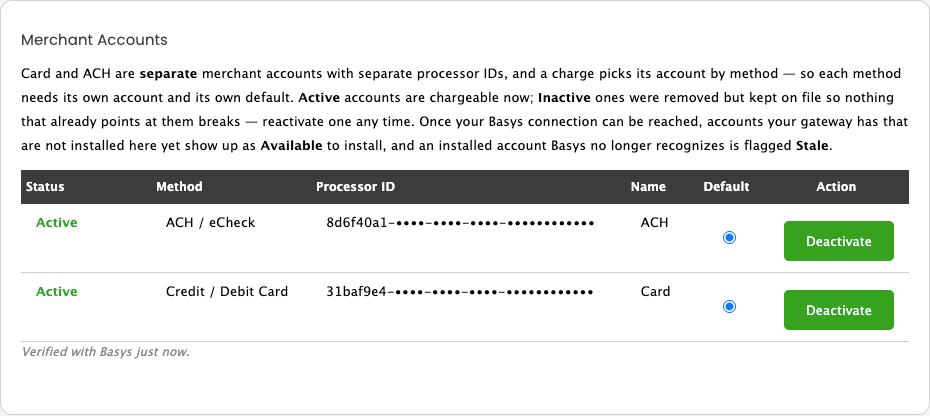
Each rail has its own Default radio among its Active rows, so a Card default never disturbs ACH. Use Deactivate/Reactivate to control what's chargeable. This section checks Basys on every page load and updates each row to "Verified with Basys just now." when reachable — there's no separate button for that, so if a new account isn't showing yet, just reload the page.
Primary Company
Most Basys activity names an invoice or a customer, so it lands on the right company. A virtual-terminal sale rung up directly in your Basys portal names neither — Primary Company is where those land instead. Only matters when more than one company shares a gateway.
Sending an invoice to Basys
Open an invoice and expand its Payment Processing section to see whether it's Synced to Basys or not sent. Click Sync invoice with Basys, or use the dialog’s Sync & Close button and choose Sync Basys & Close to send and close in one step (when the invoice also syncs to QuickBooks the button reads Sync All & Close). A due date is required first — blank raises "A Due Date is required."
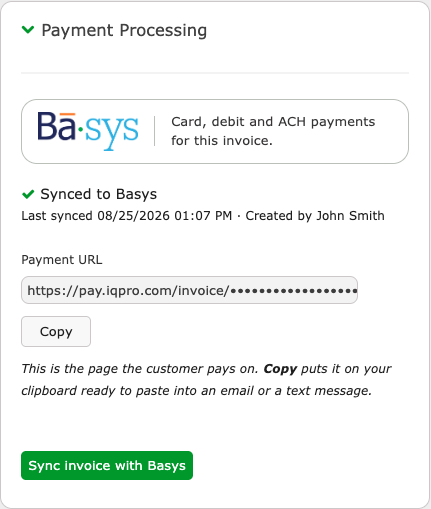
Once synced, a Payment URL field with Copy appears — the page your customer pays on. More than one usable account for a rail shows a picker; one shows plain text. A disabled Sync invoice with Basys button means no merchant account is set up yet for a rail this invoice needs.
An invoice is locked at Basys once sent — nothing on it can change from Contractors Cloud after that: "Basys locks an invoice once it has been sent — nothing on it can be changed from Contractors Cloud after that." To change it, replace it rather than edit it.
On any company email template (Settings → Projects → Email Templates), check Include BASYS Payment Links to add a line reading "Pay Online: Invoice #… ($…)", linked to the Payment URL, on synced unpaid invoices.
You send the pay link — Basys does not. Basys emails its own notification only to Contractors Cloud's mailbox (with a copy to the project's Email tab when available), so Contractors Cloud stays the only thing that contacts your customer directly; the customer only hears from Basys after paying, as a receipt.
Requesting a down payment — Create Payment Link
To ask for money before there's an invoice — a deposit to start a job — use Create Payment Link. Find it on the customer account's Payment Processing card menu and the project's Contract Payments menu. Both require Can Export Invoices; without it: "You do not have permission to send invoices to the payment processor."
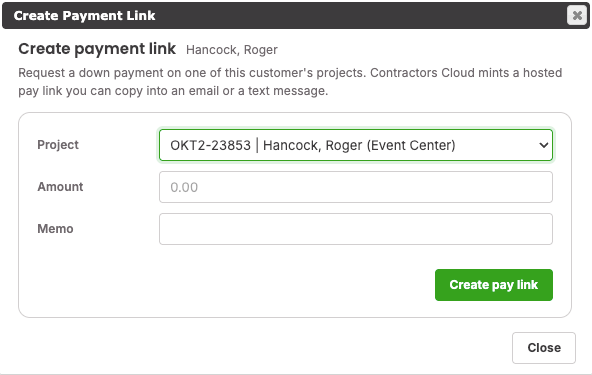
Pick a Project, enter an Amount and optional Memo, click Create pay link. Contractors Cloud mints a hosted link shown in a Payment URL field with Copy.
Every link requested shows in the Down Payments list (the Down Payments item on the same menus): Project, Amount, Created, Status (Pending, Approved, Declined, Settled, Voided, Refunded). Copy only appears on a live Pending row.
A paid down payment records as an Unapplied payment on the customer, stamped with its project. Apply it to an invoice afterward like any other credit.
Taking a payment over the phone — Take a Payment
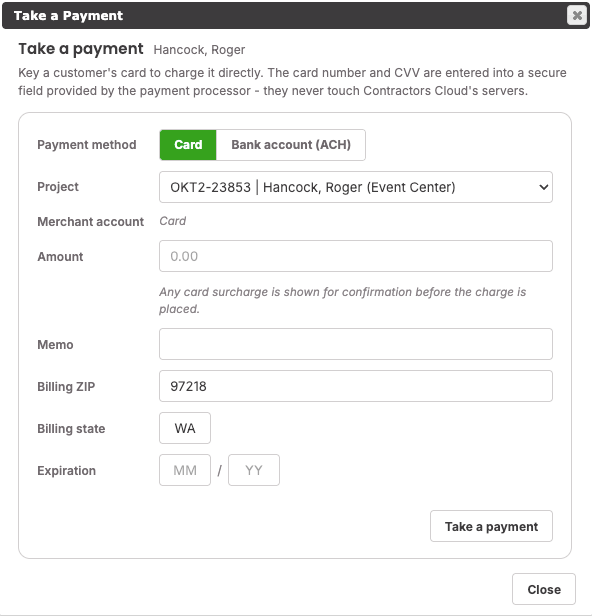
Use Take a Payment to key a card or bank account yourself while the customer's on the phone. Same two places as Create Payment Link; requires Can Take Payments — without it: "You do not have permission to take payments for this company." No method on: "This company does not accept card or ACH payments." On but no account behind it: "This company's accepted payment methods have no merchant account set up yet, so there is nothing to take a payment with."
With both rails live, a Payment method toggle picks Card or Bank account (ACH); with one, that rail's fields are the form. Shared fields: Project, Merchant account (only shown with more than one), Amount, Memo, Billing ZIP, Billing state.
Card
Enter Expiration (MM/YY), click Take a payment to open Card details: Card number and CVV go into a secure field provided by the payment processor, never touching Contractors Cloud's servers. Click Charge $… to continue.
Bank account (ACH)
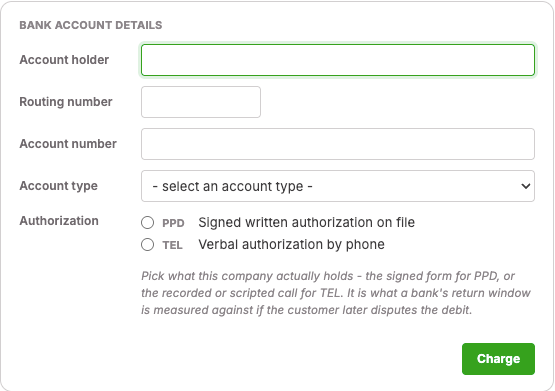
Key what the customer reads you: Account holder, Routing number, Account number, Account type (Checking, Savings, Business checking, Business savings). The account number isn't stored here — the record keeps only its last four digits. Pick an Authorization: PPD "Signed written authorization on file" or TEL "Verbal authorization by phone" — neither preselected. A Check number field appears, optional, only under TEL. Click Charge.
Either rail then shows Confirm charge: Amount, Card surcharge, Total rows, then Back or Confirm charge. Card answers immediately; a bank payment is normally accepted and pending — the dialog itself says it "clears in a few business days, so it stays pending until it settles and the customer's bank can still return it afterwards." A declined or failed attempt leaves every field exactly as keyed for a quick retry.
Either way, a Take a Payment charge records as Unapplied on the customer, stamped with its project — never applied to an invoice automatically.
How payments are recorded
When a customer pays, Basys notifies Contractors Cloud, which creates the payment automatically with a memo describing what happened — brand, last four digits, the Basys transaction id, plus a note when a surcharge applied. Named invoice: applied there. Otherwise: Unapplied, same as a down payment or keyed charge.
Every Basys payment is born Pending and becomes Deposited once settled — cards typically the next business day, bank payments a few days later and still returnable. Until Deposited, nothing else moves: balances don't drop, no customer credit appears, nothing exports to QuickBooks, and workflow conditions needing a deposited payment stay false. The payment stays visible the whole time.
A Pending Basys payment shows a Check settlement link in the payment dialog, answering in plain language: "This payment has settled and is now Deposited."; "Already settled."; "Nothing has settled yet."; "This transaction is too recent to have settled yet."; "This transaction is old enough that it will not settle on its own. A person should look at it."; "Could not reach the payment gateway to check this transaction."
With Basys Processing OFF, an inbound payment is held for review instead of recorded — switch it back ON to let it through.
Where payments appear
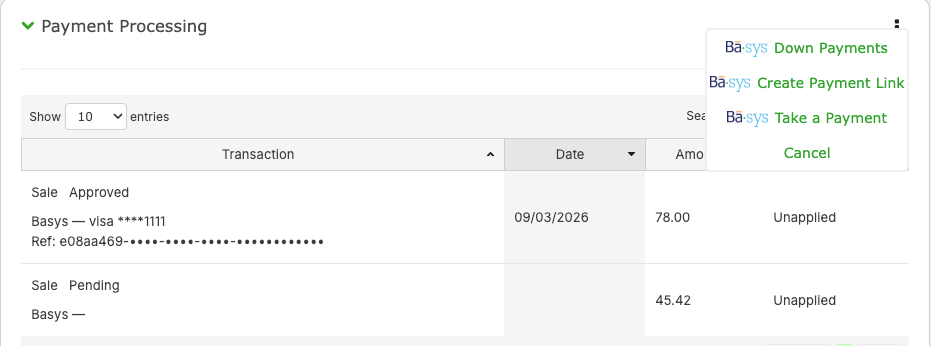
A customer's Basys activity lives on their account's Payment Processing card: a Transaction / Date / Amount / Applied To table (type Sale, Refund, Void, Capture; status Pending, Approved, Declined, Settled, Voided, Refunded), plus the same action menu: Down Payments, Create Payment Link, Take a Payment.
On a project, the Invoice View's Contract Payments menu offers Receive Payment and, with Basys connected, Create Payment Link and Take a Payment, beside a Contract Balance reflecting only Deposited payments. An Unapplied Payments card lists anything not yet applied to an invoice.

A Basys payment appears on your Payments report like any other payment, and exports to QuickBooks once it is Deposited.
Refunds and voids
Refunds and voids are not started from Contractors Cloud — issue them from your Basys portal. Contractors Cloud records what Basys reports back: a reversed transaction shows as Refunded or Voided in the transaction list above.
Remove Credential vs Disconnect
They do very different amounts of damage — read the confirmation before clicking either:
- Remove Credential — the Client ID/Client Secret only. Settings, Gateway ID, and merchant accounts are untouched, so past payments stay recorded — but charges you send afterward fail until a credential is installed again: "This is the credential ONLY. Your Gateway ID, Webhook Public Key, merchant accounts and ON/OFF setting are not touched… Use Disconnect if you want to remove the connection altogether."
- Disconnect — a full removal. Switches Basys Processing OFF, removes the credential and every merchant account, clears the Gateway ID and Webhook Public Key, and returns the page to not-connected.
Neither can recall a pay link already sent — it keeps working at Basys either way. After disconnecting, Contractors Cloud has lost the Gateway ID needed to match a payment on an old link back to this company, and placing it needs Contractors Cloud support. To only pause collecting without losing anything, set Basys Processing to OFF in Settings instead — a single switch to undo later.
Permissions
All three sit under Integration Permissions in User Setup; Reset to recommended leaves them alone.
| Permission | What it unlocks | If you don't have it |
|---|---|---|
| Is Administrator | Connect/Replace/Remove Credential; Disconnect; Basys Processing ON/OFF and Accepted Methods; install/deactivate/reactivate Merchant Accounts and defaults; Primary Company | "Connecting requires the Payments – Is Administrator permission — a payments administrator or a user administrator can grant it from your User Setup." |
| Can Export Invoices | Sync an invoice to Basys; request a down payment | "You do not have permission to send invoices to the payment processor." |
| Can Take Payments | Key a card or bank account with Take a Payment | "You do not have permission to take payments for this company." |
Troubleshooting
"Basys did not accept that Client ID and Client Secret."
Re-copy both values and click Connect again.
"Basys refused to authorize this connection."
Often the credential isn't set up as an Integrated Service Account on Basys's side. Contact Contractors Cloud support if re-entering it doesn't help.
"Basys could not be reached to verify those credentials."
A momentary outage. Wait a moment and click Connect again.
"A merchant account has to be set up before an invoice can be sent."
Open Company Settings → Payment Processing and install or reactivate an account under Merchant Accounts for the rail this invoice needs.
"A Due Date is required."
Set a due date on the invoice and sync again.
"Basys locks an invoice once it has been sent."
The invoice is already synced and frozen at Basys — replace it rather than editing it.
"This invoice was NOT sent to Basys: its open balance is $0.00."
Already paid off, or a credit reduced it to zero — nothing left to collect.
A payment shows up but the invoice or contract balance hasn't changed.
Still Pending, not yet Deposited — balances, credit, and QuickBooks export wait for settlement. Click Check settlement on the payment, or wait a day or two.
"This company does not accept card or ACH payments." / "…no merchant account set up yet…"
Either Accepted Methods in Settings is off for the rail needed, or on with no merchant account behind it. Check both in Company Settings → Payment Processing.
"This dialog's session token is missing or stale."
Close and reopen Take a Payment, then re-key it.
"Unable to reach the payment processor."
Contractors Cloud couldn't reach Basys sending the charge or sync. Nothing was sent; try again shortly.