
Document Templates
Document Templates are reusable pages of text that you write once for your company: form letters, contracts, scopes of work, signature blocks, phone scripts. When a project needs one, you import the template and it becomes that project's own document, with the customer, project and company details filled in.
Templates save retyping and keep your wording consistent across every job and every salesperson. You can also lock a template so users cannot change the wording on a project.
Document Templates are separate from Email Templates (see Email Templates).
Where to find them
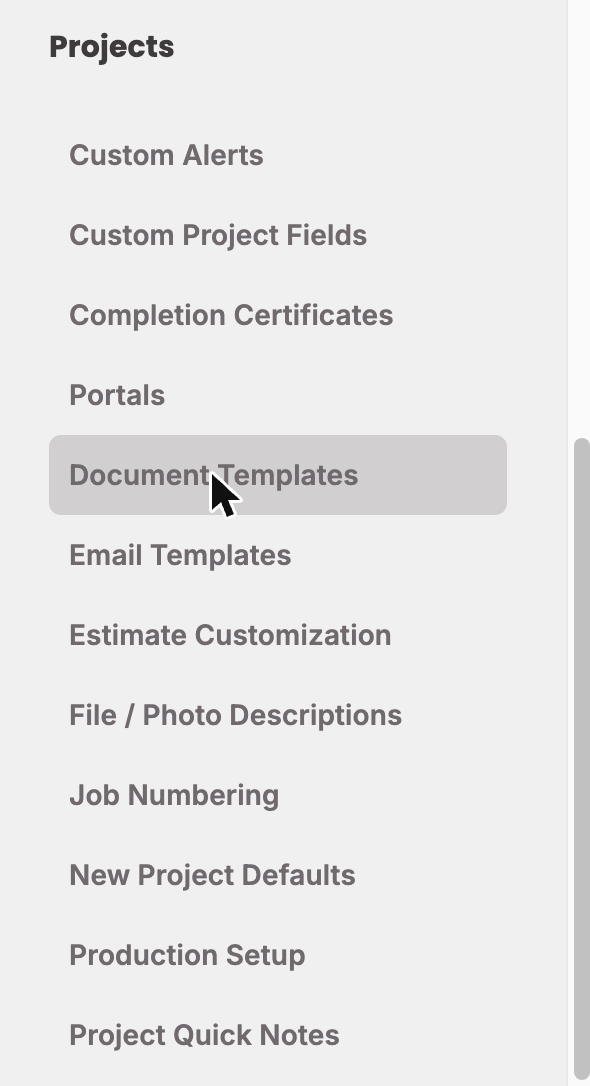
Go to Settings, Company Settings, and under Projects choose Document Templates. Templates belong to a company, so check you are in the right company first.
Document templates are managed by company executives: only an executive can add, change or delete a template. Anyone else who tries sees "You are not authorized to change document templates."
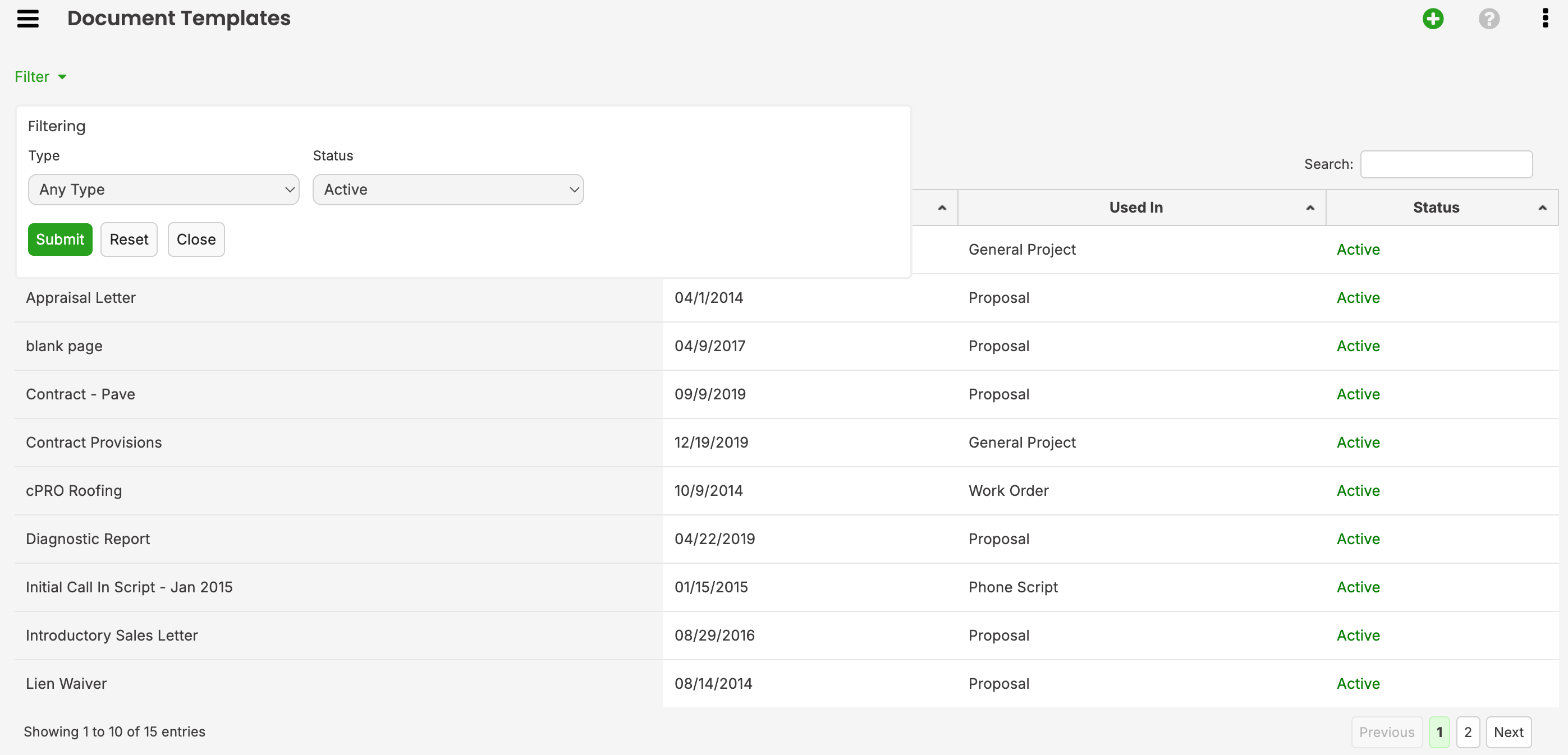
The template list
The list shows Document, Date, Used In and Status. Click a row to open the template. Use Filter to narrow it:
- Type: Any Type, General Project, Proposal, Work Order or Phone Script.
- Status: Show All, Active or Inactive. The list starts on Active.
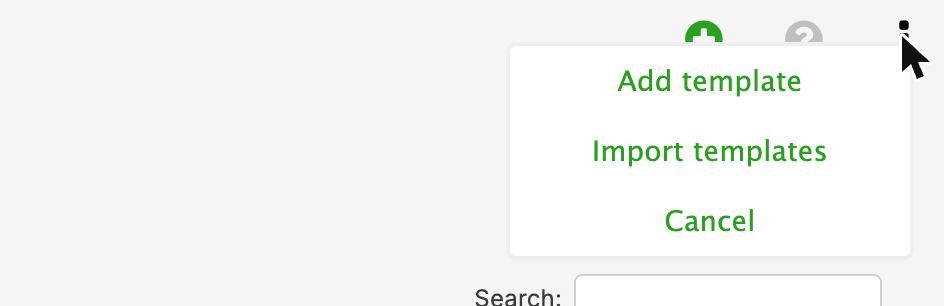
The green plus or the menu in the page header offers Add template and Import templates.
Quick start
- Click the green plus, or choose Add template from the menu.
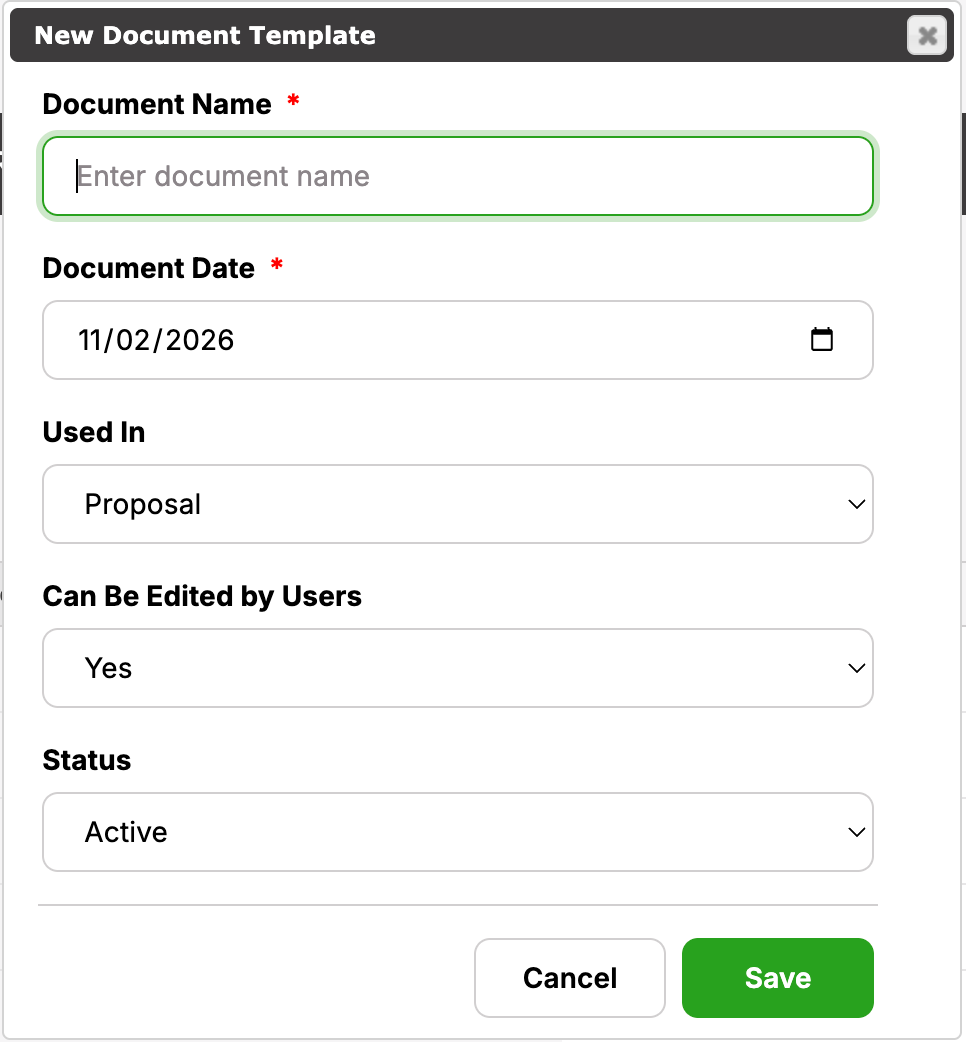
- In the New Document Template form, enter the Document Name and Document Date (both required), choose Used In, and click Save. For a template your sales team will add to proposals, choose Proposal.
- The template opens. Write the text in the Document Body card and click Save.
- Check that the template's Status is Active.
Details
- Document Name (required): the name users see when picking a template.
- Document Date (required).
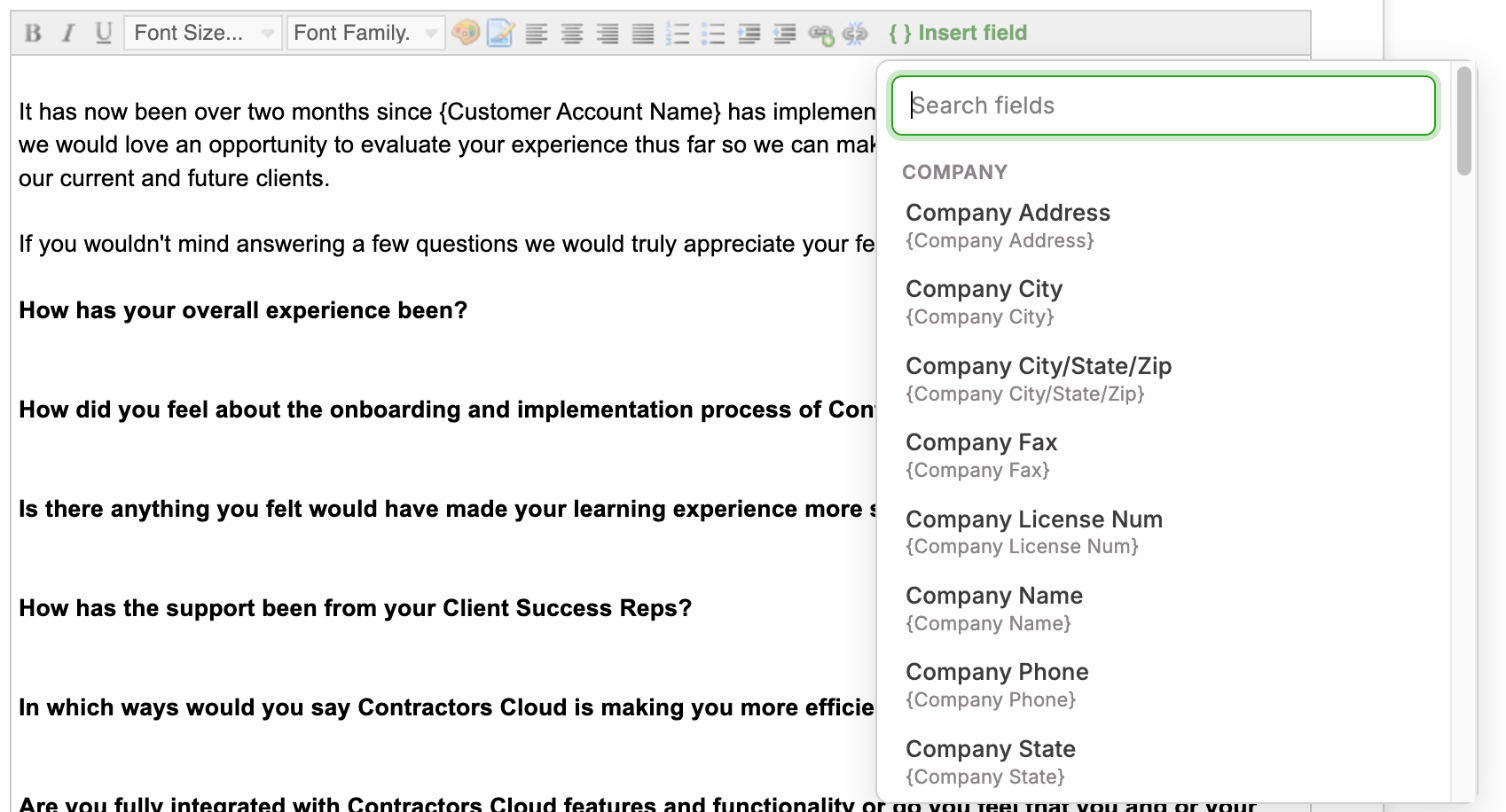
- Used In: General Project, Proposal, Work Order or Phone Script. This also decides which data fields the editor offers in Insert field. Only templates set to Proposal appear when a user adds a document to a project from a template or creates one inside a proposal.
- Can Be Edited by Users: Yes or No. With No, a project document made from the template opens read-only with the note "Document uneditable per Company Document Template". This is checked each time the document opens, so changing it affects documents already on projects.
- Status: Active or Inactive. Only Active templates can be imported.
To change these later, click Edit on the Overview or choose Edit details from the menu.
The template dialog
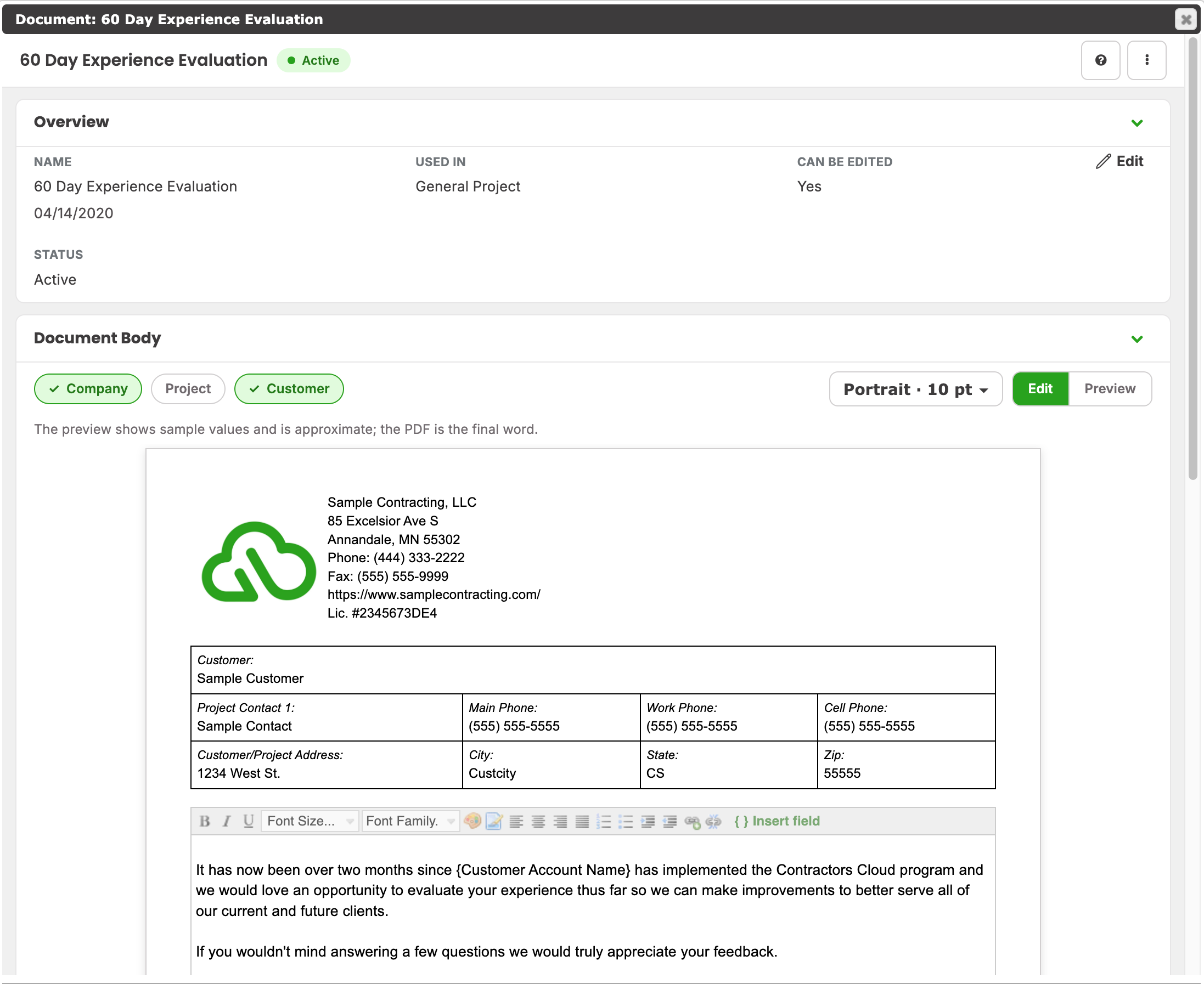
The title bar shows the template name and status. The cards are Overview (name, date, Used In, Can be edited, Status), Document Body and Used In. The menu has Print Preview, Edit details, Delete template and a Layout panel.
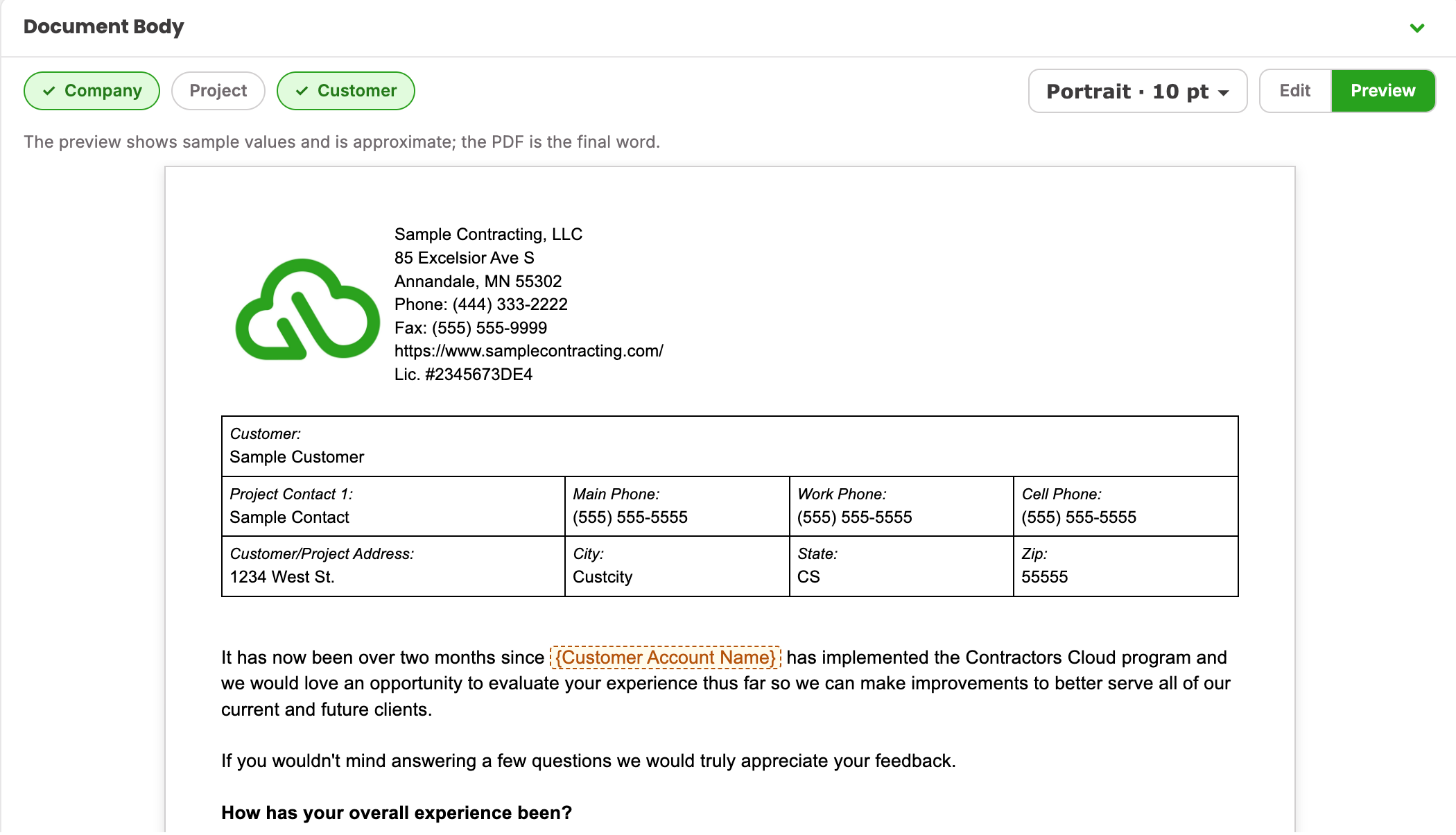
The Document Body editor works like the one in a project document. The Company, Project and Customer chips choose which blocks print above your text. Page setup sets Portrait or Landscape and the text size. The toolbar covers bold, italic, underline, size, font, colours, alignment, lists, indent and links, and { } Insert field adds data such as the customer's name. Edit | Preview shows the text with sample values. The preview shows sample values and is approximate; the PDF is the final word. The ... button beside Save offers Remove formatting and Clear all text. See Project Documents for the editor in detail.
Print Preview opens the template as a PDF. It shows text only; colours, sizes and alignment show in the project document's PDF.

Used In card
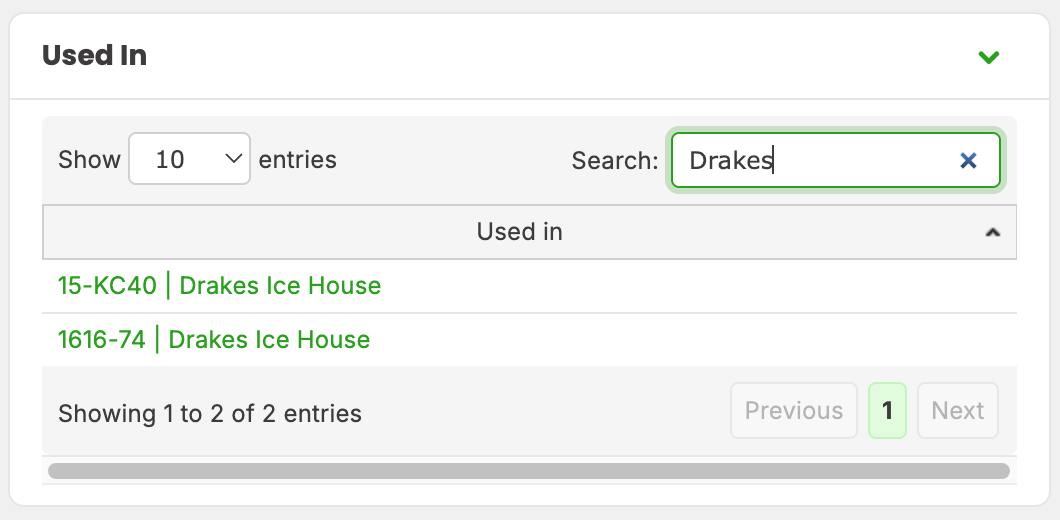
This card lists the projects that have a document made from this template (project number and customer). Click a row to open the project in a new tab.
How templates reach a project
On a project, the Proposals & Documents tab has an Import template choice on the Documents card, and a proposal can use Insert section then New document from template. Either one copies the template's text, print blocks and page setup into a new document on that project. Later edits to the template wording do not change documents already on projects. See Project Documents and Proposals.
Deleting a template
Choose Delete template and confirm. If no project uses the template it is deleted ("Company Document template [name] was deleted."). If projects use it, it is made Inactive instead ("Unable to delete document [name] since it is in use. Document was made inactive.") so those projects keep working.
Import templates
From the page menu, choose Import templates to copy templates from other companies in your account into the current one. Tick the templates you want and click Import checked. A template is skipped if the current company already has one with the same name. If your account has no other companies, the dialog shows "No other companies to import from."
Troubleshooting
"My template is missing when I add a document to a project."
Open the template and check that Used In is Proposal and Status is Active, and that it belongs to the project's company.
"You are not authorized to change document templates."
Only company executives can add, change or delete templates. Ask one to make the change.
"Users say the document is read-only."
The template's Can Be Edited by Users is set to No. Change it to Yes to allow editing.
Related: Project Documents | Proposals | Proposals & Documents